For the complete documentation index, see llms.txt. This page is also available as Markdown.

Detections

Through a combination of algorithms and human threat detection, Material does the bulk of the work for you in detecting suspicious emails, but there are like scenarios unique to your organization.

You have control over where malicious messages are sent, how you communicate with your employees about suspected phishing, messages that shouldn't create issues, etc.

The pre-built, Material default settings are effective in most situations. Customization is meant to help you tweak as needed, and to align closely with your security strategy.

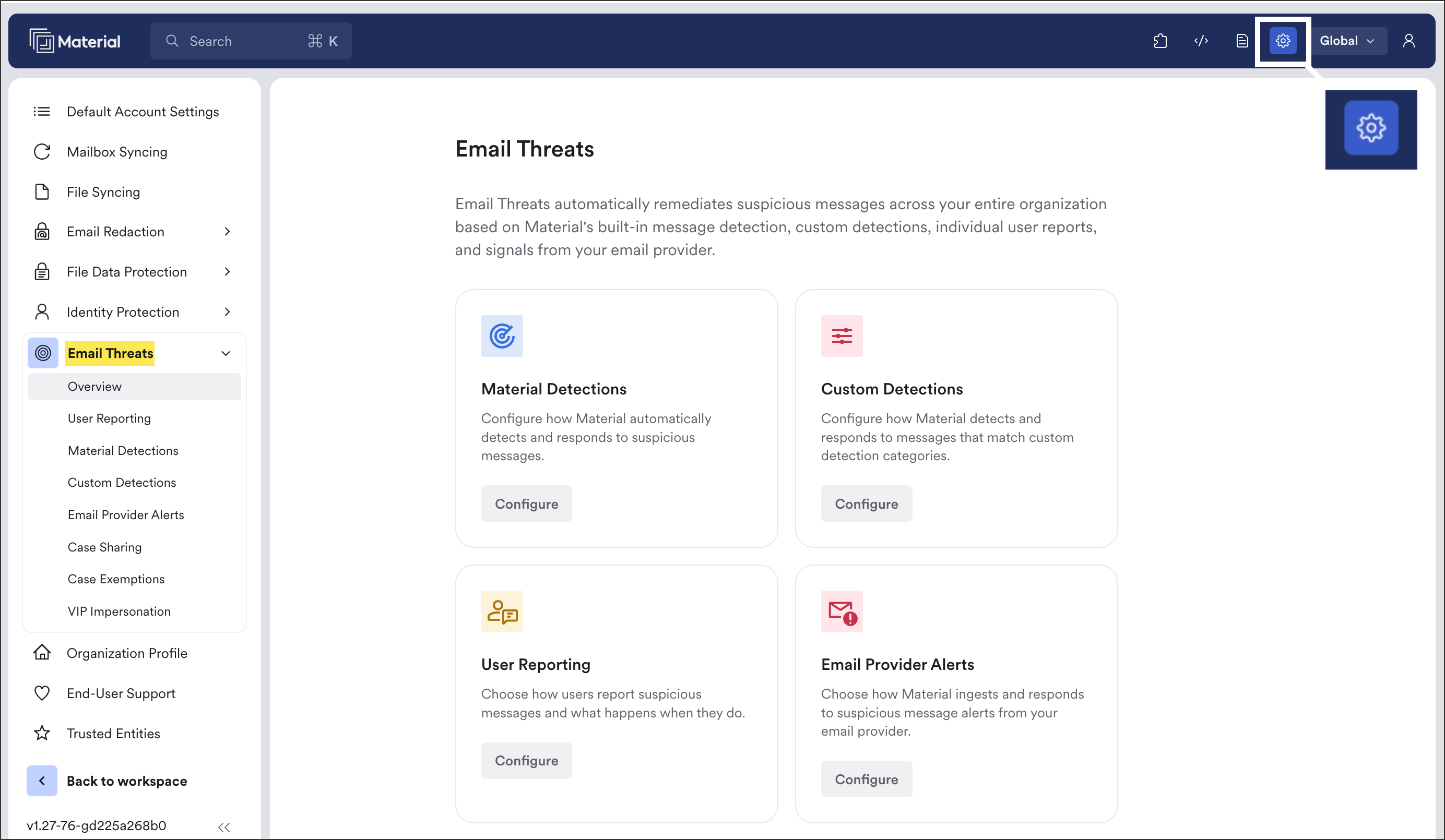
To account for your custom scenarios and issue creation preferences, configure default detection settings in these areas:

Detection Type
Options

No configuration needed, enabled by default

Choose how users report suspicious messages

Choose which Gmail alerts you would like to ingest from the Google Workspace Alert Center.

If something isn't already covered in another detection, define your own criteria for flagging messages.

Create known aliases, like a CEO or other frequently impersonated team member, and avoid triggering account protection erroneously

Prevent specific use cases from being added to issues after detection


Each of the above settings' individual details are described in the guides in this section. You need an admin, settings admin, or analyst role to edit them.

To navigate to Email Threats settings, from the left navigation expand Email Threats, expand Settings, then click Material Detection, Email Provider Alerts, or Issue Triage. For user reporting settings, from the left navigation expand User Reports, then click Settings.

the cog icon represents settings
Email Threats settings

Last updated

Was this helpful?