> For the complete documentation index, see [llms.txt](https://docs.material.security/llms.txt). Markdown versions of documentation pages are available by appending `.md` to page URLs; this page is available as [Markdown](https://docs.material.security/whats-new/previous-releases/1.15-to-1.43/version-1.31.md).

# Version 1.31

## ✨ New

### Okta SSF Integration

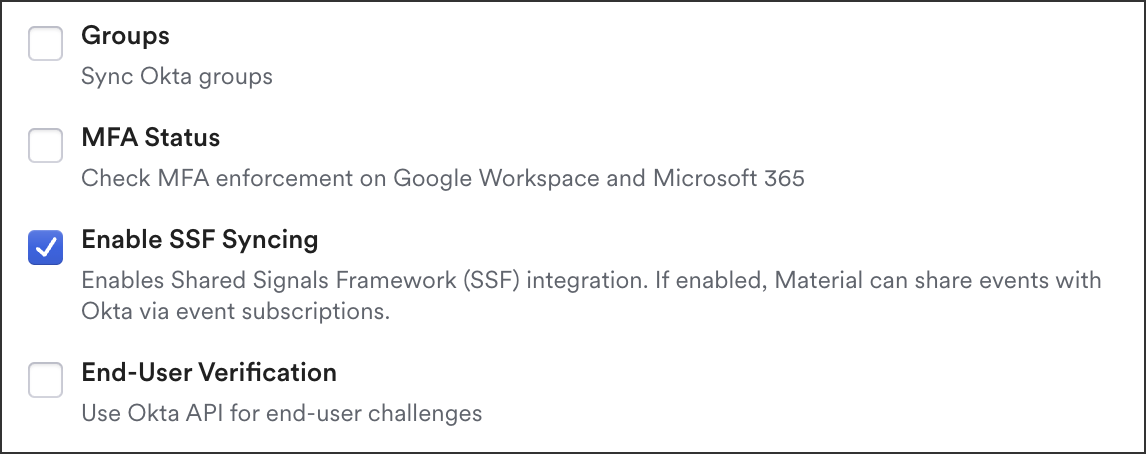
We’ve integrated with Okta’s Shared Signals Framework (SSF) to provide security event notifications within Okta environments. This enhances incident detection, response, and automation, ensuring that security-relevant events from Material (such as Issue changes) are seamlessly transmitted to Okta.

Learn how to integrate with [Okta SSF](/integrations/integration-fundamentals/identity-integrations/okta-ssf.md).

<figure><img src="https://content.gitbook.com/content/ksjM8NywYRSHu1IlfxdP/blobs/F4J70JfiPEjTpokoCLwP/image.png" alt="" width="375"><figcaption><p>Okta SSF Integration</p></figcaption></figure>

***

### Quick Actions in Message Details

Digging into a message just got smoother. We’ve added a dialog in **Message Details** so that you can quickly jump straight to message search, add a trusted sender, or block a sender. Fewer clicks, more control.

{% @arcade/embed url="<https://app.arcade.software/share/OZwYr6AzMATXkxdbDtT7>" flowId="OZwYr6AzMATXkxdbDtT7" %}

<details>

<summary>Create a Trusted Entity from an Issue</summary>

1. Begin in a specific issue.
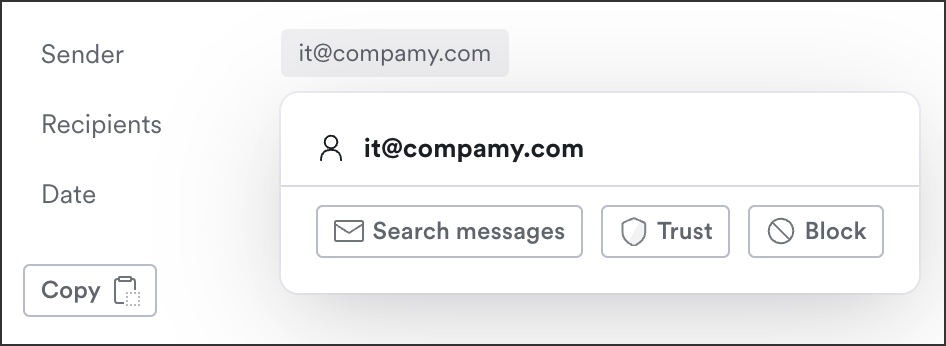
2. In the message details, click the **Sender Address**.

<figure><img src="https://content.gitbook.com/content/ksjM8NywYRSHu1IlfxdP/blobs/uGTW3Rf6ZDxYarOs2PAV/image.png" alt="" width="375"><figcaption><p>Click the sender, then click Trust</p></figcaption></figure>

4. From the quick action menu, click **Trust**.
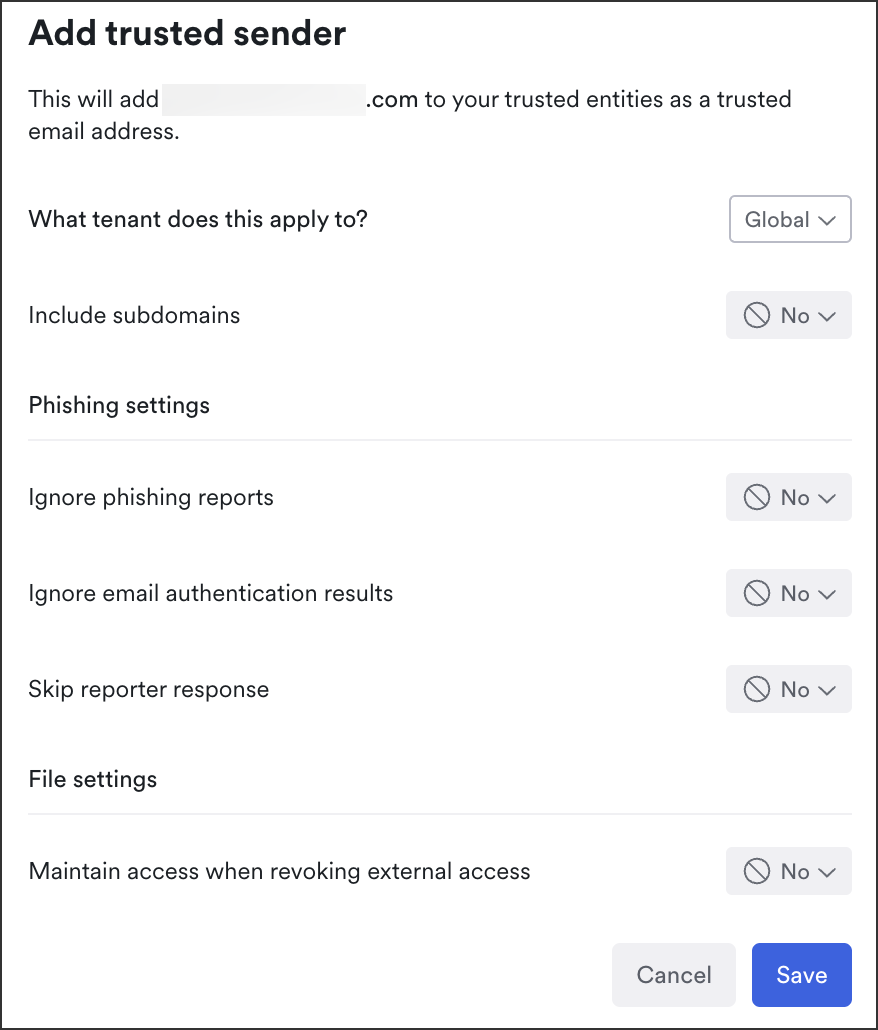
5. Choose to apply this to one tenant or globally, subdomain inclusion, and phishing and file settings:
6. Click **Save**.

   <figure><img src="https://content.gitbook.com/content/ksjM8NywYRSHu1IlfxdP/blobs/PgbAOPaWvaaplnwIbRmD/image.png" alt="" width="375"><figcaption><p>Trusted Entity Settings</p></figcaption></figure>

To reverse this action, click **Un-trust** from the same quick action menu in the issue.

</details>

<details>

<summary>Block a sender from an Issue</summary>

You can block a sender directly from the message details in an issue to prevent them or their associated domain from delivering messages into inboxes.

1. Begin in a specific issue.
2. In the message details, click the **Sender Address**.
3. From the quick action menu, click **Block**.

   <figure><img src="https://content.gitbook.com/content/ksjM8NywYRSHu1IlfxdP/blobs/uGTW3Rf6ZDxYarOs2PAV/image.png" alt="" width="375"><figcaption><p>Click the sender, then click Trust</p></figcaption></figure>
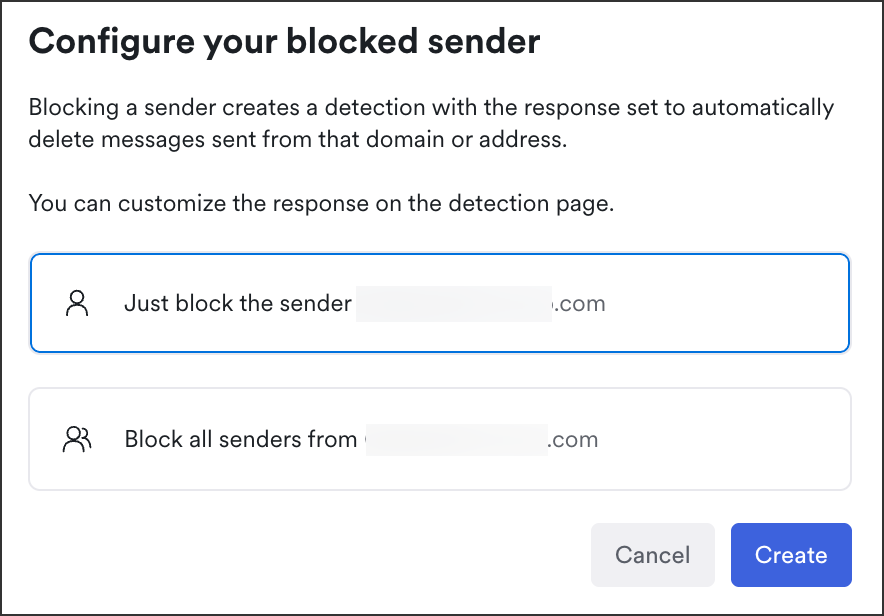
4. Choose to block just this sender's email address, or their entire domain:

   <figure><img src="https://content.gitbook.com/content/ksjM8NywYRSHu1IlfxdP/blobs/t4FG2EdBPVVpE1IvEs9a/image.png" alt="" width="375"><figcaption><p>Block one sender or any sender in their domain</p></figcaption></figure>
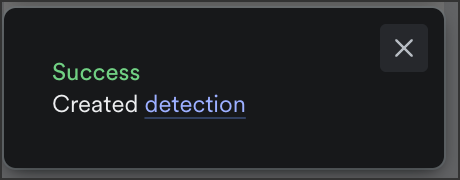
5. A custom detection is created deleting messages from that sender. Click the pop-up in the bottom left corner to view the detection (or from Detections, search for the domain to find the detection).

   <figure><img src="https://content.gitbook.com/content/ksjM8NywYRSHu1IlfxdP/blobs/b41p9ICZ7XlRM4fvaDTz/image.png" alt="" width="230"><figcaption><p>Sender blocked successfully</p></figcaption></figure>

   To unblock a sender, archive the detection.

{% hint style="warning" %}
It's possible to both Trust and Block a sender from the quick actions menu. If both actions are taken, we defer to the Trusted Entity and the sender is **not blocked,** regardless of existing or future detections.
{% endhint %}

</details>

<details>

<summary>Open message search from message details</summary>

1. Begin in a specific issue.
2. In the message details, click the **Sender Address**.
3. From the quick action menu, click **Search messages.**

<figure><img src="https://content.gitbook.com/content/ksjM8NywYRSHu1IlfxdP/blobs/uGTW3Rf6ZDxYarOs2PAV/image.png" alt="" width="375"><figcaption><p>Click the sender, then click Trust</p></figcaption></figure>

5. The message explorer opens pre-populated with a query searching for all messages from this sender.

</details>

***

## 🛠️ Updates & Bug Fixes

* **Event Subscription UI polish** - Cleaner, more intuitive, and easier on the eyes.
* **Table Columns, Remembered** - Column reordering in tables now sticks around, even after a page reload. Your layout, your rules.
* **Smarter Message Search Links** - Clicking into a message search now pre-fills the form with context. Less typing, more finding.
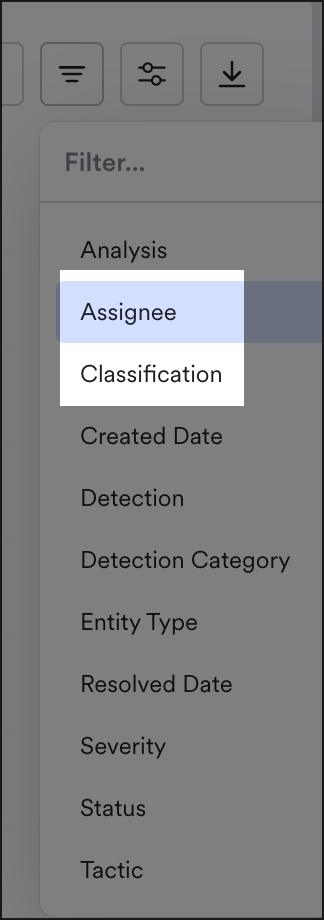
* **Issue Search Upgrades** - You can now filter issues by classification and assignee. Because precision is powerful.

  <figure><img src="https://content.gitbook.com/content/ksjM8NywYRSHu1IlfxdP/blobs/57dyw9MwJqp7HoMstSMz/image.png" alt="" width="162"><figcaption><p>New issue filters</p></figcaption></figure>

***

## 🛡️Email Threat Detection Tuning

* Enhanced detections that depend on sender reputation to include more robust context for advanced tactics.
* Added improved brand impersonation detections including specific coverage for several high profile brand targets.
* Added new high fidelity detections in response to specific observed campaigns and techniques.


---

# Agent Instructions
This documentation is published with GitBook. GitBook is the documentation platform designed so that both humans and AI agents can read, navigate, and reason over technical content effectively. Learn more at gitbook.com.

## Querying This Documentation
If you need additional information that is not directly available in this page, you can query the documentation dynamically by asking a question.

Perform an HTTP GET request on the current page URL with the `ask` query parameter, and the optional `goal` query parameter:

```
GET https://docs.material.security/whats-new/previous-releases/1.15-to-1.43/version-1.31.md?ask=<question>&goal=<endgoal>
```

`ask` is the immediate question: it should be specific, self-contained, and written in natural language.
`goal` is optional and describes the broader end goal you are ultimately trying to accomplish on behalf of the user. GitBook uses it to tailor the answer towards what is most useful for that goal.

The response will contain a direct answer to the question and relevant excerpts and sources from the documentation.

Use this mechanism when the answer is not explicitly present in the current page, you need clarification or additional context, or you want to retrieve related documentation sections.