> For the complete documentation index, see [llms.txt](https://docs.material.security/llms.txt). Markdown versions of documentation pages are available by appending `.md` to page URLs; this page is available as [Markdown](https://docs.material.security/workspace-protections/oauth-security/oauth-remediation-responses.md).
# OAuth Response
### Response
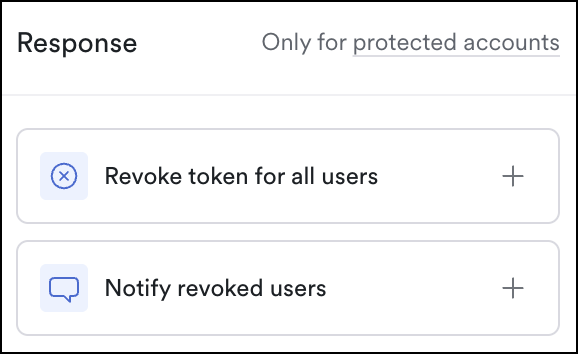
The OAuth Remediation Agent shares its investigation and analysis in issues based on the four OAuth Remediation detections. Two responses are available to take action on the issues:
* **Revoke token for all users** removes the OAuth access grant for every protected user who has connected the app, immediately terminating the app's access to their Google Workspace data. The app cannot reconnect unless a user re-authorizes it.
* [**Notify**](/getting-started/deployment-guides/your-first-30-days/6-enable-email-remediation/set-up-a-notification.md) **revoked users** sends a Slack direct message to each affected user when their token is revoked, letting them know the app has been blocked or removed. Messages only go out when [Slack end-user notifications](#set-up-end-user-notifications) are enabled.
{% hint style="success" %}
#### Configure your app classifications
Be sure you've [reviewed your app list and classified them](/workspace-protections/oauth-security/oauth-detections-and-classification.md#classification) so that default responses can trigger appropriately.
{% endhint %}
### Default Responses
Default responses trigger whenever an app is classified, whether the agent assigns the classification automatically or you apply it manually. By default, only **Malicious** apps get an automatic response: **Revoke token for all users** and **Notify revoked users**. **Suspicious**, **Overprivileged**, and **Unnecessary** apps default to no automatic response. You can adjust these at any time:
{% hint style="info" %}
If you've already saved a response for a classification, Material keeps your saved value. The defaults only apply to classifications you haven't saved.
{% endhint %}
1. From the left navigation, expand **OAuth Security**, then click **Settings**.
2. Scroll to **Response by classification**:
3. Select a response and save.
{% hint style="info" %}
**Notify revoked users** only sends messages when the **Slack** setting under **End-user notifications** is enabled. The setting is off by default, so [set up end-user notifications](#set-up-end-user-notifications) first.
{% endhint %}
### Manual Response
You can manually update the response for a specific app, if it differs from how you would respond to that classification in general:
1. From the workspace, navigate to **Explorer** > **Apps** > **OAuth**.
2. Click an **App** to open the App Display view, then **add or remove responses** on the right:
#### Revoke a single user's token
To revoke access for one user without affecting everyone else connected to the same app:
1. Navigate to **Explorer** > **Apps** > **OAuth**.
2. Select an app, then click the **Accounts** tab.
3. Find the user's row, then from the row actions click **Revoke app token**.
Confirming the action revokes that user's Google OAuth token, marks their row inactive, and records a revoke event on the app timeline. When end-user notifications are enabled, the timeline also records a **Notified user** event once the affected user has been told their access was revoked. Admin-initiated revocations are distinguishable from automated ones in the timeline, so you can tell them apart in an audit.
#### Revoke tokens for multiple accounts
To revoke access for several accounts at once:
1. Navigate to **Explorer** > **Apps** > **OAuth**.
2. Select an app, then click the **Accounts** tab.
3. Select the accounts you want, then click **Revoke app token** from the batch toolbar (or `⌘K`).
***
### Override remediation for an account or group
By default, accounts and groups inherit the global response settings. You can override this for specific accounts or groups, for example, to exclude service accounts from automatic remediation or apply stricter settings to high-privilege users.
1. From the workspace, navigate to **Explorer** > **Accounts (or Groups)**.
2. Select one or more rows.
3. From the bottom toolbar, click **Edit Settings**.
4. Under **Remediations**, scroll to **OAuth App Remediation**, then select **Override OAuth App Remediation** and toggle it **On**.
5. **Save**.
***
### Set up end-user notifications
The agent can notify end users when an app they've tried to use is blocked or revoked. Notifications must be configured to use this response.
#### Slack
Send Slack direct messages to users when an app is classified as Unnecessary, Overprivileged, Suspicious or Malicious.
#### Connect Slack
Slack notifications require a Slack connection. If your workspace isn't connected, the **OAuth Security** > **Settings** page prompts you to connect it first:
#### Enable
1. From **OAuth Security** > **Settings**, scroll to **End-user notifications**.
2. Under **Slack**, toggle the setting **On**:
The setting is off by default. While it's off, Material still revokes tokens, but affected users don't receive a Slack message, even when a response includes **Notify revoked users**.
#### Preview
Notifications are pre-configured by Material. Malicious classification notifications are slightly different from the other classifications. You can preview notifications in the settings.
Preview the notification in settings
---
# Agent Instructions
This documentation is published with GitBook. GitBook is the documentation platform designed so that both humans and AI agents can read, navigate, and reason over technical content effectively. Learn more at gitbook.com.
## Querying This Documentation
If you need additional information that is not directly available in this page, you can query the documentation by asking a question.
Perform an HTTP GET request on the following URL with the `ask` and `goal` query parameters:
```
GET https://docs.material.security/workspace-protections/oauth-security/oauth-remediation-responses.md?ask=&goal=
```
`ask` is the immediate question: it should be specific, self-contained, and written in natural language.
`goal` is what the user is ultimately trying to achieve, the reason they need the answer. Sharing it helps GitBook give you a better, more relevant answer. A goal is most helpful when it describes the outcome the user wants rather than restating the question. For example, with `ask=how do I create an API token`, a goal like `automate deployments from our CI pipeline` lets GitBook tailor the answer to that use case.
The response will contain a direct answer to the question and relevant excerpts and sources from the documentation.
Use this mechanism when the answer is not explicitly present in the current page, you need clarification or additional context, or you want to retrieve related documentation sections.