> For the complete documentation index, see [llms.txt](https://docs.material.security/llms.txt). Markdown versions of documentation pages are available by appending `.md` to page URLs; this page is available as [Markdown](https://docs.material.security/learn-more/risk-areas/email-threats/investigate/issue-details/detected-and-similar-messages.md).

# Detected and similar messages

{% hint style="info" %}
An issue is created when Material detects a threat or when a user reports a message. In both cases, Auto Threat Hunt runs automatically for up to 30 days to find similar messages across your organization.
{% endhint %}

Under Detected messages review the content. Take note of any suspicious language or tactics to drill down into. If any similar messages were added to the issue, the **Auto Threat Hunt** tab will display for you to review each message individually.

[**Detected messages**](/learn-more/risk-areas/email-threats/detect.md) are messages that meet the criteria for a Material detection, a custom detection, have been reported by an end user, or via an Email Provider Alert.

From the issue detail view, click the **Messages** tab then click a message row to drill into details.

## Message Details

* Hover over message analysis reasons to see definitions:

<figure><img src="https://3411262179-files.gitbook.io/~/files/v0/b/gitbook-x-prod.appspot.com/o/spaces%2FksjM8NywYRSHu1IlfxdP%2Fuploads%2FsSuzRNGdSXPQTxSdLW28%2Fimage.png?alt=media&#x26;token=25933cfd-8273-4570-854d-275a4f0427db" alt="Message analysis card showing a hover state with definitions for message analysis reasons." width="375"><figcaption><p>Hover over message analysis reasons for definitions</p></figcaption></figure>

* When **Material AI** flags a message, the analysis card shows the model name and version that produced the result. This makes AI-driven detections easier to audit, compare, and report on:

<figure><img src="https://3411262179-files.gitbook.io/~/files/v0/b/gitbook-x-prod.appspot.com/o/spaces%2FksjM8NywYRSHu1IlfxdP%2Fuploads%2F1z1RetCzyFOwSdmuaKMS%2Fimage.png?alt=media&#x26;token=9fa4e8bc-3071-43bb-ada9-cb5dbc5bcbd4" alt="Version 1.53 message analysis card showing the AI model name and version for a Material AI result."><figcaption><p>Message analysis now shows the AI model name and version.</p></figcaption></figure>

### Message Activity Timeline

**Message details** includes a full event timeline for each message. It displays detections, issue assignment, remediation, redaction, and analyst comments in one scrollable view.

Use the timeline to trace a message from first detection to final action without switching views. When the message belongs to an issue, related issue context also appears.

<figure><img src="https://3411262179-files.gitbook.io/~/files/v0/b/gitbook-x-prod.appspot.com/o/spaces%2FksjM8NywYRSHu1IlfxdP%2Fuploads%2Fag0zHHXhuVzXDElIfUx0%2Fimage.png?alt=media&#x26;token=4d32ab7b-bf54-4fb3-a3a6-8afcaca501c8" alt="version 1.53 message details timeline view showing detections, issue activity, remediation, and comments."><figcaption><p>Message details now show the full history for a message in one view.</p></figcaption></figure>

<details>

<summary><strong>Reduce false positive reports from trusted senders</strong></summary>

When one user reports a message, the resulting issue can apply remediation to other matching copies across the organization through Auto Threat Hunt, even when other recipients didn't consider the message suspicious.

This improves coverage and speeds up response, giving you one place to review what was reported, what matched, and what action was taken.

You control whether low-risk or legitimate messages stay visible during triage. The goal is full visibility before you add trusted senders as exceptions, or in cases where a partner should already be trusted but hasn't yet been added.

This is especially useful when:

* cautious users often report partner or vendor mail
* you want to review low-risk reports before messages are moved or removed from users' inboxes
* you haven't yet added a legitimate sender to Trusted Entities

For these cases, use this approach:

* Add trusted partners or known external senders as **Trusted Entities**.
  * Keep **Email Authentication** set to **Do not trust messages that fail authentication**. This reduces spoofing risk.
* Investigate legitimate reports and add senders to Trusted Entities when needed.
* Educate users to move unwanted mail from trusted senders to Junk or Spam in their email client. If reporter response is enabled for that entity, the reporter acknowledgement should already indicate the message is legitimate and doesn't require security review.

Once a sender is configured as a Trusted Entity, Material handles reported messages from that sender based on your Trusted Entity settings. Depending on how the entity is configured, Material may not create an issue, or may create an issue and mark the message as safe. In both cases, Material doesn't apply a remediation such as **Move to Spam**. If reporter response is configured for that entity, users may also receive an acknowledgement that the message is legitimate.

In practice, this setup lets you review low-risk user reports first, then decide whether the right fix is user education, a new Trusted Entity, or a different response.

</details>

## **Content**

View the original message's content in an HTML preview, at the HTML Source, or as Plain Text. Switch between views in the message tab:

<figure><img src="https://3411262179-files.gitbook.io/~/files/v0/b/gitbook-x-prod.appspot.com/o/spaces%2FksjM8NywYRSHu1IlfxdP%2Fuploads%2Fgxgc4hamHc24SWaJ7hJy%2Fimage.png?alt=media&#x26;token=577759b6-92c1-41ba-a189-ca577fecae1f" alt="Message details content view showing options to switch between HTML preview, HTML source, and plain text."><figcaption><p>Switch between HTML preview, HTML source, and plain text</p></figcaption></figure>

### **Accounts**

Click to see details about what accounts this message has affected, who reported it, what folder the email landed in, what the remediation was, and any action that was taken like defanging a link.

***

### **Links**

View any links that were included in the email, sorted by domain.

***

### **Attachments**

View the metadata for attachments included with the email including images. Download to see the actual attachment, **but be very careful about doing this as these attachments are potentially malicious.** Before you download anything, be sure to click **Search** to allow [VirusTotal](https://www.virustotal.com/gui/home/upload) to assess the attachment for potential malware, viruses, etc.

Actions detail anything a user did with the defanged[^1] links or attachments, meaning a user clicked a link we previously modified (i.e. speedbumped),

***

## Auto Threat Hunt Messages

**Auto Threat Hunt messages** are messages that have features in common with user reported messages, for example same sender, same body content, same link destinations. Messages may end up in Auto Threat Hunt but not be detected if the detection is coming from a user report and there is no other detection standard to meet.

From the issue detail view, click the **Message** tab for a list of all messages in the issue.

### **Update Auto Threat Hunting or Remove a message from the issue**

Messages can be added to an issue based on many values including Sender, Sender Domain, Subject, and Links, etc. Update what messages match to this issue in the Auto Threat Hunt card:

<figure><img src="https://3411262179-files.gitbook.io/~/files/v0/b/gitbook-x-prod.appspot.com/o/spaces%2FksjM8NywYRSHu1IlfxdP%2Fuploads%2FraH6WLwbIxWc115lnwme%2Fimage.png?alt=media&#x26;token=198ab8b7-073b-4607-8a72-fa19cb64dea9" alt="auto threat hunt response" width="563"><figcaption><p>Issue Detail View</p></figcaption></figure>

### Remove one message from an issue or disable Auto Threat Hunt

{% hint style="info" %}
**Disable Auto Threat Hunt vs. Remove From Issue**

With Auto Threat Hunt, similar looking messages to the first detected message are added to an issue, (i.e. look for same sender, matching content, links to same domains, etc). If you disable Auto Threat Hunt, you're saying don't add issues for things like false positives, **but leaves any previously similarly matched messages in the issues**.

Remove from issue removes this specific message entirely from the issue, **and also** disables Auto Threat Hunt for that message type.

One use case here is if the issue is matching on a lot of false positives but the reported email is actually malicious, you can stop Auto Threat Hunt to stop ingesting false positives but keep remediations on for the original email and any other true positive emails. In this case you could:

1. Click **Disable Auto Threat Hunt** (see below).

2. Click **Remove from Issue** on false positives (leaving only true positives).

3. [Remediate](/learn-more/risk-areas/email-threats/auto-respond.md) true positives via the issue.
   {% endhint %}

4. From the issue detail view, click the **Messages** tab.

5. Check the **box** next to any message you want to remove.

6. From the bottom toolbar, click **all actions** then choose the action:

   <figure><img src="https://3411262179-files.gitbook.io/~/files/v0/b/gitbook-x-prod.appspot.com/o/spaces%2FksjM8NywYRSHu1IlfxdP%2Fuploads%2F9arxwhfOcNwbtDDkjzcy%2Fimage.png?alt=media&#x26;token=ce5def05-4a3e-47e3-8829-4d162e42623a" alt="Bulk actions menu in the Messages tab with options to remove a message from an issue or disable Auto Threat Hunt."><figcaption><p>Use bulk actions to remove a message from an issue</p></figcaption></figure>
### Download

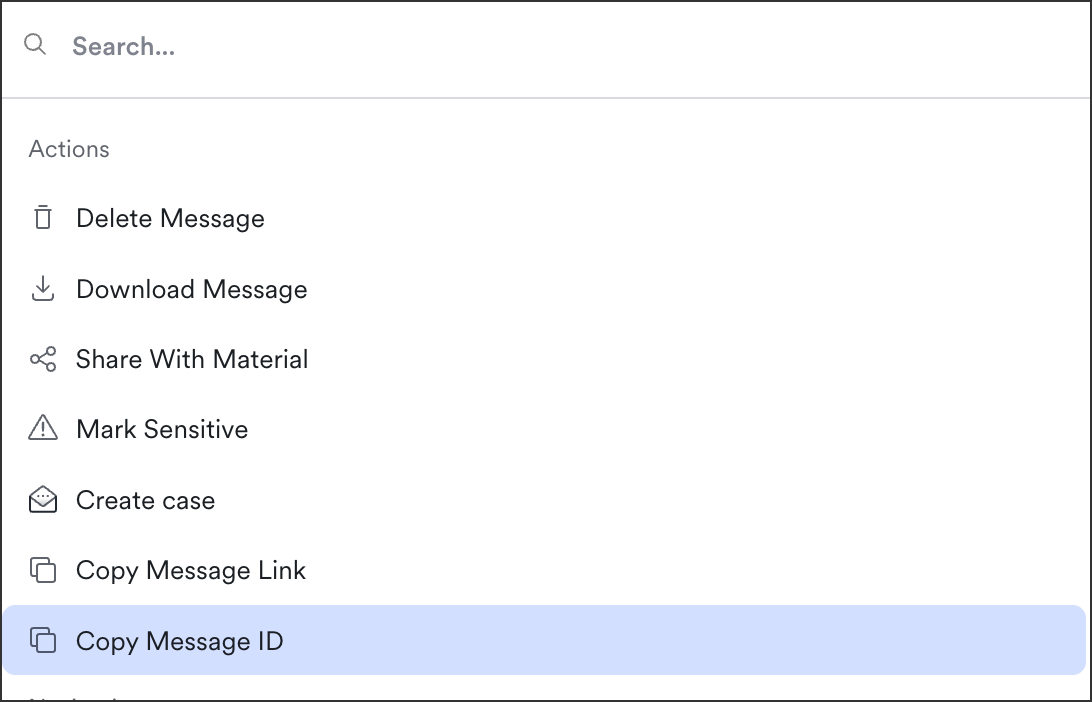
To download a .eml file of the message contents, from the message click **All Actions** or use the keyboard shortcut **⌘K**, then choose **Download Message**. This is useful if you want to send the file spam scorers and other content checkers, load into a database or other storage.

Sometimes you can also use this to report abuse. If the attacker is frequently sending via a third-party, you can send a report to that third-party and they often ask for a .eml to review.

***

### **Copy Message ID or Link**

Sometimes you need to share a message ID or Link with us so we can troubleshoot.

1. From the issue detail view, click the **Messages** tab.
2. Click the message row to open **Message Details**.
3. Click **All actions** (or use the keyboard shortcut `⌘K`)
4. Click **Copy Message ID**:

<figure><img src="https://content.gitbook.com/content/ksjM8NywYRSHu1IlfxdP/blobs/nlO5FRA8TuX3E11hCOc0/image.png" alt="Message Detail View All Actions menu showing the Copy Message ID option." width="375"><figcaption><p>Message Detail View > All Actions</p></figcaption></figure>

You can also complete these steps after searching in the Message Explorer.

[^1]: URL defanging is a process that modifies potentially harmful links, making them non-functional and safe to share


---

# Agent Instructions
This documentation is published with GitBook. GitBook is the documentation platform designed so that both humans and AI agents can read, navigate, and reason over technical content effectively. Learn more at gitbook.com.

## Querying This Documentation
If you need additional information that is not directly available in this page, you can query the documentation dynamically by asking a question.

Perform an HTTP GET request on the current page URL with the `ask` query parameter, and the optional `goal` query parameter:

```
GET https://docs.material.security/learn-more/risk-areas/email-threats/investigate/issue-details/detected-and-similar-messages.md?ask=<question>&goal=<endgoal>
```

`ask` is the immediate question: it should be specific, self-contained, and written in natural language.
`goal` is optional and describes the broader end goal you are ultimately trying to accomplish on behalf of the user. GitBook uses it to tailor the answer towards what is most useful for that goal.

The response will contain a direct answer to the question and relevant excerpts and sources from the documentation.

Use this mechanism when the answer is not explicitly present in the current page, you need clarification or additional context, or you want to retrieve related documentation sections.
