> For the complete documentation index, see [llms.txt](https://docs.material.security/llms.txt). Markdown versions of documentation pages are available by appending `.md` to page URLs; this page is available as [Markdown](https://docs.material.security/working-with-issues/respond/configure-default-responses.md).
# Configure Default Auto-Responses
When you set a response at the detection level, any issue created by this detection will follow the same workflow unless you change the response at the issue level. Default fixes can be set for many detections, but not all. Some responses must be [manually set individually at the issue level](/working-with-issues/respond/respond-to-an-issue-manually.md), while other responses can only be set as default detection responses.
## Set default responses
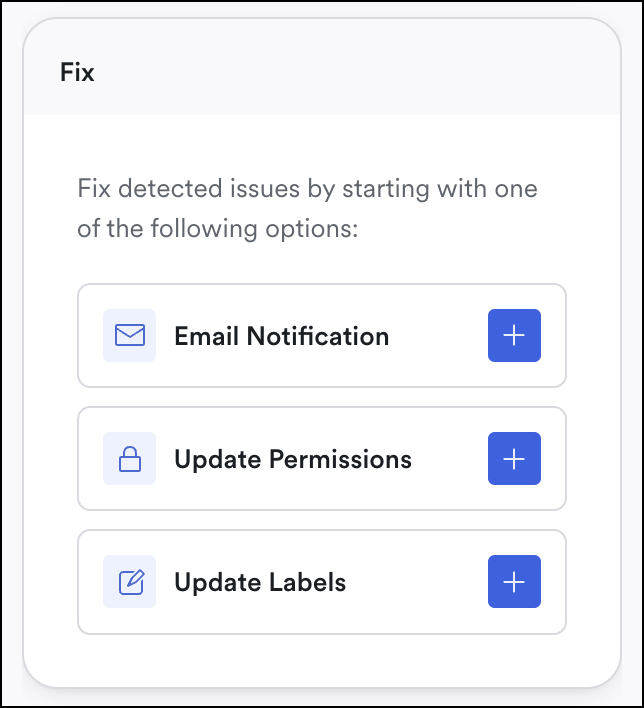
To configure a detection's default response, open the [Detection detail view](/detections/detections-overview.md#detection-detail-view). Then add your response preferences.
{% hint style="info" %}
Not all detections allow for default responses; [set responses individually at the issue level for those](/working-with-issues/respond/respond-to-an-issue-manually.md).
{% endhint %}
Default response
The response workflow **begins when the event or state is triggered**. If you edit the default response in the detection, it applies to any issues going forward (but doesn't apply retroactively).
There are four standard response options you can choose from. You can use each response option once in your default workflow. Some detections have additional response issues based on their detection logic.
### Email Notification
Default response
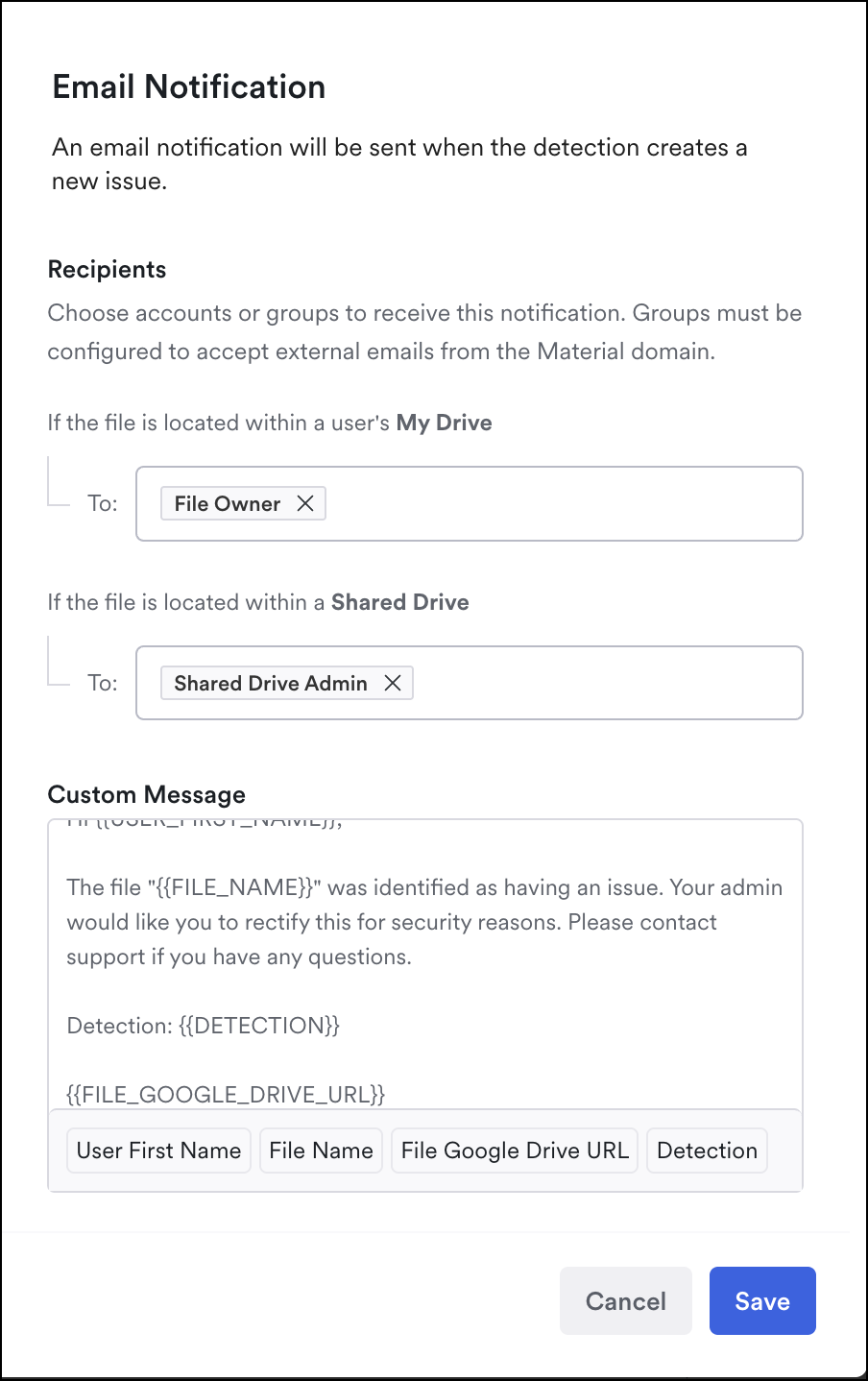
Send an email notification any time the detection creates a new issue. You can specify which email or group based on the file location: a user's or a shared drive. The email address must exist in Material.
The email notification comes with a default subject and message, and you can change both as needed:
* **Custom Subject**: replace the default subject. Click the variables to insert personalized text, such as the detection or file name. If you leave the subject blank, Material uses the default.
* **Custom Message**: edit the default message. Click the variables to insert personalized text, including a link to the file in Google Drive.
If a subject or message includes a variable Material doesn't recognize, Material falls back to the default template and still sends the email.
### Grace Period
Default response
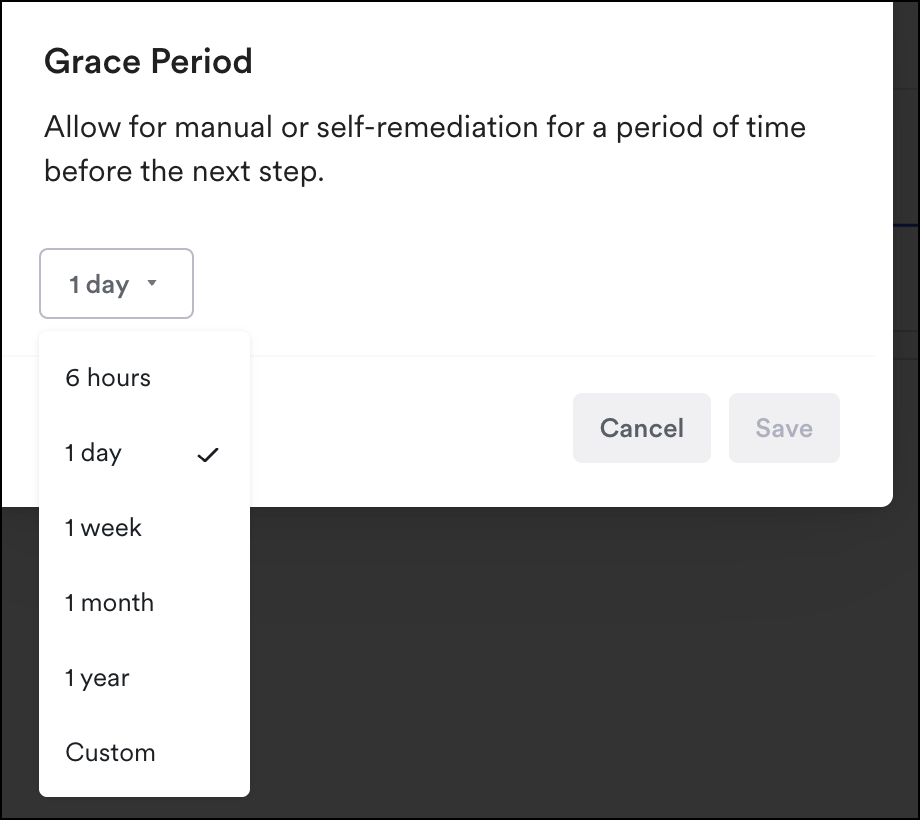
Use Grace Periods to give users time to self-remediate, or to allow you time to manually create a response or analyze. A response can open with a grace period, so the file owner gets a window to fix the sharing before any notification goes out. A grace period always needs an action after it, and you can't place two of them back to back.
### Update Permissions
Default response
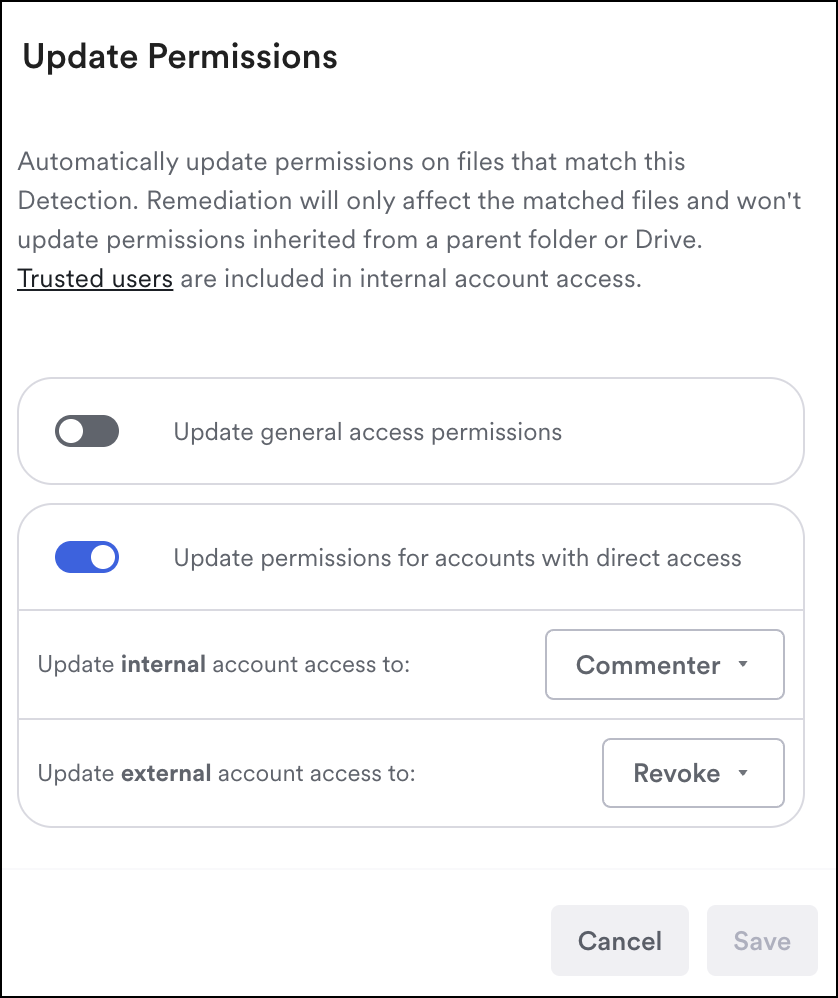
Tightening permissions on a file involved in an issue can be an effective remediation. Toggle the options on and choose your desired roles based on Google or Microsoft 365 parameters.
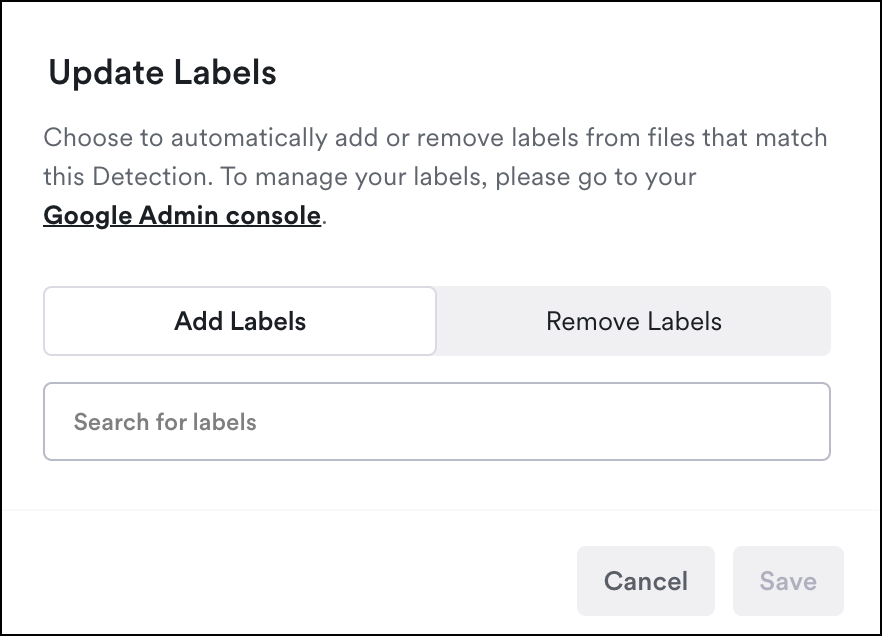
### Update Labels
Default Fix
You can add or remove Google labels automatically as part of your fix workflow.
---
# Agent Instructions
This documentation is published with GitBook. GitBook is the documentation platform designed so that both humans and AI agents can read, navigate, and reason over technical content effectively. Learn more at gitbook.com.
## Querying This Documentation
If you need additional information that is not directly available in this page, you can query the documentation by asking a question.
Perform an HTTP GET request on the following URL with the `ask` and `goal` query parameters:
```
GET https://docs.material.security/working-with-issues/respond/configure-default-responses.md?ask=&goal=
```
`ask` is the immediate question: it should be specific, self-contained, and written in natural language.
`goal` is what the user is ultimately trying to achieve, the reason they need the answer. Sharing it helps GitBook give you a better, more relevant answer. A goal is most helpful when it describes the outcome the user wants rather than restating the question. For example, with `ask=how do I create an API token`, a goal like `automate deployments from our CI pipeline` lets GitBook tailor the answer to that use case.
The response will contain a direct answer to the question and relevant excerpts and sources from the documentation.
Use this mechanism when the answer is not explicitly present in the current page, you need clarification or additional context, or you want to retrieve related documentation sections.