> For the complete documentation index, see [llms.txt](https://docs.material.security/llms.txt). Markdown versions of documentation pages are available by appending `.md` to page URLs; this page is available as [Markdown](https://docs.material.security/working-with-issues/investigate.md).
# Investigate
An issue represents a single threat identified by a [detection](/email-protections/email-threats/detections.md). Issues are created when detection logic matches an entity[^1] in your Google Workspace or Microsoft 365 environment.
As issues are created, you should:
1. Analyze the [evidence](#evidence) presented in the issue
2. Change default responses if needed
## Issues Page and Issue Detail View
The **All Issues** page allows you to view and prioritize issues based on their severity.
You can group issues by **entity type** (File, Tenant, Message, Account, Group, App) and search by issue name. To group issues by type or detection, click **Display Options:**
Display Options
Additionally, you can filter issues by status, severity, entity type, and adjust the columns displayed.
* The Trend reports on the right display a high level overview of issue creation. Use them to identify potential spikes and to see issue creation increase or decrease over time.
* Consider the best strategy for triaging your issues — sorting by severity or status, group by entity, etc.
From the **All Issues** page, click an Issue name to open the **Issue detail view**. Depending on the entity[^2], different properties display in the **analysis card**:
Issue detail view
Learn more about analysis card properties in [**Evidence**](/working-with-issues/investigate/evidence.md)**.**
### Copy Issue ID
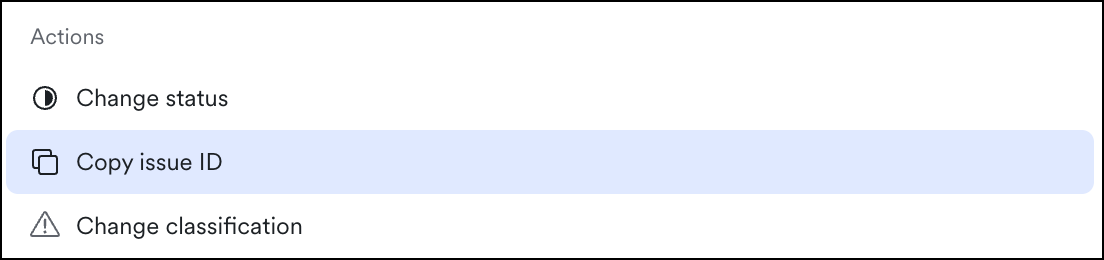
When troubleshooting, you may be asked to share the issue with us and/or to send us the Issue ID. To copy this issue ID onto your clipboard, use the `⌘K` shortcut then click **Copy issue ID**.
⌘K opens shortcuts
### Filter Definitions
Analysis
Material automatically assigns analysis labels to issues when suspicious emails are detected. We're constantly updating the objectives we identify based on current trends so this list can update frequently.
* **Credential Theft**: Unauthorized access to sensitive information, like usernames and passwords
* **Brand Impersonation**: Disguising a phishing attempt as a legitimate brand to deceive users into providing sensitive information
* **Fake Login Page**: A fraudulent webpage that mimics a legitimate login site to capture user credentials
* **Fraud and BEC (Business Email Compromise)**: targeted scams exploiting email to manipulate business transactions
* **Callback Fraud**: a scam where attackers trick victims into calling a fake number, leading to financial theft or personal information compromise
* **Crypto Fraud**: Involving cryptocurrencies to trick individuals into losing money or providing sensitive information
* **Extortion**: coercing someone into paying money or providing information through threats, often involving the release of sensitive data
* **Gift Card Fraud**: victims are deceived into purchasing gift cards and sharing codes, often to pay for nonexistent services or debts.
* **Invoice Fraud**: attackers send fake invoices to businesses, tricking them into making unauthorized payments
* **Payroll Fraud**: manipulation of payroll processes to steal funds, often by creating fake employees or altering payment amounts
* **PII Theft**: unauthorized acquisition of personally identifiable information (PII), such as names, addresses, and social security numbers, for malicious use
* **Malware and Ransomware**: Malware is malicious software designed to harm systems; ransomware encrypts files, demanding payment for decryption. Both can be delivered via email phishing attacks.
* **Malware Link**: A URL that directs users to download malicious software, often disguised within phishing emails or messages to compromise systems
* **Malware Payload**: the malicious code or software delivered by an attack, designed to execute harmful actions on a victim's system
* **Ransomware Link**: a URL that leads to the download or execution of ransomware, typically disguised in phishing emails to infect the victim's device
* **Ransomware Payload**: the specific code or malicious software within ransomware that encrypts files, rendering them inaccessible until a ransom is paid.
Classification
You can filter by issue classification. Some classifications apply to email issues, and others apply to OAuth app issues:
Classification filter
* **Malicious**: the message or app is harmful. For email, this includes threats such as malware, phishing attempts, or links to fraudulent websites. For OAuth apps, there's clear evidence the app is acting against your organization, strong enough to revoke it without further investigation.
* **Overprivileged** (OAuth apps): the app behaves in line with its stated purpose, but its granted scopes go well beyond what it needs or uses.
* **Safe**: the message contains no threats and poses no risk to the recipient, or the app comes from a reputable publisher, has appropriate scopes, and is actively used.
* **Spam** (email): unsolicited bulk email, typically advertising, that clutters inboxes but isn't necessarily harmful.
* **Suspicious** (OAuth apps): the app shows trust gaps, anomalies, or concerning data practices that warrant investigation, but the evidence isn't conclusive.
* **Unknown** (email): Material couldn't classify the issue with high confidence, so it needs your review.
* **Unnecessary** (OAuth apps): the app is benign and appropriately scoped, but there's no longer a reason to keep it installed. For example, it's unused or redundant with another app.
Learn more about [user report classifications](/email-protections/user-reports/user-report-auto-classification.md) and [OAuth app classifications](/workspace-protections/oauth-security/oauth-detections-and-classification.md#classification-definitions).
Detection
Filter by a specific detection. Find detection names and descriptions in the [Detection View and Detection Detail View](/detections/detections-overview.md).
Detection Category
We've grouped detection types into a few typical categories to help you triage quickly based on your strategy:
Detection Category filter
Detection Type
You can filter by the type of detection that created the issue:
Detection Type filter
* **Email Threat**: issues created by email threat detections, such as a malicious message or a user-reported email. Like threats, these are tied to a specific event, and you resolve them once your investigation is complete.
* **Threat**: event-based detections that identify a suspicious event at a specific point in time, such as unusual account activity. You resolve these manually once your investigation is complete.
* **Vulnerability**: state-based detections that identify risks that could lead to future threats, such as a misconfiguration. Material resolves these automatically when a later scan shows the risk no longer exists.
Learn more about [detection types](/detections/detections-overview.md#type).
Entity Type
Learn more about [entity types here](/detections/detections-overview.md#entity-type).
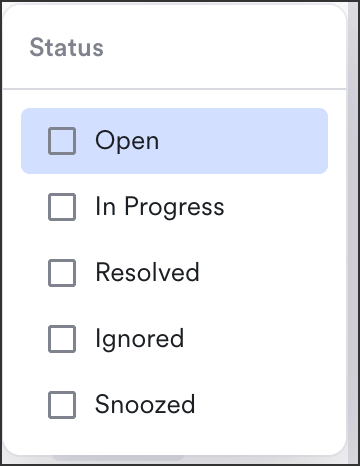
Status
Status filter
* **Open**: New issue are labeled open
* **In Progress**: These issues have been marked in progress by a team member.
* **Resolved**:
* [State-based issues](#user-content-fn-3)[^3] are auto resolved on a cadence as state changes are registered.
* You, as the analyst, need to close [event-based issues](#user-content-fn-4)[^4]. Once you're confident all actions have been taken, change the status to **resolved**. (An ignored status also closes the issue/removes it from the active issue count).
* If a new email matches the same threat pattern to an issue that has already been manually resolved, it's attached to the existing issue but doesn't reopen it. The resolved status is preserved. To act on the new message, reopen the issue manually first.
* **Ignored**: These issues have been marked ignored by a team member, to indicate they're not a threat or need no other action.
* **Snoozed**: Users can snooze issues for a custom amount of time. Choosing this filter displays all those snoozed issues.
Severity
Learn more about [severity](/detections/detections-overview.md#severity-status-and-response) here.
Tactic
* **Account Compromise**: occurs when attackers gain unauthorized access to a user's account, often through stolen credentials
* **Compromised External Sender:** an external email account that has been hacked, used to send phishing or fraudulent messages to unsuspecting recipients
* **Compromised Internal Sender**: an internal email account that has been hacked, typically used to launch phishing attacks or manipulate communications within an organization
* **Thread Hijacking**: taking control of an existing email conversation to deceive participants, often used in phishing attacks to gain sensitive information or money
* **External Redirection**: directs users to malicious websites by misleading them into clicking links that appear legitimate
* **Legitimate Service Abuse**: exploiting trusted platforms, like Dropbox notifications, to trick users into revealing sensitive information
* **Obfuscation**: disguises malicious links or content to confuse users, making it harder to identify fraudulent intentions
* **Social Engineering**: manipulates individuals into divulging confidential information by exploiting trust and psychological tactics
* **Spoofing**: faking identities to deceive users into revealing sensitive information through fraudulent emails or websites
You can also filter by **Assignee**, **Classified By** (Admin, Material, or unknown), **Detection Origin** (Admin[^6] or Material), **Recipient**, **Related To** (an account, message, file, or other entity tied to the issue), **Response** (the response actions on the issue), **Created Date**, and **Resolved Date**.
## Overview Dashboard
When you log in to Material, you land on the Overview Dashboard. This is a great place to begin investigating as it highlights key security insights ready for review or action including. Drill down into any number to open a pre-filled issue search or click any issue title to open the issue detail view.
{% hint style="info" %}
This dashboard data updates on a daily cadence, and reflects activity through the previous day.
{% endhint %}
Overview Dashboard
[^1]: an account, file, group, message, or tenant
[^2]: File, Tenant, Message, Account, Group, App
[^3]: Identifies potential issues that could lead to future threats. These are ongoing and resolved when a future Material scan shows the risk no longer exists.
[^4]: Identifies a suspicious event that requires further investigation. These detections occur at specific points in time and can be closed once the investigation is complete and the threat
[^5]: A specific method or strategy used in phishing attacks to manipulate victims into disclosing sensitive information or performing actions.
[^6]: Custom detection
---
# Agent Instructions
This documentation is published with GitBook. GitBook is the documentation platform designed so that both humans and AI agents can read, navigate, and reason over technical content effectively. Learn more at gitbook.com.
## Querying This Documentation
If you need additional information that is not directly available in this page, you can query the documentation by asking a question.
Perform an HTTP GET request on the following URL with the `ask` and `goal` query parameters:
```
GET https://docs.material.security/working-with-issues/investigate.md?ask=&goal=
```
`ask` is the immediate question: it should be specific, self-contained, and written in natural language.
`goal` is what the user is ultimately trying to achieve, the reason they need the answer. Sharing it helps GitBook give you a better, more relevant answer. A goal is most helpful when it describes the outcome the user wants rather than restating the question. For example, with `ask=how do I create an API token`, a goal like `automate deployments from our CI pipeline` lets GitBook tailor the answer to that use case.
The response will contain a direct answer to the question and relevant excerpts and sources from the documentation.
Use this mechanism when the answer is not explicitly present in the current page, you need clarification or additional context, or you want to retrieve related documentation sections.