> For the complete documentation index, see [llms.txt](https://docs.material.security/llms.txt). Markdown versions of documentation pages are available by appending `.md` to page URLs; this page is available as [Markdown](https://docs.material.security/getting-started/fundamentals/detect/trusted-entities.md).

# Trusted Entities

Sometimes you know and trust a sender and don't want issue creation to occur for these exceptions. Add the sender to your Trusted Entities allowlist then choose how they are treated by Material via Trusted Entity settings.

For example, to allowlist (whitelist) a domain, IP address, or email address, like a third-party tool or filter — you can add it as a trusted entity.

{% hint style="info" %}
Trusted entity status applies to issue creation and detection behavior. It does **not** override attachment blocking based on hash matching. If a message from a trusted sender has an inaccessible attachment, see Blocked Attachments Outside an Active Issue.
{% endhint %}

## View Existing Trusted Entities and Add New

1. Expand **Detections**, then click **Trusted Entities.**
2. There are two sub-categories:
   1. **Saved**: These are you existing trusted entities. You can edit them, disable, etc. from here.
   2. **Recommended**: Material routinely suggests possible trusted entities based on multiple factors. The entities in this view are not yet saved in your trusted entities list; you need to accept them from here to move them. Learn more about [Recommended Trusted Entities](#material-recommended-trusted-entities) here.
3. To add a new trusted entity, from the **Saved** view click **Create trusted entities**.

   <figure><img src="https://3411262179-files.gitbook.io/~/files/v0/b/gitbook-x-prod.appspot.com/o/spaces%2FksjM8NywYRSHu1IlfxdP%2Fuploads%2FdTFaYeuKD3vzQe9sRhNm%2Fimage.png?alt=media&#x26;token=d2572b72-2bf8-46c6-ac3a-500679bc6c25" alt="" width="186"><figcaption></figcaption></figure>
4. Select an **Entity type**:
   1. **Internal Domain**: Domains and sub-domains that belong to your organization. These domains will be marked internal in Material and reflect that in issues and cases.
   2. **External Domain:** Domains and sub-domains owned by your trusted third-parties.
   3. **External IP Addresses**: Owned by your trusted third-parties. No subdomains. You can add these at the Global level only. Material supports IPv4, IPv6 addresses and CIDR notations.
   4. **Email Addresses**: External email addresses. To add known aliases or alternate names for prominent employees — use VIP Impersonation.
5. Choose to include this entity Globally, or on a specific tenant only.
6. Add the **entity** or **multiple entities** in a comma separated list.
7. The Trusted Entity detail card will open with default settings. **Configure these settings** to choose how Material treats the entity. See [definitions](#settings-definitions) below for more detail.

   <figure><img src="https://3411262179-files.gitbook.io/~/files/v0/b/gitbook-x-prod.appspot.com/o/spaces%2FksjM8NywYRSHu1IlfxdP%2Fuploads%2F5A2h98yjxNsYArYUxNsr%2Fimage.png?alt=media&#x26;token=ff20ea9b-bc2c-4891-943a-4ec6e4a10415" alt=""><figcaption></figcaption></figure>

{% hint style="warning" %}
Only [Global type admin roles](/learn-more/administration/admin-roles.md) can add globally scoped trusted entities for Microsoft tenants, where trusted entity settings are managed at the Global level and inherited by each tenant.
{% endhint %}

### **Settings Definitions**

<details>

<summary><strong>Email threat detection</strong></summary>

* **Trust messages from this entity**: If **toggled off**, Material keeps creating email threat issues as usual, regardless of trusted entity status. If **toggled on**, two nested choices control what happens:
  * **Create Safe issues?**: **Create a Safe issue** opens an email threat issue classified as Safe, so you can apply the default response for Safe issues, like [reporter acknowledgements](/learn-more/risk-areas/email-threats/auto-respond.md), and keep an auditable trail when messages are ignored. **Don't create an issue** ignores matching messages silently, with no response actions. Any [email threat detection](/learn-more/risk-areas/email-threats.md) (user reported, Material, etc.) stops matching messages from the entity, and those messages aren't eligible for auto threat hunt either.
  * **Email authentication**: **Required to match** trusts messages only if SPF, DKIM, or DMARC pass. **Not required** trusts them even when authentication fails.

</details>

<details>

<summary><strong>Email authentication</strong></summary>

{% hint style="info" %}
DMARC is any of `fail`, `permerror`, `temperror` or SPF is any of `fail`, `temperror` , `permerror`, `softfail`, `policy`, `fail` or DKIM is any of `fail`, `temperror`, `permerror`, `policy`.
{% endhint %}

**Required to match**: Only trust messages from this entity if SPF, DKIM, or DMARC pass.

*Example*:

Authentication results **are** considered in the comparison. This means that for an email to be considered a Trusted Entity match, the sender must match with the Trusted Entity, **and** the authentication results of the email must also pass.

For example, say you have a Trusted Entity at [`domain.com`](http://domain.com/)

* We receive an email from [`abc@domain.com`](mailto:abc@domain.com) **and** email authentication failed.
* We compare [`abc@domain.com`](mailto:abc@domain.com) with [`domain.com`](http://domain.com/), then we also check if authentication passed. If it did **pass**, this **is** a Trusted Entity match, an **issue is not created**.
  * If authentication **failed**, this is **not** a Trusted Entity match and an **issue is created**.

***

**Not required**: Trust messages from this entity even if SPF, DKIM, or DMARC failed. Potentially spoofed messages could be trusted, so choose this only if you use another email security product, like a gateway, that breaks message authentication.

*Example:*

In this case, the Trusted Entity match is determined solely by comparing the sender of the email to the trusted entity, regardless of the authentication results of the email.

For example, say you have a Trusted Entity at `domain.com`

* We receive an email from `abc@domain.com` and email authentication **failed.**
* Because **Not required** is selected -- we only compare the domain of `abc@domain.com` with `domain.com` which equals a Trusted Entity **match**; an issue is **not** created.

</details>

<details>

<summary><strong>File detection</strong></summary>

* **Don't treat as external sharing**: Files shared with this entity aren't flagged as externally shared, and revoking external access won't remove their permissions.
* **Treat as external sharing**: Files shared with this entity can match external-sharing detections, and revoking external access removes their permissions.

</details>

<details>

<summary><strong>Subdomains</strong></summary>

Choose **Included** or **Not included**. Trusting subdomains applies all the other settings on the entity to subdomains of that domain as well.

</details>

<details>

<summary><strong>Reporter Response</strong></summary>

**Skip reporter response**: When enabled, Material doesn't send an automatic reporter acknowledgement to users who report a message from this trusted entity.

</details>

{% hint style="info" %}
**Settings on the Tenant Level**

For shared instances, you can configure email threat settings, including **Trust messages from this entity**, **Email authentication**, and **Skip reporter response**, when adding or editing a trusted entity.

For dedicated instances, email threat settings must be edited at the Global level and are inherited by the tenant.
{% endhint %}

### Update settings for several entities at once

To change how Material treats a group of entities without opening each one, select the rows you want, press **⌘K**, then click **Update settings**. Four groups are available:

* **Email threat handling**: **Don't trust messages**, **Trust messages and create Safe issues**, or **Trust messages and don't create issues**
* **Email authentication when trusting**: **Require email authentication** or **Don't require email authentication**
* **File detection**: **Treat as internal** or **Treat as external**
* **Subdomains**: **Included** or **Not included**

Email threat handling comes first because it governs the authentication choices beneath it. Entities that can't take a setting are skipped: IP entities have no email threat or file settings, and only domain entities have subdomains.

### When is an issue still created?

Depending on your settings, issue creation can still occur. For example, if your entity is set to **Don't create an issue**, but **Email authentication** is set to **Required to match**, then that entity can still appear in an issue if the authentication fails.

This table details expected behavior based on your setting combination:

<table><thead><tr><th width="186">Create Safe issues?</th><th>Email authentication</th><th width="176">Authentication Result</th><th>Issue Created?</th></tr></thead><tbody><tr><td>Don't create an issue</td><td>Not required</td><td>Fail/Pass</td><td>❌ <strong>No</strong></td></tr><tr><td>Don't create an issue</td><td>Required to match</td><td>Fail</td><td>✔️ <strong>Yes</strong></td></tr><tr><td>Don't create an issue</td><td>Required to match</td><td>Pass</td><td>❌ <strong>No</strong></td></tr><tr><td>Create a Safe issue</td><td>Either</td><td>Fail/Pass</td><td>✔️ <strong>Yes</strong></td></tr><tr><td>Trust messages from this entity toggled <strong>off</strong></td><td>Either</td><td>Fail/Pass</td><td>✔️ <strong>Yes</strong></td></tr></tbody></table>

{% hint style="warning" %}
There is **one exception** to the behavior above. If an admin marks a message as suspicious specifically in the Material app, an **issue is created** regardless of any defaults or authentication results.
{% endhint %}

Once you create a new Trusted Entity, it goes into effect immediately for any future email threat issues, and it doesn't retroactively remove matches in existing ones.

Google Drive file issues work differently. When you add a domain entity, remove one, or change a setting that affects how Drive shares are judged, Material re-analyzes the Drive files that domain affects and updates the file issues to match. Trusting an organization closes the issues for its shares on its own, and narrowing trust re-opens the ones that should be open again.

Three settings trigger that re-analysis: **Subdomains**, **File detection**, and enabling or disabling the entity. Changing a setting that only affects email handling doesn't, so an email-only change leaves your Drive file issues where they are. This applies to entities added as a domain. Other entity types aren't re-analyzed.

#### Auto Threat Hunt

If **Trust messages from this entity** is **toggled on**, no auto threat hunt matches occur for messages from the trusted entity.

***

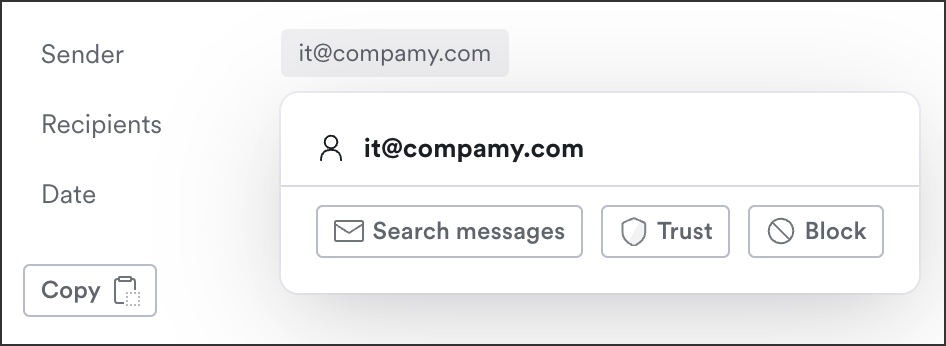
## Create a Trusted Entity directly from an issue

1. Begin in a specific issue.
2. In the message details, click the **Sender Address**.

<figure><img src="https://content.gitbook.com/content/ksjM8NywYRSHu1IlfxdP/blobs/uGTW3Rf6ZDxYarOs2PAV/image.png" alt="" width="375"><figcaption><p>Click the sender, then click Trust</p></figcaption></figure>

3. Click **Trust**.
4. Save the Trusted Entity, then edit the settings from the [Trusted Entities Page](#view-existing-trusted-entities-and-add-new). (Settings were updated in version 1.50 so the best place to update them currently is from the Trusted Entities page.)

{% hint style="warning" %}
It's possible to both Trust and Block a sender from the quick actions menu. If both actions are taken, we defer to the Trusted Entity and the sender is **not blocked,** regardless of existing or future detections.
{% endhint %}

***

## Trusted Entity badge in sender reputation

When a message sender matches a configured trusted entity, the sender reputation section shows a **Trusted Entity** badge with a direct link to Trusted Entities in the [issue details](/learn-more/risk-areas/email-threats/investigate/issue-details.md).

This makes manual trust decisions easier to spot during investigation.

<figure><img src="https://3411262179-files.gitbook.io/~/files/v0/b/gitbook-x-prod.appspot.com/o/spaces%2FksjM8NywYRSHu1IlfxdP%2Fuploads%2FMdRe4k9OAlE4yTKEs6SM%2Fimage.png?alt=media&#x26;token=29e9d913-0b31-4211-85d4-9176c0653c55" alt="Version 1.53 sender reputation section showing a Trusted Entity badge and link for a matched sender."><figcaption><p>Sender reputation highlights trusted entities.</p></figcaption></figure>

***

## Recommended Trusted Entities

Trusted Entity (TE) recommendations are automatically generated based on your organization’s recent email traffic (typically the last \~30 days). The system suggests external domains that frequently send legitimate, low-spam email and are not already trusted or recently dismissed.

Only the highest-priority domains are shown, while consumer or shared platforms (e.g., Gmail, Microsoft) are excluded by design. Recommendations update on a scheduled basis, and you can choose to accept (save the trusted entity) or dismiss them.

#### How to review and accept recommendations

1. Expand **Detections**, then click **Trusted Entities.**
2. Click **Recommended.**
3. From here, either use the quick action on the right to accept the recommendation with default settings, or click the row to review the entity and make changes. Then **accept**.

<figure><img src="https://3411262179-files.gitbook.io/~/files/v0/b/gitbook-x-prod.appspot.com/o/spaces%2FksjM8NywYRSHu1IlfxdP%2Fuploads%2FRbdMvPrzLZTgN4vvomTu%2Fimage.png?alt=media&#x26;token=324bc878-ab37-46bf-8986-dd770ee26989" alt=""><figcaption></figcaption></figure>

You can also bulk accept or dismiss entities. Choose the rows then from the bottom toolbar click **Accept recommendation** or **Dismiss recommendation:**

<figure><img src="https://3411262179-files.gitbook.io/~/files/v0/b/gitbook-x-prod.appspot.com/o/spaces%2FksjM8NywYRSHu1IlfxdP%2Fuploads%2FwgnDlRh733YeFbzwjmmu%2Fimage.png?alt=media&#x26;token=fa2da223-8055-454f-baf3-ebdb4ee8faac" alt=""><figcaption></figcaption></figure>

{% hint style="info" %}
Dismissing a recommendation suppresses it from being suggested again for 365 days. After that period, if the domain still meets the recommendation criteria, it may appear again.
{% endhint %}

## Manage Trusted Entities with the API and MCP

You can manage Trusted Entities in the Material app or programmatically. The [Material API v1](https://docs.material.security/reference) and the [Material MCP server](https://docs.material.security/reference/material-mcp-server) let you list, create, update, delete, and bulk-manage trusted senders and domains, with a bulk endpoint that handles up to 200 entries in a single request.


---

# Agent Instructions
This documentation is published with GitBook. GitBook is the documentation platform designed so that both humans and AI agents can read, navigate, and reason over technical content effectively. Learn more at gitbook.com.

## Querying This Documentation
If you need additional information that is not directly available in this page, you can query the documentation dynamically by asking a question.

Perform an HTTP GET request on the current page URL with the `ask` query parameter, and the optional `goal` query parameter:

```
GET https://docs.material.security/getting-started/fundamentals/detect/trusted-entities.md?ask=<question>&goal=<endgoal>
```

`ask` is the immediate question: it should be specific, self-contained, and written in natural language.
`goal` is optional and describes the broader end goal you are ultimately trying to accomplish on behalf of the user. GitBook uses it to tailor the answer towards what is most useful for that goal.

The response will contain a direct answer to the question and relevant excerpts and sources from the documentation.

Use this mechanism when the answer is not explicitly present in the current page, you need clarification or additional context, or you want to retrieve related documentation sections.