> For the complete documentation index, see [llms.txt](https://docs.material.security/llms.txt). Markdown versions of documentation pages are available by appending `.md` to page URLs; this page is available as [Markdown](https://docs.material.security/email-protections/simulations.md).
# Simulations
Running phishing simulations raises employee awareness of phishing tactics and tests their responses in a safe environment, helping identify vulnerabilities within the organization. This practice also measures the effectiveness of security training and promotes a culture of vigilance and reporting.
Material delivers simulations through the API, straight into your users' mailboxes. You don't have to allowlist domains in your email gateway, so you're testing your users rather than your security infrastructure.
{% hint style="success" %}
**Required role**
You need to be a super admin, tenant admin, analyst, global analyst, phishing sim admin, or global phishing sim admin to create or modify simulations. To create a simulation from an existing issue, you also need access to open that issue.
{% endhint %}
In Material you can create simulations from scratch, or copy a real phishing issue to create a realistic simulation.
Creating simulations involves creating content, setting the campaign timeline, enrolling users (specific or a randomized list), then analyzing via Simulation [Reports](/email-protections/email-threats/report.md).
## Create a new simulation
1. From the left navigation, click **Simulations**.
2. Click **Create Simulation**, then choose to **Start from Scratch.**
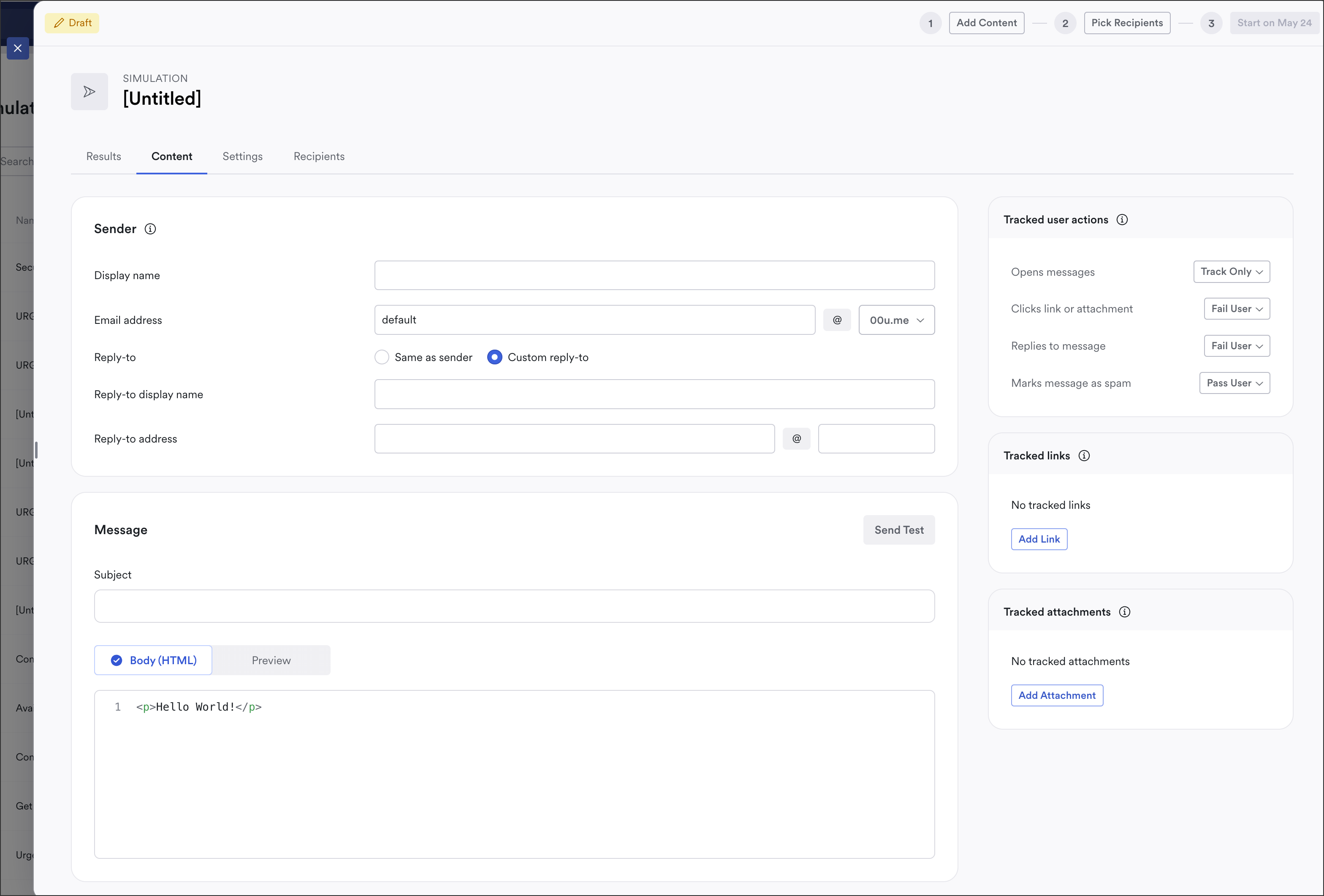
3. Choose a domain to create the simulation in, then a draft appears:
New Simulation
4. Create the content, response, and determine what actions cause a user to pass or fail the test.
5. Set campaign details like the timeline and the failure and success responses that automatically reach enrolled users when they complete the simulation.
6. Enroll users, either specific accounts or a randomized set.
{% hint style="warning" %}
**Links must be tracked before you send**
Material can only measure clicks on links it tracks. Convert each link in your simulation to a tracked link before you send it, or those clicks won't register in your results.
{% endhint %}
## Create a simulation from an existing issue
You can also leverage real issues to create simulations. We'll alter the attachments and links to be sure they're safe. There are two ways to do this: directly from the email issue, or by selecting **Start from Existing Issue** when you **Create Simulation** on the Simulations page.
From an email threat issue:
1. From the left navigation, expand **Email Threats**, then click **Issues**.
2. Open the **issue** you want to base your simulation on.
3. Open the **All Actions** menu (`⌘K` or click **All Actions** in the top right).
4. Click **Create Simulation**.
5. The simulation form preloads with a copy of the issue you selected. From here, make any changes to the email body, send dates, recipients, and so on.
The simulation automatically starts on your chosen date once you add at least one recipient.
Simulation from an existing issue
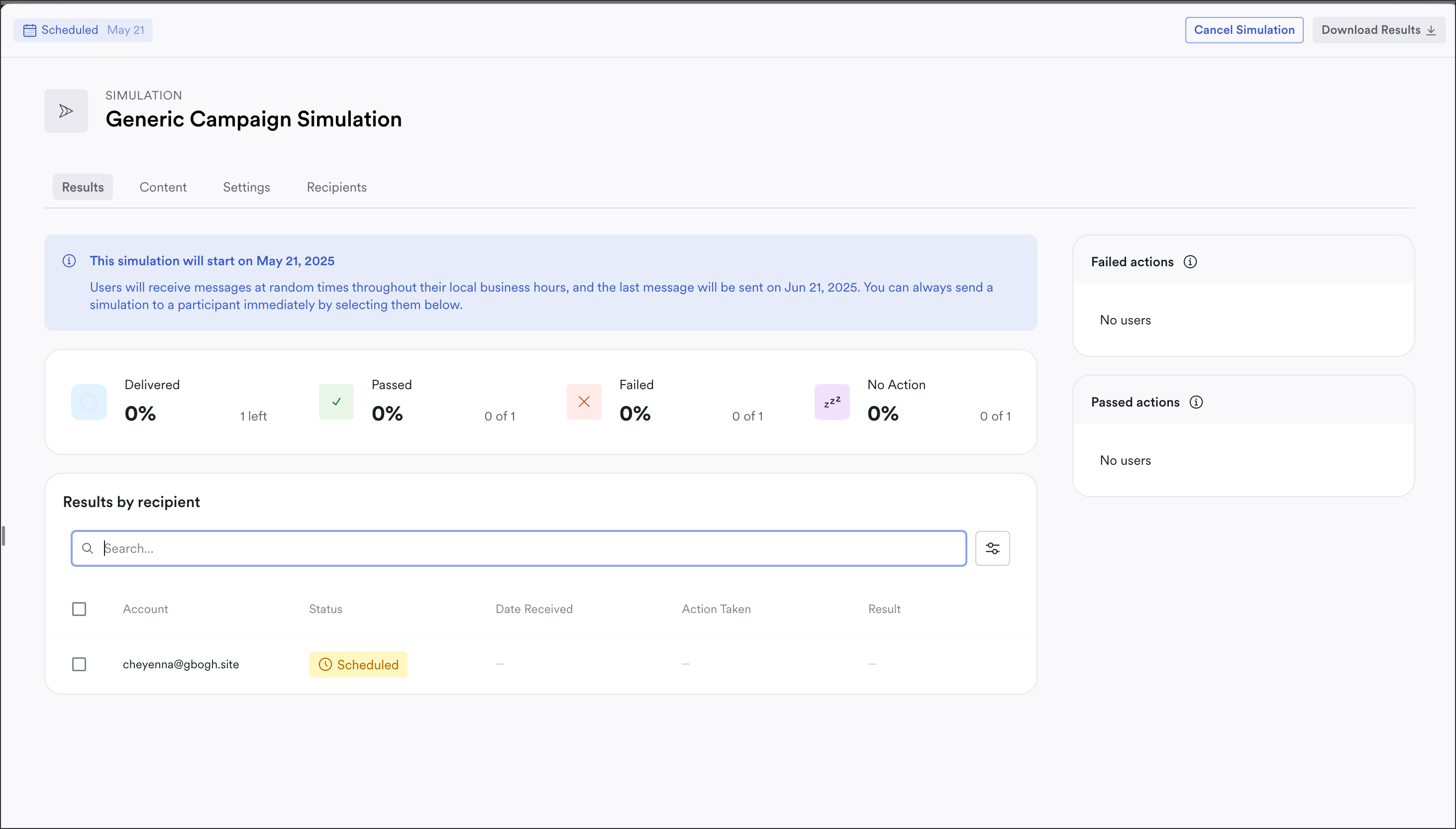
To check the simulation status and results, from the left navigation click **Simulations**, then open your simulation.
Simulation results
## Enroll users and groups
Enroll recipients on the **Users** and **Groups** tabs. Add users directly, add groups they belong to, or add a randomized set.
{% hint style="warning" %}
**Every member of an enrolled group needs remediation enabled**
When you add a group, every member must have **Email Threat Remediation** enabled. If even one member doesn't, the simulation fails to send for the entire group, not just that member. This often comes up with large groups like an "all employees" group, where a handful of members don't have remediation enabled. The failure isn't always accompanied by a clear message explaining the cause, so it can look like a system problem when it isn't. Enable remediation for the affected members, or remove them from the group, then try again.
{% endhint %}
### Send a simulation immediately
You don't have to wait for the scheduled start date. To send right away, for example to test the simulation on yourself or a small group first:
1. Open the simulation and go to the **Users** tab.
2. Select the accounts you want to send to.
3. From the bottom toolbar, click **Send now**.
4. Confirm. The simulation is delivered to the selected accounts instantly.
## Customize your simulation
### Sender domains
Tracked links in your simulation use a domain you choose from a dropdown. Material owns and controls these domains so it can track link clicks and user interactions.
You can also use a domain your own organization owns, but it isn't self-service. The domain has to be set up for simulations first, so contact Material Support to request it. Once it's configured and ready, it appears in the dropdown alongside the Material-owned domains.
### Add a logo or image to a response
Your simulation responses support Markdown, so you can add your organization's logo or another image. Embed a publicly accessible image URL using Markdown syntax:
```markdown
![alt text]()
```
The image has to be publicly accessible to display.
## Campaign responses
Each simulation has three responses. Set the message for each when you build the campaign. All three support Markdown, and you can preview each one before you launch.
| Response | When the user gets it |
| ----------------------- | ------------------------------------------------------------------------------------ |
| **Success response** | After the user successfully reports the simulation. |
| **Failure response** | When the user performs a failing action, like clicking a tracked link or attachment. |
| **Track Only response** | When the user performs an action that's tracked but doesn't fail the simulation. |
## Evaluate
You can view results on the Simulations dashboard, or in [Reports](/email-protections/email-threats/report.md). Use this data on user susceptibility and response patterns to tailor your training programs. You can also correlate these trends with user reporting reports and update your default responses based on them.
{% hint style="warning" %}
**Known behavior in Microsoft 365 environments**
When running phishing simulations in Microsoft 365 environments, you may occasionally see unexpected **Failed** or **Clicked** results for some users.
This is typically caused by Microsoft's **Safe Links** feature. As part of its security scanning, Safe Links uses automated URL detonation to inspect links in incoming email. When Safe Links automatically "clicks" a simulation link to verify it's safe, Material registers that automated traffic as a user interaction, which produces a false-positive result.
**Mitigating action:** To keep your reporting accurate, you can configure Microsoft Defender to [bypass Safe Links analysis](https://learn.microsoft.com/en-us/defender-office-365/advanced-delivery-policy-configure#use-the-microsoft-defender-portal-to-configure-non-microsoft-phishing-simulations-in-the-advanced-delivery-policy) for your simulation traffic.
Once you locate your Safe Links policy settings, reach out to our support team. We'll provide the exact list of IPs and domains you need to configure your exclusions.
{% endhint %}
---
# Agent Instructions
This documentation is published with GitBook. GitBook is the documentation platform designed so that both humans and AI agents can read, navigate, and reason over technical content effectively. Learn more at gitbook.com.
## Querying This Documentation
If you need additional information that is not directly available in this page, you can query the documentation by asking a question.
Perform an HTTP GET request on the following URL with the `ask` and `goal` query parameters:
```
GET https://docs.material.security/email-protections/simulations.md?ask=&goal=
```
`ask` is the immediate question: it should be specific, self-contained, and written in natural language.
`goal` is what the user is ultimately trying to achieve, the reason they need the answer. Sharing it helps GitBook give you a better, more relevant answer. A goal is most helpful when it describes the outcome the user wants rather than restating the question. For example, with `ask=how do I create an API token`, a goal like `automate deployments from our CI pipeline` lets GitBook tailor the answer to that use case.
The response will contain a direct answer to the question and relevant excerpts and sources from the documentation.
Use this mechanism when the answer is not explicitly present in the current page, you need clarification or additional context, or you want to retrieve related documentation sections.
.gif)