> For the complete documentation index, see [llms.txt](https://docs.material.security/llms.txt). Markdown versions of documentation pages are available by appending `.md` to page URLs; this page is available as [Markdown](https://docs.material.security/email-protections/email-threats/settings/banner-custom-message-and-template-best-practices.md).
# Banner, custom message, and template best practices
## Banners
You can add custom banners[^1] to [Material Detections](/email-protections/email-threats/settings.md#material-detected-responses-and-remediation). Banner content for [User Reported messages](/email-protections/user-reports/user-reporting-methods.md) are added by default.
{% hint style="info" %}
**Banner vs. Custom Message**
A banner will show up in the email body itself, while a custom message for a Speedbump/Block page shows up on the Material-hosted interstitial that appears after you click the speedbumped link.
{% endhint %}
## Custom Messages
Custom messages appear on a page your user is redirected to after a detected message is speedbumped or blocked. They are appended to the default messaging.
Consider these best practices when you write your messages:
* **Be clear, concise, and succinct**: Being with a straightforward statement about the situation. Clearly indicate that an email was identified as a potential phishing attempt and that you have taken steps to protect everyone. Avoid jargon to ensure everyone understands.
* **Provide guidance:** Offer next steps for anything you want your users to do as a result of this remediation. For example, you could remind them to avoid clicking on suspicious links, report any suspicious emails, and ensure their security settings are up to date.
* **Reassure and Educate**: End the message by reassuring employees that their security is a priority and that you’re taking necessary actions. If relevant, you could also reference recent security training or announcements.
## Templates
Templates are default responses sent to users when they report a suspicious message. You can have multiple templates for **Admin classified Safe**, **Admin classified Malicious**, or **Admin classified Spam** so that you can customize your response on a case by case basis once you classify the message.
### How to create a template
1. From **User Reports** > **Settings**, under **Acknowledgement templates**, expand either **Admin classified Safe**, **Admin classified Malicious**, or **Admin classified Spam**
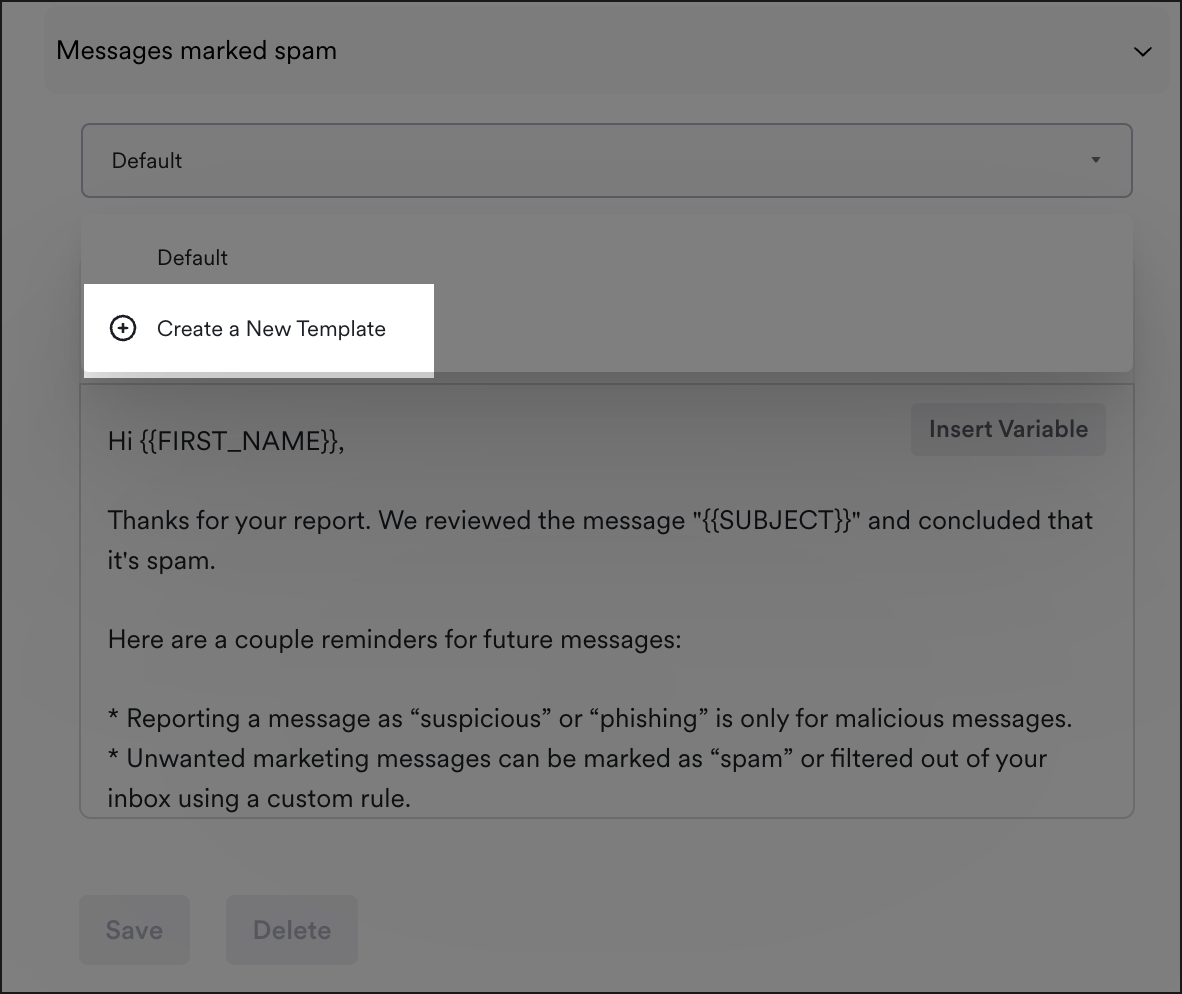
2. From the template drop down, click **Create a New Template**
Create a new template
3. Enter the details for your template then **Save**. To choose an available variable to personalize your message, choose one from the drop-down.
{% hint style="success" %}
**Template Best Practices**
Take a "warm, but loud" approach. Consider the level of disruption and risk that best supports your security strategy. Most detected emails responses are effective with default messaging.
{% endhint %}
***
### Send classification responses to initial reporters
Default responses once you've classified don't send to the users who reported per classification by default. However, you can update this on a case by case basis and trigger another response to let them know how the issue was classified. In the issue, choose **Also send to previous reporters.**
From the issue view, under Reporter Response
***
### Send reporter acknowledgements with other tools
You can use a webhook to create your own reporter acknowledgement via Slack or other tools. It's not represented in the issue timeline, but all the settings apply to it even if it's the event fires.
[^1]: A **banner** is a visual alert displayed at the top of an email to inform users of potential risks. It may indicate that the email is from an external source or contains suspicious links, helping users exercise caution.
---
# Agent Instructions
This documentation is published with GitBook. GitBook is the documentation platform designed so that both humans and AI agents can read, navigate, and reason over technical content effectively. Learn more at gitbook.com.
## Querying This Documentation
If you need additional information that is not directly available in this page, you can query the documentation by asking a question.
Perform an HTTP GET request on the following URL with the `ask` and `goal` query parameters:
```
GET https://docs.material.security/email-protections/email-threats/settings/banner-custom-message-and-template-best-practices.md?ask=&goal=
```
`ask` is the immediate question: it should be specific, self-contained, and written in natural language.
`goal` is what the user is ultimately trying to achieve, the reason they need the answer. Sharing it helps GitBook give you a better, more relevant answer. A goal is most helpful when it describes the outcome the user wants rather than restating the question. For example, with `ask=how do I create an API token`, a goal like `automate deployments from our CI pipeline` lets GitBook tailor the answer to that use case.
The response will contain a direct answer to the question and relevant excerpts and sources from the documentation.
Use this mechanism when the answer is not explicitly present in the current page, you need clarification or additional context, or you want to retrieve related documentation sections.