| High-confidence malicious (malware, phishing kit, known bad domain, spoofed internal) | Block | Threat is clear and severe; there is no legitimate need for the user to ever see or interact with the message. | Malicious |
| Suspicious but possibly legitimate (lookalike domain, odd request, gift card requests) | Speedbump | Risky but ambiguous; user business context may validate it. You want to slow them down and add friction, not fully block. | Unknown |
| Legitimate but misconfigured or unusual (partner using personal email, broken auth, strange but plausible) | Speedbump | You expect some legitimate traffic in this pattern but want users to double-check before acting. | Unknown |
| Clearly unwanted bulk or marketing (low-value promos, repeated cold outreach, obvious-but-harmless spam) | Move to Spam | Not harmful, just inbox noise. Let users still retrieve it from Spam if needed, but keep it out of the primary mailbox. | Malicious, Spam |
| Useless, confusing, or system noise (bounces, broken auto-replies, content-free messages to shared boxes) | Delete | No security threat and no business value. Removing it entirely reduces clutter and user confusion. | -- |
| Known good / normal traffic | No Response | No meaningful risk indicators; user experience should remain uninterrupted. | Safe |
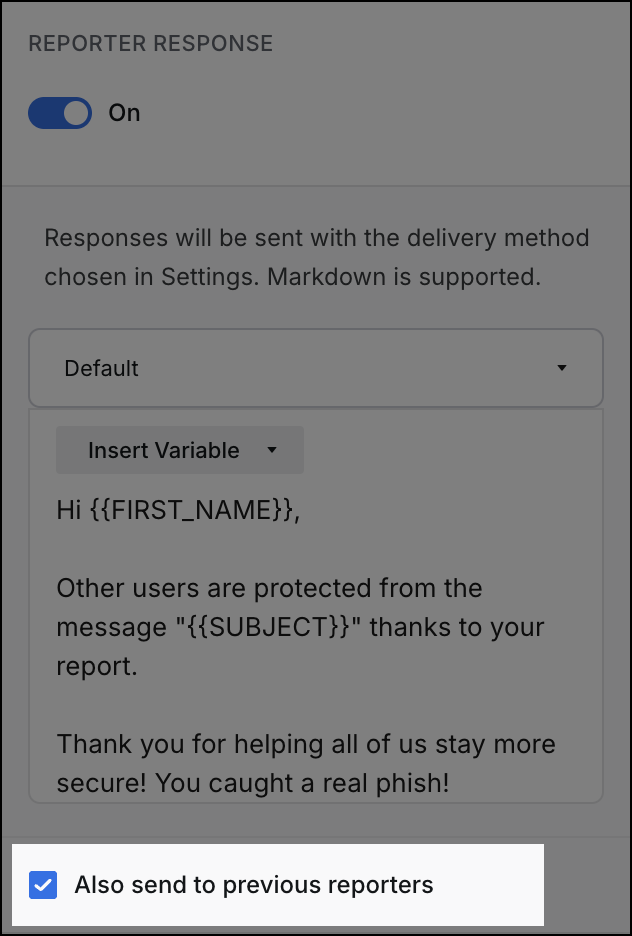
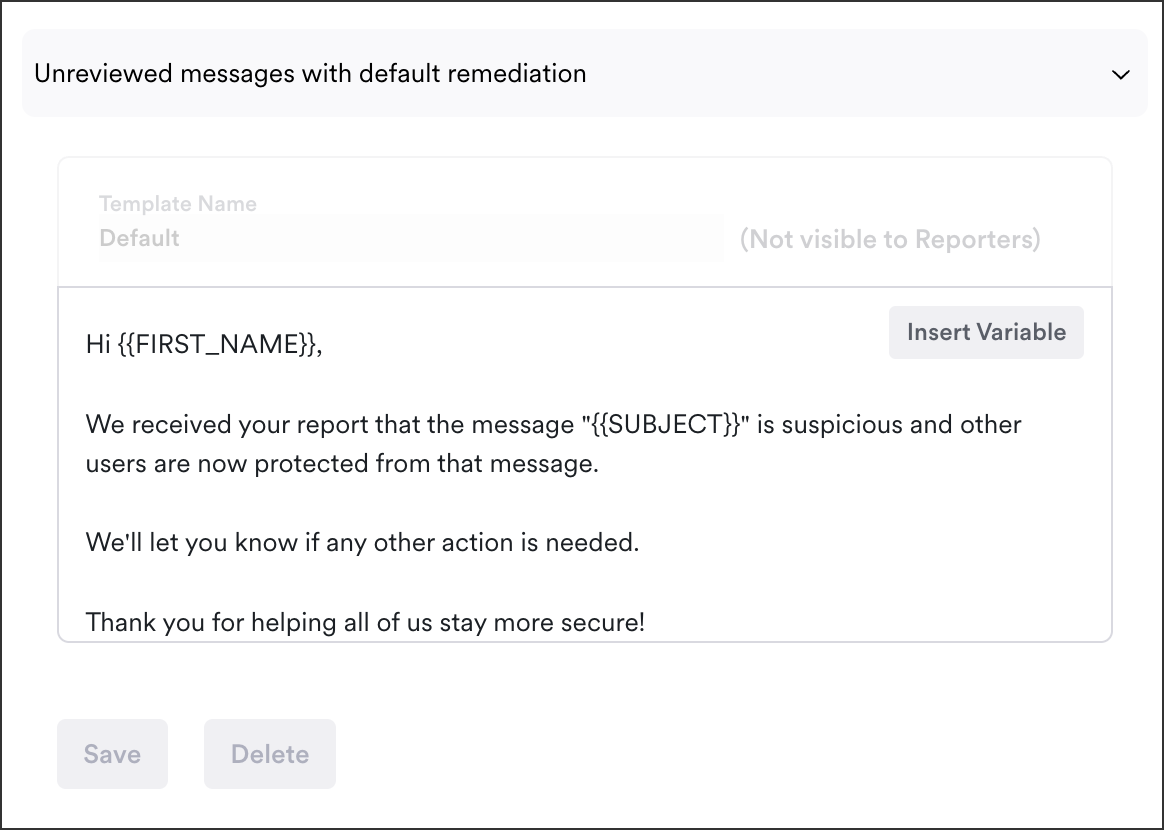
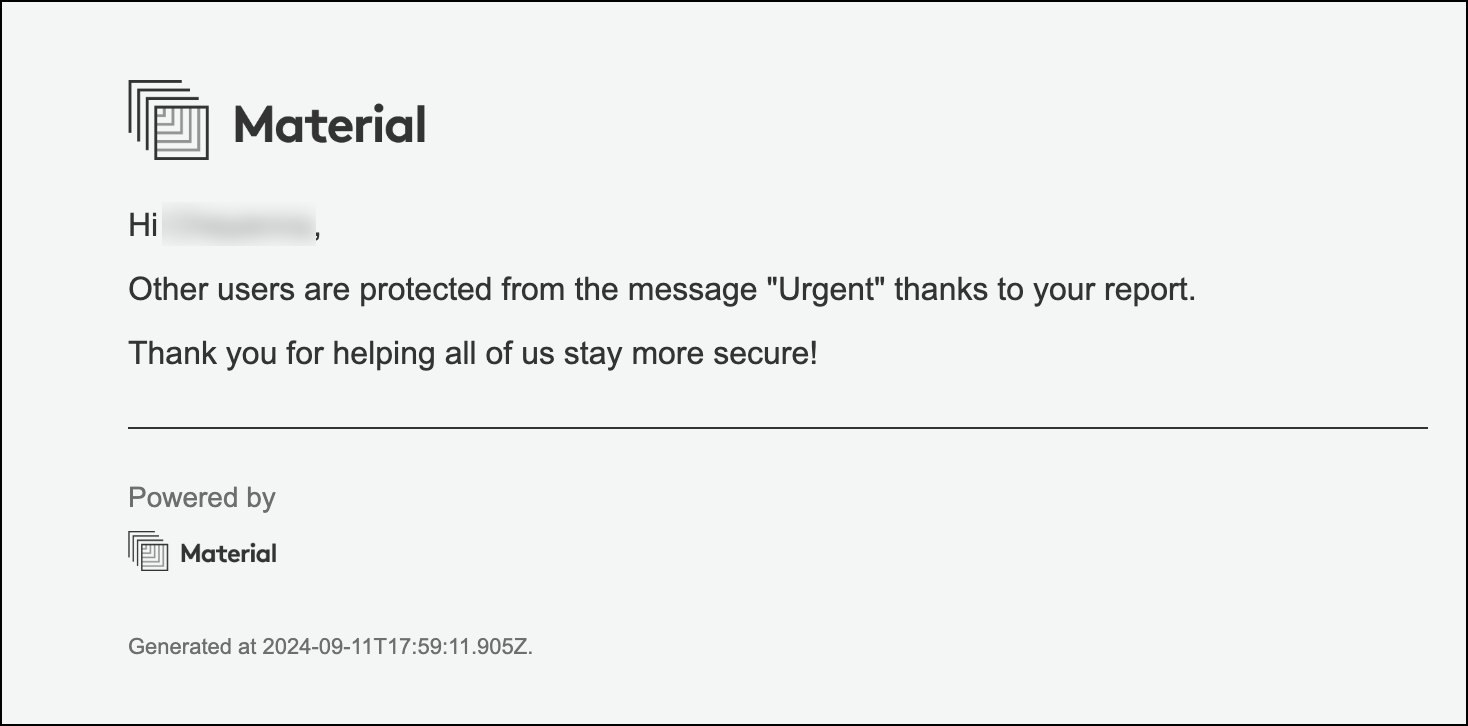
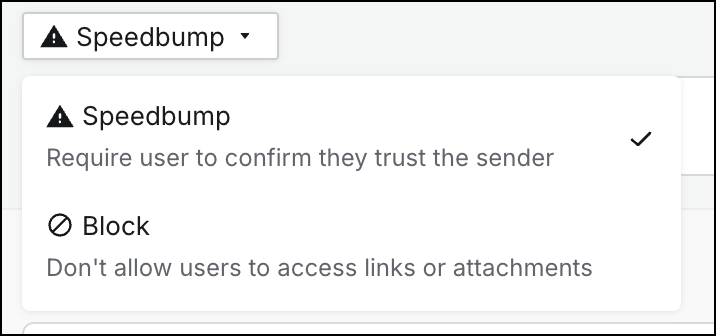 2. Optionally, include a custom message to explain next steps, thank the user for reporting, or educate on why this email was detected. This message appears on the page that your user is redirected to. If you don't include one, they'll see the default message.
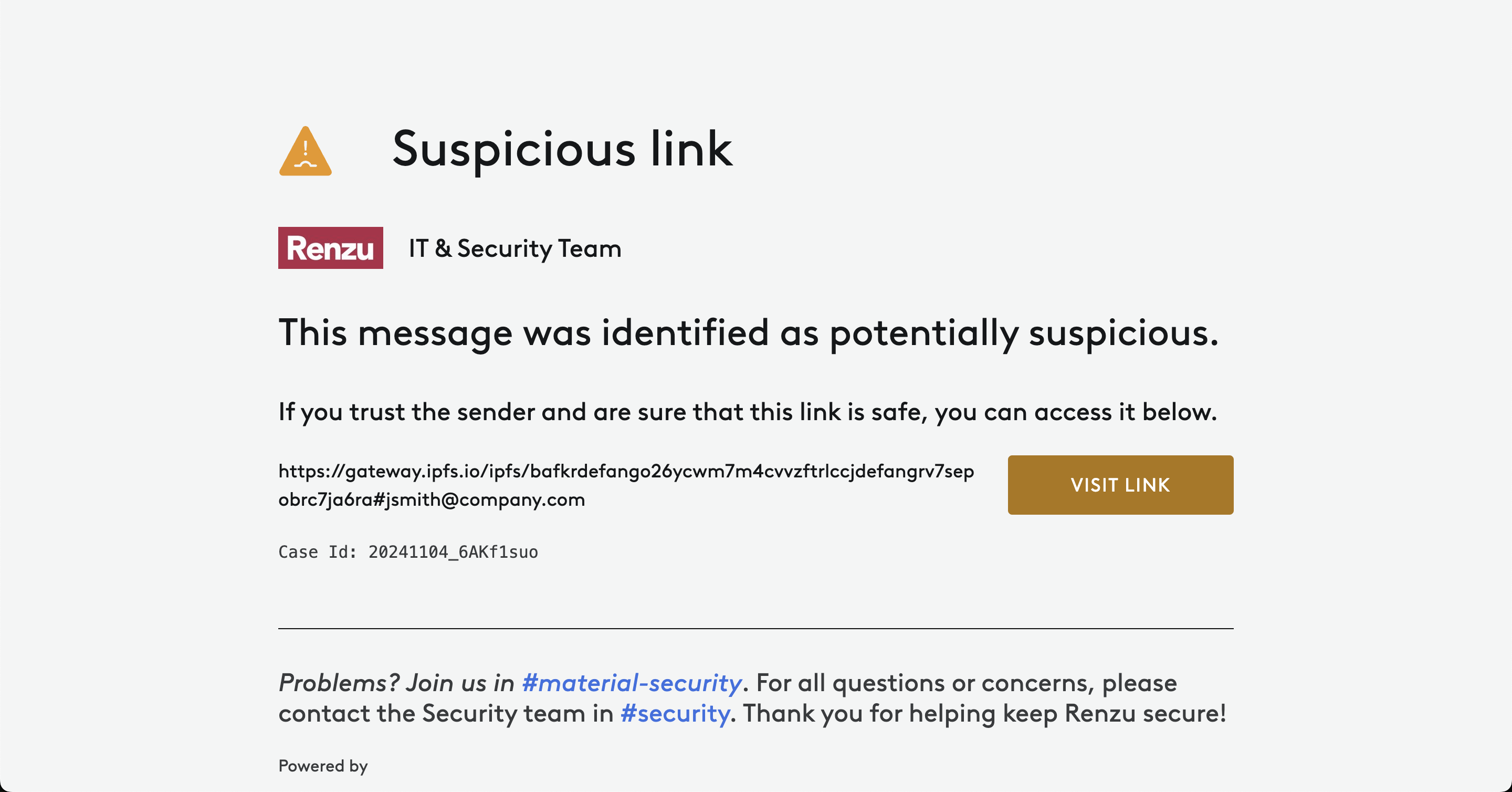
This is an example of what the users will see after they click on a speedbumped link. 
2. Optionally, include a custom message to explain next steps, thank the user for reporting, or educate on why this email was detected. This message appears on the page that your user is redirected to. If you don't include one, they'll see the default message.
This is an example of what the users will see after they click on a speedbumped link.