> For the complete documentation index, see [llms.txt](https://docs.material.security/llms.txt). Markdown versions of documentation pages are available by appending `.md` to page URLs; this page is available as [Markdown](https://docs.material.security/email-protections/email-threats/issues/issue-details/response-and-remediation.md).
# Response and Remediation
## Classification
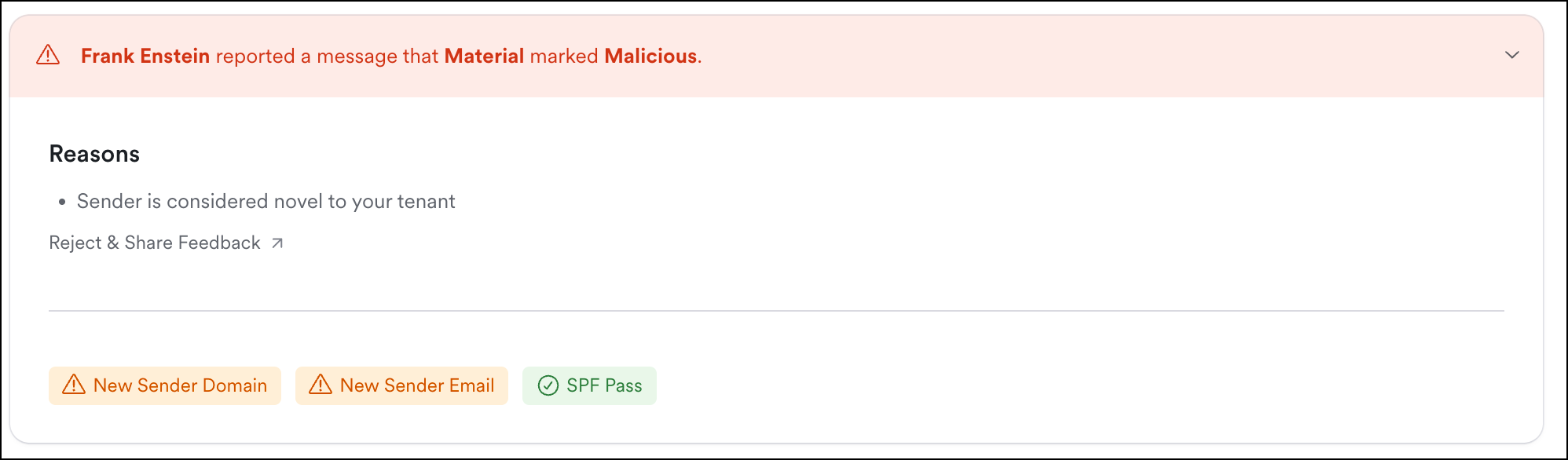
Material makes classification suggestions and describes reasons to help you classify the issue. If you enable the **User Report Agent**, Material also classifies and remediates automatically based on your settings. [Learn more about auto-classification](/email-protections/user-reports/user-report-auto-classification.md).
User Report Auto Classification
### Accept or reject a suggested classification
When Material has a suggested classification for an issue, it's staged for you as a draft:
* The **Classification** and **Response** cards are prefilled with the suggestion and its default response, and highlighted
* An **Unsaved changes** card asks whether to accept the selected classification and apply the response
To accept, click the check mark (**Accept classification and apply response**). Material confirms the classification and how many accounts the response applied to. To reject, click the X (**Reject suggested classification**), then share feedback on why. You can cancel if you change your mind.
If you pick a different classification instead, click **Save changes** to keep it, or **Discard changes** to bring back the suggestion.
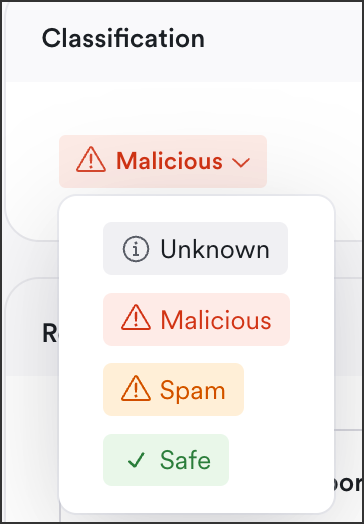
After analyzing the analysis provided in the [issue detail view](/email-protections/email-threats/issues/issue-details.md), you can also re-classify the issue as **safe, malicious**, or **spam.**
Classification
{% hint style="success" %}
Responses based on classifications trigger **after** you save your classification.
{% endhint %}
### Manual Response
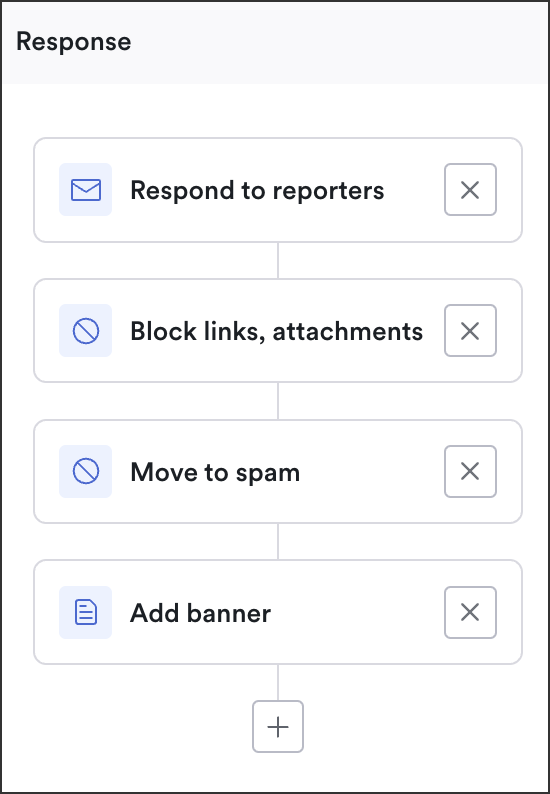
Initial remediation is determined by [default settings](/email-protections/email-threats/settings.md). Once you've analyzed the issue, if you want to update the remediation you can do that [directly in the issue detail view](/email-protections/email-threats/issues/issue-details.md).
Click into any of the blocks to edit content, block type, etc. Once you save, these remediations are applied to any future issue message that's sent to a user.
Response
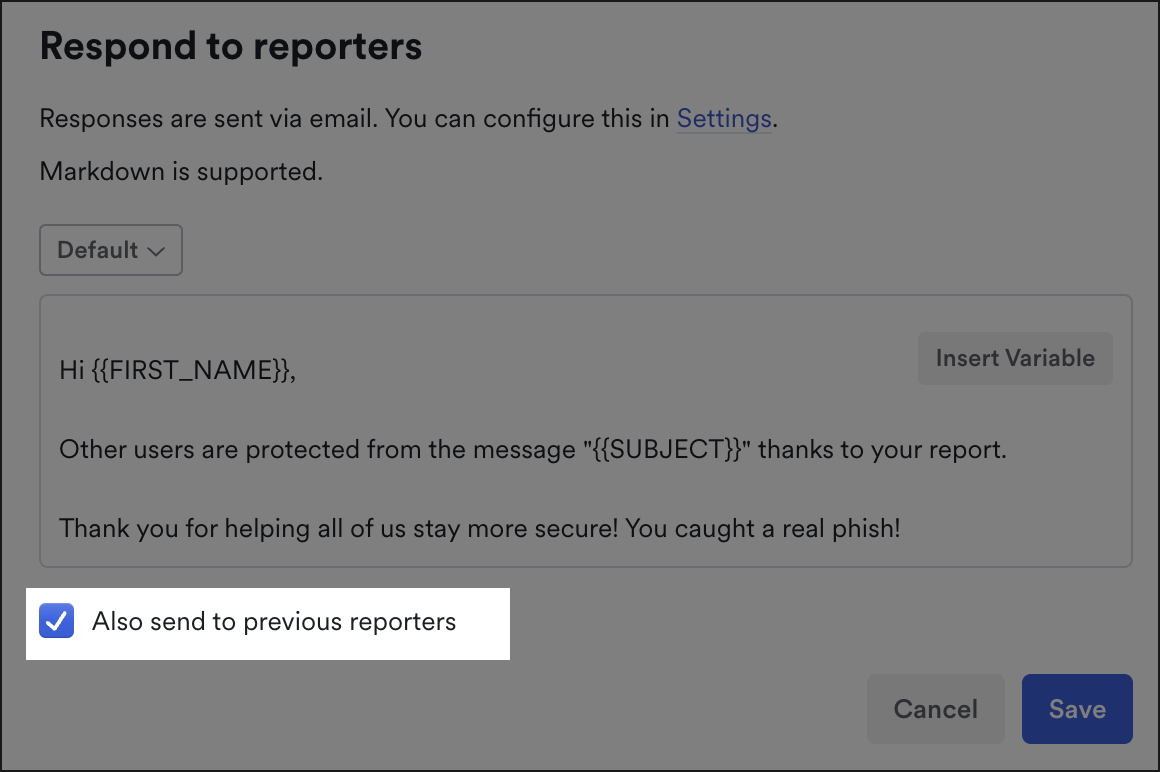
If you want to also send this response to users who received a response when the issue wasn't classified yet, check **Also send to previous reporters.**
Learn more about [Auto-Remediation and Response, including setting defaults, here](/email-protections/email-threats/settings.md).
{% hint style="danger" %}
Customizing the response content in the issue does not update the template that was applied by default. See [how to create a template](/email-protections/email-threats/settings/banner-custom-message-and-template-best-practices.md#how-create-a-template) for more information.
{% endhint %}
## Block a sender
You can block a sender directly from the message details in an issue to prevent them or their associated domain from delivering messages into inboxes.
1. Begin in a specific issue.
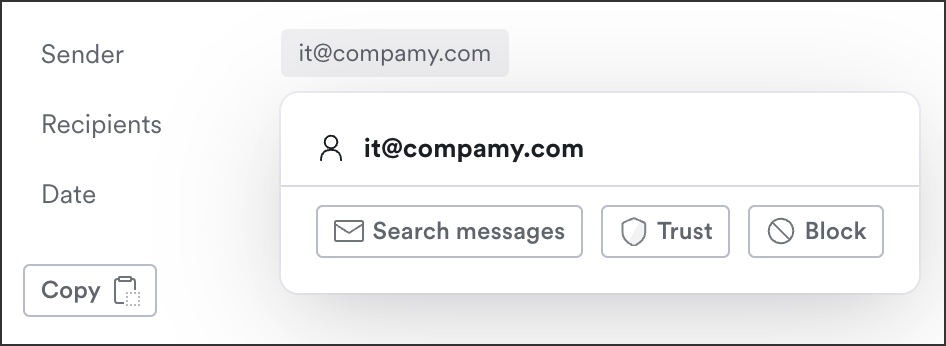
2. In the message details, click the **Sender Address**.
3. From the quick action menu, click **Block**.
Click the sender, then click Trust
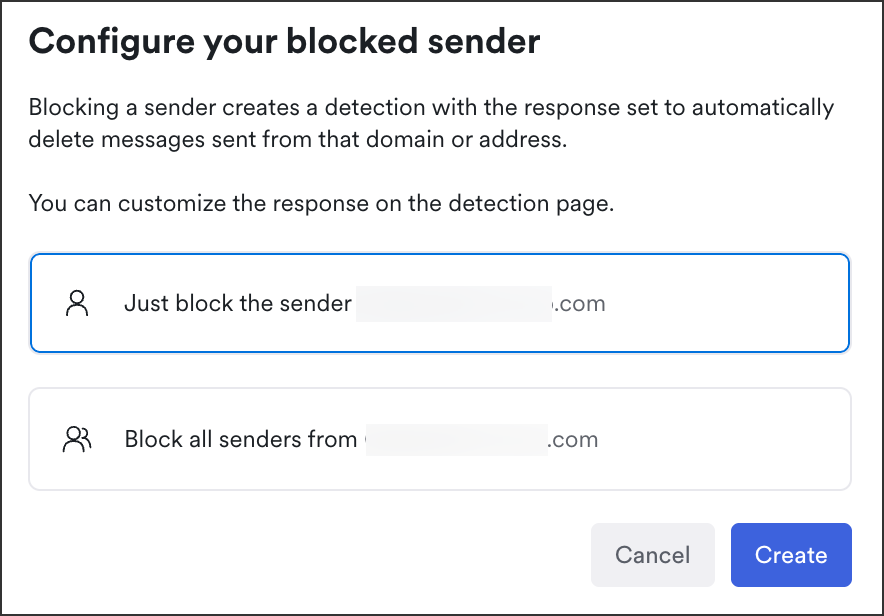
4. Choose to block just this sender's email address, or their entire domain:
Block one sender or any sender in their domain
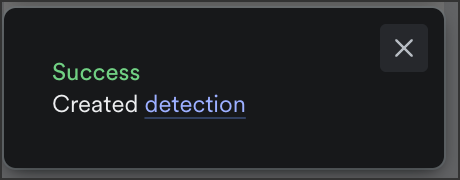
5. A custom detection is created deleting messages from that sender. Click the pop-up in the bottom left corner to view the detection (or from Detections, search for the domain to find the detection).
Sender blocked successfully
To unblock a sender, archive the detection.
{% hint style="warning" %}
It's possible to both Trust and Block a sender from the quick actions menu. If both actions are taken, we defer to the Trusted Entity and the sender is **not blocked,** regardless of existing or future detections.
{% endhint %}
---
# Agent Instructions
This documentation is published with GitBook. GitBook is the documentation platform designed so that both humans and AI agents can read, navigate, and reason over technical content effectively. Learn more at gitbook.com.
## Querying This Documentation
If you need additional information that is not directly available in this page, you can query the documentation by asking a question.
Perform an HTTP GET request on the following URL with the `ask` and `goal` query parameters:
```
GET https://docs.material.security/email-protections/email-threats/issues/issue-details/response-and-remediation.md?ask=&goal=
```
`ask` is the immediate question: it should be specific, self-contained, and written in natural language.
`goal` is what the user is ultimately trying to achieve, the reason they need the answer. Sharing it helps GitBook give you a better, more relevant answer. A goal is most helpful when it describes the outcome the user wants rather than restating the question. For example, with `ask=how do I create an API token`, a goal like `automate deployments from our CI pipeline` lets GitBook tailor the answer to that use case.
The response will contain a direct answer to the question and relevant excerpts and sources from the documentation.
Use this mechanism when the answer is not explicitly present in the current page, you need clarification or additional context, or you want to retrieve related documentation sections.