Detected and similar messages
Under Detected messages review the content. Take note of any suspicious language or tactics to drill down into. If any similar messages were added to the issue, the Auto Threat Hunt tab will display for you to review each message individually.
Detected messages are messages that meet the criteria for a Material detection, a custom detection, have been reported by an end user, or via an Email Provider Alert.
From the issue detail view, click the Messages tab then click a message row to drill into details.
Message Details
Hover over message analysis reasons to see definitions:

When Material AI flags a message, the analysis card shows the model name and version that produced the result. This makes AI-driven detections easier to audit, compare, and report on:

Message Activity Timeline
Message details includes a full event timeline for each message. It displays detections, issue assignment, remediation, redaction, and analyst comments in one scrollable view.
Use the timeline to trace a message from first detection to final action without switching views. When the message belongs to an issue, related issue context also appears.

Content
View the original message's content in an HTML preview, at the HTML Source, or as Plain Text. Switch between views in the message tab:

Accounts
Click to see details about what accounts this message has affected, who reported it, what folder the email landed in, what the remediation was, and any action that was taken like defanging a link.
Links
View any links that were included in the email, sorted by domain.
Attachments
View the metadata for attachments included with the email including images. Download to see the actual attachment, but be very careful about doing this as these attachments are potentially malicious. Before you download anything, be sure to click Search to allow VirusTotal to assess the attachment for potential malware, viruses, etc.
Actions detail anything a user did with the defanged links or attachments, meaning a user clicked a link we previously modified (i.e. speedbumped),
Auto Threat Hunt Messages
Auto Threat Hunt messages are messages that have features in common with user reported messages, for example same sender, same body content, same link destinations. Messages may end up in Auto Threat Hunt but not be detected if the detection is coming from a user report and there is no other detection standard to meet.
From the issue detail view, click the Message tab for a list of all messages in the issue.
Update Auto Threat Hunting or Remove a message from the issue
Messages can be added to an issue based on many values including Sender, Sender Domain, Subject, and Links, etc. Update what messages match to this issue in the Auto Threat Hunt card:

Remove one message from an issue or disable Auto Threat Hunt
From the issue detail view, click the Messages tab.
Check the box next to any message you want to remove.
From the bottom toolbar, click all actions then choose the action:

Use bulk actions to remove a message from an issue
Download
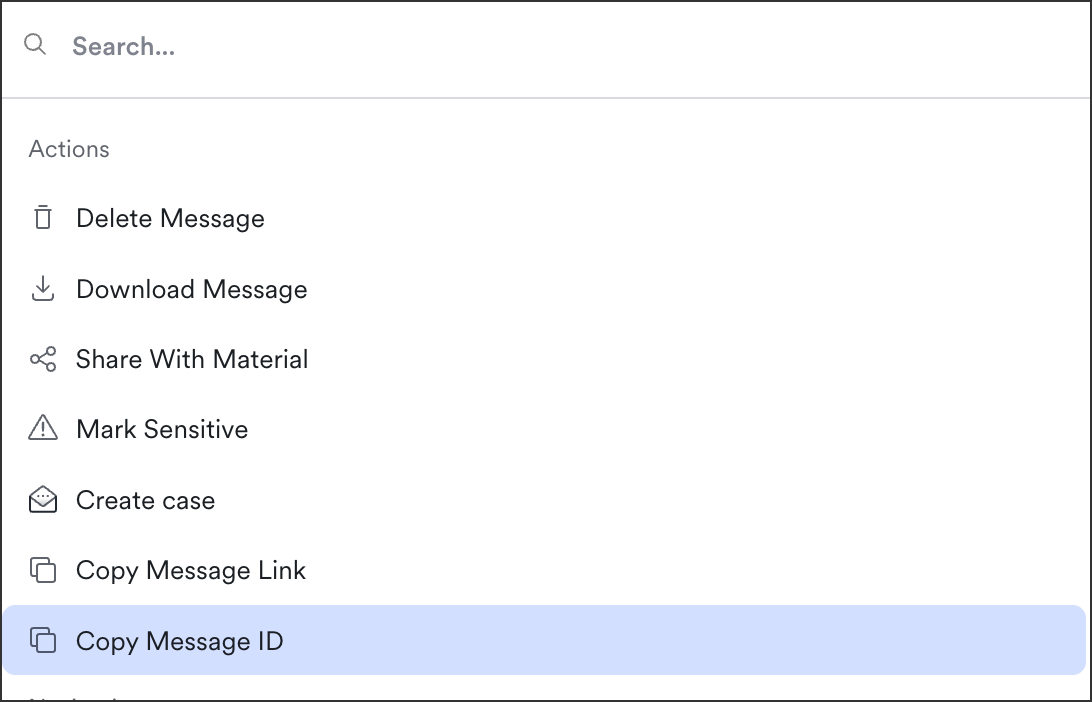
To download a .eml file of the message contents, from the message click All Actions or use the keyboard shortcut ⌘K, then choose Download Message. This is useful if you want to send the file spam scorers and other content checkers, load into a database or other storage.
Sometimes you can also use this to report abuse. If the attacker is frequently sending via a third-party, you can send a report to that third-party and they often ask for a .eml to review.
Copy Message ID or Link
Sometimes you need to share a message ID or Link with us so we can troubleshoot.
From the issue detail view, click the Messages tab.
Click the message row to open Message Details.
Click All actions (or use the keyboard shortcut
⌘K)Click Copy Message ID:

You can also complete these steps after searching in the Message Explorer.
Last updated
Was this helpful?

