Issue Details
From the issue detail view, review more detailed information about why the issue was created and who it's affecting then classify it and update the remediation and response, if needed.
Issue detail view
Click any issue title to open the issue detail view view. From here you can dig deeper in a few areas and update remediations and responses to customize on a case by case basis.
The issue detail view contains extensive, detailed information about the issue and its detected, similar messages. Learn more in each of these sections:
Detected and Similar Messages
Review the message content and learn what was flagged, view similar messages in the issue, and update similarity matching.
Response and Remediation
View and edit the classification, and default response and remediation that was applied. Apply future responses to incoming messages and also to original reporters.
Analysis
About this issue
This section provides a high-level overview of the detected threat, including:
The detection source
The last update timestamp
Issue Summary: a plain-language explanation of why the message was flagged, generated automatically for every email threat issue so you can see the risk at a glance instead of piecing it together from the raw signals.
Sender reputation: A full reputation analysis for senders of suspicious or malicious messages. Includes type of sender (rare, new, etc.), how many accounts reported the message, SPF, DKIM, and DMARC.
Message analysis: a summary of why the message was flagged. This section is expanded by default, so the detail and reasoning are in front of you as soon as you open the issue.
Suggested classification
If the same message was both detected by Material and reported by one of your users, a single issue is created. The detection source shown here reflects whichever triggered first.
When a message matches more than one detection, for example if you have overlapping custom detections, the issue detail view shows the primary detection that created the issue and notes the additional matches.

Campaign Summary
The Campaign Summary provides metadata about the campaign, such as the total message count and details regarding specific attachments and links.
Recipient Summary
The Recipient Summary tracks user interaction and impact. It includes:
Total number of recipients.
The number of users who read the email before remediation.
The total number of times users accessed attachments or links.
Each threat type is defined so you can make an informed decision on issue classification and remediation choices.
Headers and Message Routing
Use header and router data to troubleshoot issues in external tools, such as an MX record checker. For example, you can copy the message ID to view the full message trace in your email provider.
Use Headers and Values to triage messages and troubleshoot delivery or security issues.
Message Routing displays the domain path an email takes. Use this data to help diagnose and identify fraudulent senders.
The Notes field displays pass if the authentication check is successful.
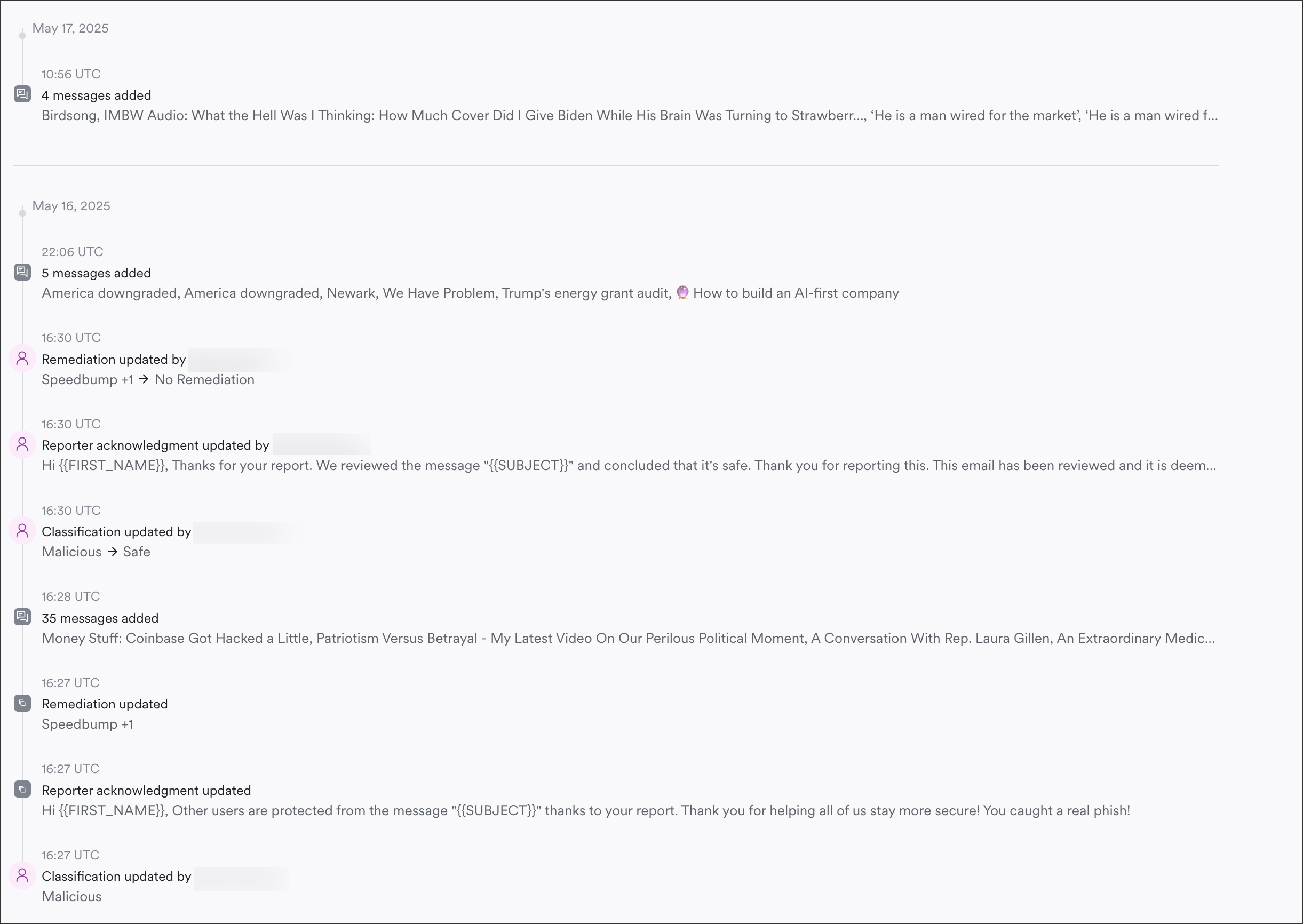
Timeline
The timeline displays a history of updates to the issue classification, remediation, and response. When similar messages are added, these additions are also displayed in the timeline.

Copy Issue ID or Share With Material
When troubleshooting, you may be asked to send us the Issue ID. To copy this ID:
From an issue, click All Actions (or
⌘K).Click Copy Issue ID.

To share the issue directly, click Share Feedback then describe what happened in the comment box.
Share Feedback sends your comments and the issue context to Material for review. Use it to report a false positive, a missed true positive, or other issue-specific feedback.

You can also share messages in bulk. From the Explorer, select one or more messages, then from the bottom toolbar click Share with Material.
Learn more in Support Settings.
Last updated
Was this helpful?