> For the complete documentation index, see [llms.txt](https://docs.material.security/llms.txt). Markdown versions of documentation pages are available by appending `.md` to page URLs; this page is available as [Markdown](https://docs.material.security/email-protections/email-threats/issues/email-threat-issue-search.md).
# Email Threat Issue Search
{% stepper %}
{% step %}
#### Search in Email Threats issues
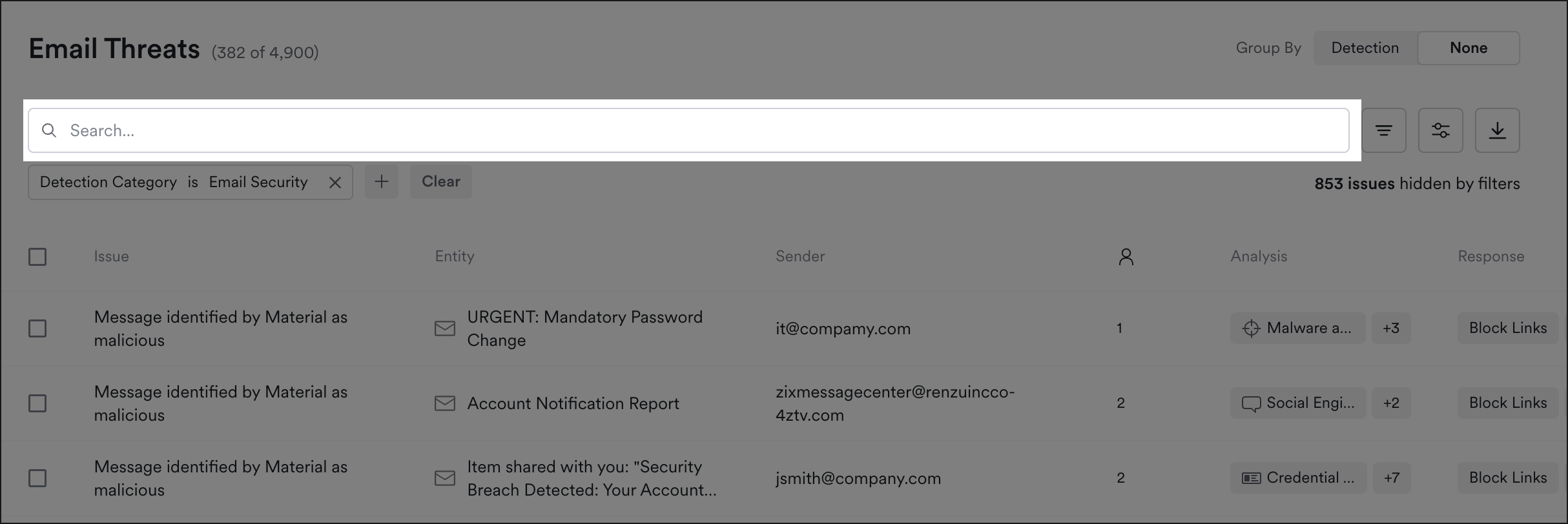
Begin any email threat issue search directly from the [**Email Threats** > **Issues** page](#search-in-email-threats-issues).
{% endstep %}
{% step %}
#### Message search
To narrow your search with more specific criteria, use [message search](#search-messages-in-the-explorer) in the Explorer.
{% endstep %}
{% endstepper %}
***
## Search in Email Threats Issues
From **Email Threats** > **Issues**, use the issue search bar to narrow the list by:
* Issue ID
* Detection name
* Entity name, such as the account or app the issue is about
* Sender address
* [Message ID](#copy-message-id-copy-message-link-or-share-with-material)
* Account display name
Issue IDs must match exactly. For everything else, you can enter part of the value, and capitalization doesn't matter.
The issue search bar searches issues, not message content. To search messages with MQL, use [message search](#search-messages-in-the-explorer).
Search issues
***
## Search messages in the Explorer
Use message search to find messages across every mailbox, including messages in email threat issues.
To open message search, from the left navigation expand **Explorer**, then click **Messages**.
Choose how you want to search with **Search Mode**:
* **Quick**: fill in **Date range**, **To**, **From**, **Subject**, **Message ID**, or **Has attachments**.
* **Prompt**: describe the messages you're looking for in plain English.
* **Query**: write the query in MQL. Material suggests fields and operators as you type.
For example, this query finds messages from a specific sender:
```
message.from.addresses:~"jane@example.com"
```
To see the query **Quick** or **Prompt** created, switch to **Query**.
For the full list of fields and operators, and more example queries, see [Message Search](/working-with-issues/explorer/message-search.md).
{% hint style="info" %}
**Prompt** mode isn't available if you've opted out of Material's GenAI capabilities.
{% endhint %}
### Narrow to suspicious messages
To find only messages marked suspicious, add this to your query:
```
message.riskType.suspicious
```
### Open an issue found in message search
From the search results list, open the **message details**, then click **Issue**.
***
## Search with the Message Explorer Directly from an Issue
1. Begin in a specific issue.
2. Scroll down, then click a message title to open the **Message Details**.
Click the message title to open message details
3. In the **From** field, click the **Sender Address**.
4. Click **Search messages.**
Click the sender address to view the Search messages option
5. Message search opens with a query for all messages from this sender.
***
## Copy Message ID, Copy Message Link, or Share with Material
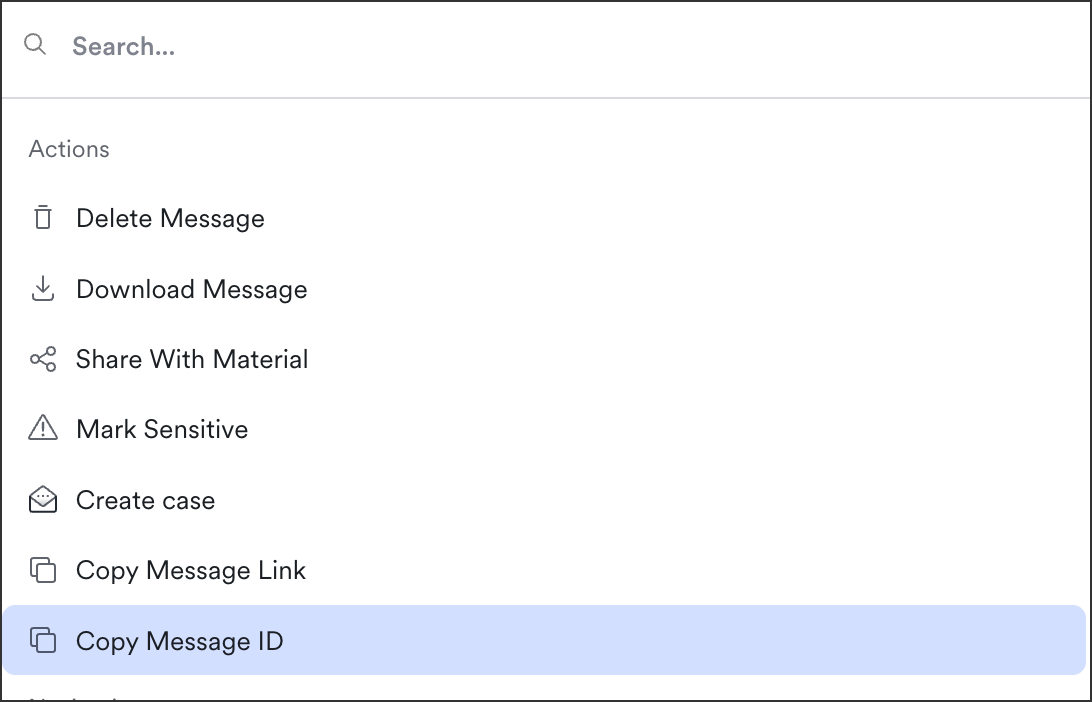
Sometimes you need to share the message ID, or share the message itself with us so we can help you troubleshoot. Find the message in the Explorer, then click **All actions** (or use `⌘K`). Then click **Copy message ID**, **Copy message link**, or **Share with Material**:
Message Detail View > All Actions
---
# Agent Instructions
This documentation is published with GitBook. GitBook is the documentation platform designed so that both humans and AI agents can read, navigate, and reason over technical content effectively. Learn more at gitbook.com.
## Querying This Documentation
If you need additional information that is not directly available in this page, you can query the documentation by asking a question.
Perform an HTTP GET request on the following URL with the `ask` and `goal` query parameters:
```
GET https://docs.material.security/email-protections/email-threats/issues/email-threat-issue-search.md?ask=&goal=
```
`ask` is the immediate question: it should be specific, self-contained, and written in natural language.
`goal` is what the user is ultimately trying to achieve, the reason they need the answer. Sharing it helps GitBook give you a better, more relevant answer. A goal is most helpful when it describes the outcome the user wants rather than restating the question. For example, with `ask=how do I create an API token`, a goal like `automate deployments from our CI pipeline` lets GitBook tailor the answer to that use case.
The response will contain a direct answer to the question and relevant excerpts and sources from the documentation.
Use this mechanism when the answer is not explicitly present in the current page, you need clarification or additional context, or you want to retrieve related documentation sections.