> For the complete documentation index, see [llms.txt](https://docs.material.security/llms.txt). Markdown versions of documentation pages are available by appending `.md` to page URLs; this page is available as [Markdown](https://docs.material.security/email-protections/email-threats/issues.md).
# Issues
The [issue view](/working-with-issues/investigate.md#issues-page-and-issue-detail-view) contains all the high level information you need to triage and start investigating.
Material automatically analyzes reported messages to find similar threats and automatically de-escalate false positives. You can investigate these issues to:
* Understand attack methods and trends
* Review and classify email threat issues in the issue detail view
* Override default responses and remediations on a case by case basis in the issue detail view
## Email Threat Issues
**Email Threat Issues** in Material are collections of similar emails based on their detection method, content, etc. All issues display on the **All Issues** page.
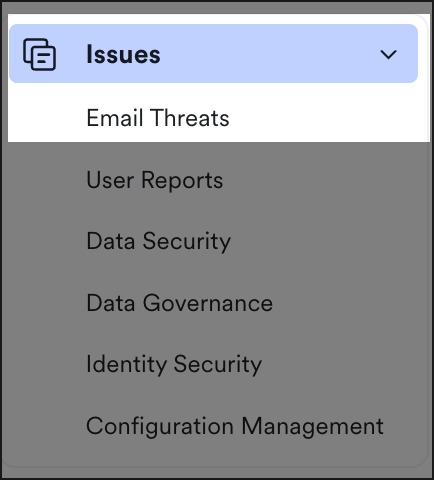
To view only email threat issues, from the left navigation expand **Email Threats**, then click **Issues**.
From the Issue page, you have a high level view of the message that triggered issue creation, what/who detected/reported it, a quick analysis, scope, classification, current remediation, and creation time.
{% hint style="info" %}
You can also filter issues by custom criteria using the search criteria described in [Issue Search](/email-protections/email-threats/issues/email-threat-issue-search.md).
{% endhint %}
Triage efficiently by filtering your view based on a number of fields and also drill down into the issue itself, and the issues contained within. Analyze and if needed, [classify the issue and update the response or remediation](/email-protections/email-threats/issues/issue-details/response-and-remediation.md).
## Filter Issue by Source
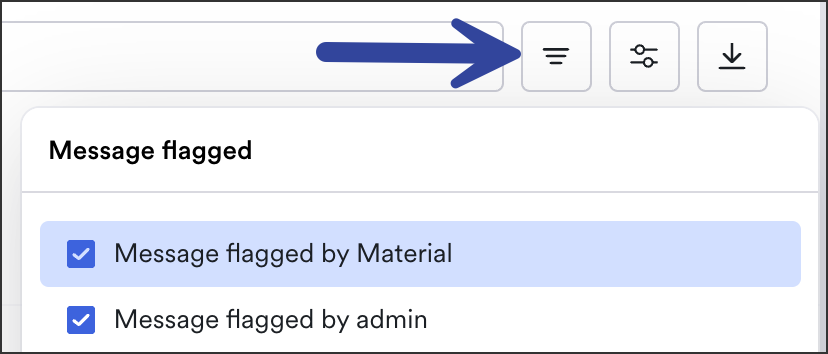
Email Threat issues fall under one of three detections:
* **Message flagged by Material**
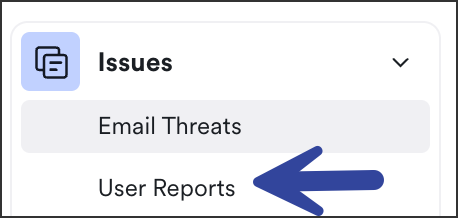
* For user-reported issues, from the left navigation expand **User Reports**, then click **Issues**:
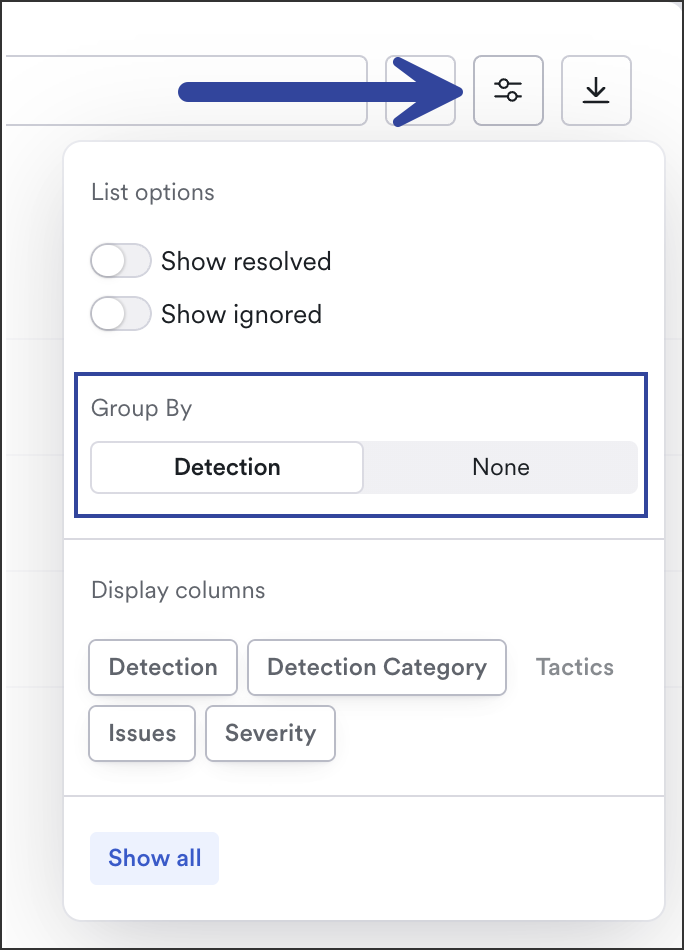
You can also group by detection (rather than issue). Click **Display Options**, then **Group By: Detection**
Group By Detection
{% hint style="info" %}
[Filter descriptions](/working-with-issues/investigate.md#filter-definitions) are located in the Investigate guide.
{% endhint %}
### Exclude closed and/or ignored issues
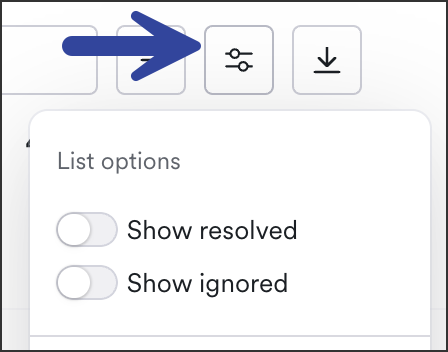
To exclude [resolved](#open-vs.-resolved-issues) and/or ignored[^1] issues from your view, click the **List Options** button then toggle on or off:
***
## Open vs. Resolved Issues
Issues auto-resolve in 30 days. Most phishing attacks occur over a few days then end. 30 days allows us to detect any similar emails and move them into a issue for you to review (an **open** issue). Once the 30 days is up, we resolve the issue and stop sending emails to it (a **resolved** issue).
Any emails detected with similar parameters once an issue resolves are likely a new attack, so a new issue is opened for these emails.
There's no need to reopen a issue (and you can't reopen) because anything with a similar attack method will just create a new open issue. In other words, nothing is missed because a issue is resolved. Unlike a ticketing system or similar, a resolved issue doesn't mean we stop detecting.
To view your closed issues:
1. From the left navigation, expand **Email Threats**, then click **Issues**.
2. Click the **List Options** button then toggle on or off:
[^1]: admins can change the issue status to ignored to remove them from the triage view
---
# Agent Instructions
This documentation is published with GitBook. GitBook is the documentation platform designed so that both humans and AI agents can read, navigate, and reason over technical content effectively. Learn more at gitbook.com.
## Querying This Documentation
If you need additional information that is not directly available in this page, you can query the documentation by asking a question.
Perform an HTTP GET request on the following URL with the `ask` and `goal` query parameters:
```
GET https://docs.material.security/email-protections/email-threats/issues.md?ask=&goal=
```
`ask` is the immediate question: it should be specific, self-contained, and written in natural language.
`goal` is what the user is ultimately trying to achieve, the reason they need the answer. Sharing it helps GitBook give you a better, more relevant answer. A goal is most helpful when it describes the outcome the user wants rather than restating the question. For example, with `ask=how do I create an API token`, a goal like `automate deployments from our CI pipeline` lets GitBook tailor the answer to that use case.
The response will contain a direct answer to the question and relevant excerpts and sources from the documentation.
Use this mechanism when the answer is not explicitly present in the current page, you need clarification or additional context, or you want to retrieve related documentation sections.