Trusted Entities
Sometimes you know and trust a sender and don't want issue creation to occur for these exceptions. Add the sender to your Trusted Entities allowlist then choose how they are treated by Material via Trusted Entity settings.
For example, to allowlist (whitelist) a domain, IP address, or email address, like a third-party tool or filter — you can add it as a trusted entity.
View Existing Trusted Entities and Add New
From the left navigation, under Detections, expand Trusted Entities.
There are two sub-categories:
Saved: These are you existing trusted entities. You can edit them, disable, etc. from here.
Recommended: Material routinely suggests possible trusted entities based on multiple factors. The entities in this view are not yet saved in your trusted entities list; you need to accept them from here to move them. Learn more about Recommended Trusted Entities here.
To add a new trusted entity, from the Saved view click Create trusted entities.

Select an Entity type:
Internal Domain: Domains and sub-domains that belong to your organization. These domains will be marked internal in Material and reflect that in issues and cases.
External Domain: Domains and sub-domains owned by your trusted third-parties.
External IP Addresses: Owned by your trusted third-parties. No subdomains. You can add these at the Global level only. Material supports IPv4, IPv6 addresses and CIDR notations.
Email Addresses: External email addresses. To add known aliases or alternate names for prominent employees — use VIP Impersonation.
Choose to include this entity Globally, or on a specific tenant only.
Add the entity or multiple entities in a comma separated list.
The Trusted Entity detail card will open with default settings. Configure these settings to choose how Material treats the entity. See definitions below for more detail.

Settings Definitions
Update settings for several entities at once
To change how Material treats a group of entities without opening each one, select the rows you want, press ⌘K, then click Update settings. Four groups are available:
Email threat handling: Don't trust messages, Trust messages and create Safe issues, or Trust messages and don't create issues
Email authentication when trusting: Require email authentication or Don't require email authentication
File detection: Treat as internal or Treat as external
Subdomains: Included or Not included
Email threat handling comes first because it governs the authentication choices beneath it. Entities that can't take a setting are skipped: IP entities have no email threat or file settings, and only domain entities have subdomains.
When is an issue still created?
Depending on your settings, issue creation can still occur. For example, if your entity is set to Don't create an issue, but Email authentication is set to Required to match, then that entity can still appear in an issue if the authentication fails.
This table details expected behavior based on your setting combination:
Don't create an issue
Not required
Fail/Pass
❌ No
Don't create an issue
Required to match
Fail
✔️ Yes
Don't create an issue
Required to match
Pass
❌ No
Create a Safe issue
Either
Fail/Pass
✔️ Yes
Trust messages from this entity toggled off
Either
Fail/Pass
✔️ Yes
Once you create a new Trusted Entity, it goes into effect immediately for any future email threat issues, and it doesn't retroactively remove matches in existing ones.
Google Drive file issues work differently. When you add a domain entity, remove one, or change a setting that affects how Drive shares are judged, Material re-analyzes the Drive files that domain affects and updates the file issues to match. Trusting an organization closes the issues for its shares on its own, and narrowing trust re-opens the ones that should be open again.
Three settings trigger that re-analysis: Subdomains, File detection, and enabling or disabling the entity. Changing a setting that only affects email handling doesn't, so an email-only change leaves your Drive file issues where they are. This applies to entities added as a domain. Other entity types aren't re-analyzed.
Auto Threat Hunt
If Trust messages from this entity is toggled on, no auto threat hunt matches occur for messages from the trusted entity.
Create a Trusted Entity directly from an issue
Begin in a specific issue.
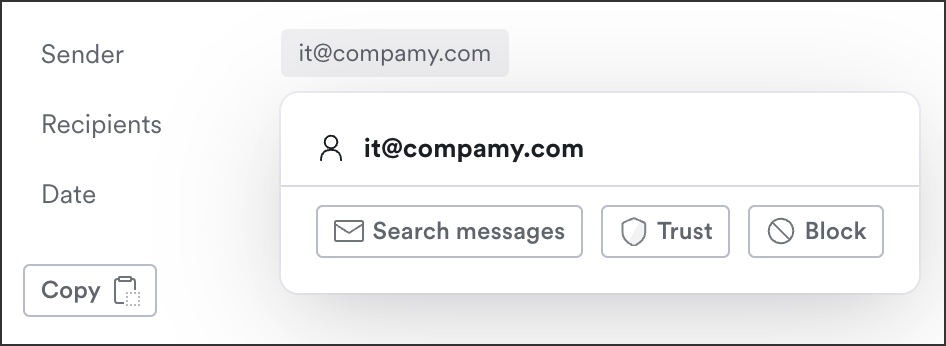
In the message details, click the Sender Address.

Click Trust.
Save the Trusted Entity, then edit the settings from the Trusted Entities Page. (Settings were updated in version 1.50 so the best place to update them currently is from the Trusted Entities page.)
Trusted Entity badge in sender reputation
When a message sender matches a configured trusted entity, the sender reputation section shows a Trusted Entity badge with a direct link to Trusted Entities in the issue details.
This makes manual trust decisions easier to spot during investigation.

Recommended Trusted Entities
Trusted Entity (TE) recommendations are automatically generated based on your organization’s recent email traffic (typically the last ~30 days). The system suggests external domains that frequently send legitimate, low-spam email and are not already trusted or recently dismissed.
Only the highest-priority domains are shown, while consumer or shared platforms (e.g., Gmail, Microsoft) are excluded by design. Recommendations update on a scheduled basis, and you can choose to accept (save the trusted entity) or dismiss them.
How to review and accept recommendations
From the left navigation, under Detections, expand Trusted Entities, then click Recommended.
From here, either use the quick action on the right to accept the recommendation with default settings, or click the row to review the entity and make changes. Then accept.

You can also bulk accept or dismiss entities. Choose the rows then from the bottom toolbar click Accept recommendation or Dismiss recommendation:

Manage Trusted Entities with the API and MCP
You can manage Trusted Entities in the Material app or programmatically. The Material API v1 and the Material MCP server let you list, create, update, delete, and bulk-manage trusted senders and domains, with a bulk endpoint that handles up to 200 entries in a single request.
Last updated
Was this helpful?