For the complete documentation index, see llms.txt. This page is also available as Markdown.

Sensitive Categories

Sensitive Categories classify content as sensitive based on various criteria. Material scans for content in your email or files like credit card numbers or encrypted attachments, and then categorizes them as sensitive so your organization can leverage this information to monitor and derive insights about your risk profile. With this information, you can make more informed decisions about how to manage your security posture.

Sensitive Categories are available for Advanced Packages or with the ATO (Account Take Over) Resilience add-on. Contact support to upgrade.

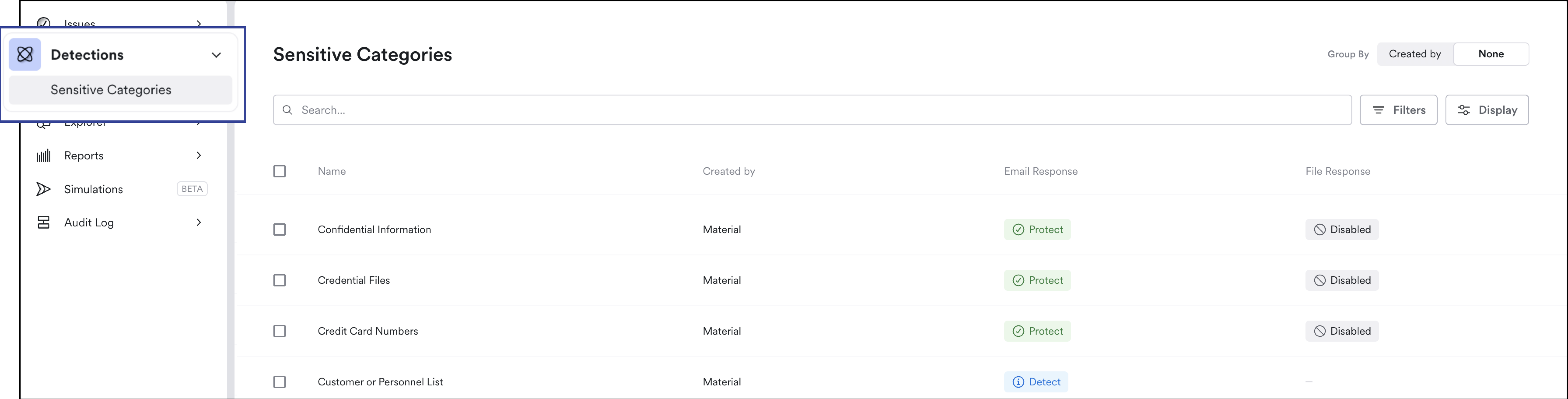
The Sensitive Categories page is in the Detections section of the left navigation. It displays all existing sensitive categories and their current response settings. Material default sensitive categories are available out of the box so you can get started right away. You can also create custom email sensitive categories (identified as created by Admin):

Sensitive Categories Page

Sensitive Categories vs. Detections

Detections create issues. Sensitive Categories classify data so you can leverage them in other ways later, such as in detections, but do not create issues themselves.

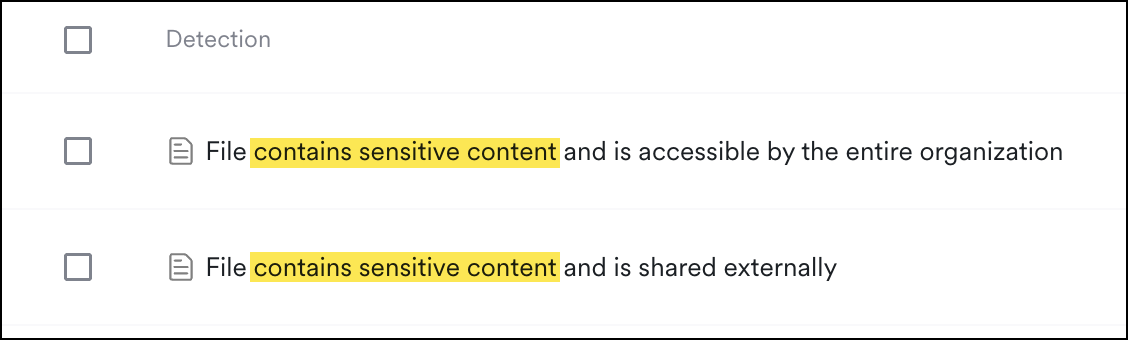
For example, the detection File contains sensitive content and is shared externally leverages sensitive content and the event - sharing externally - to create the full detection.


Configure Response

You can customize response settings to sensitive categories at the global or tenant level.

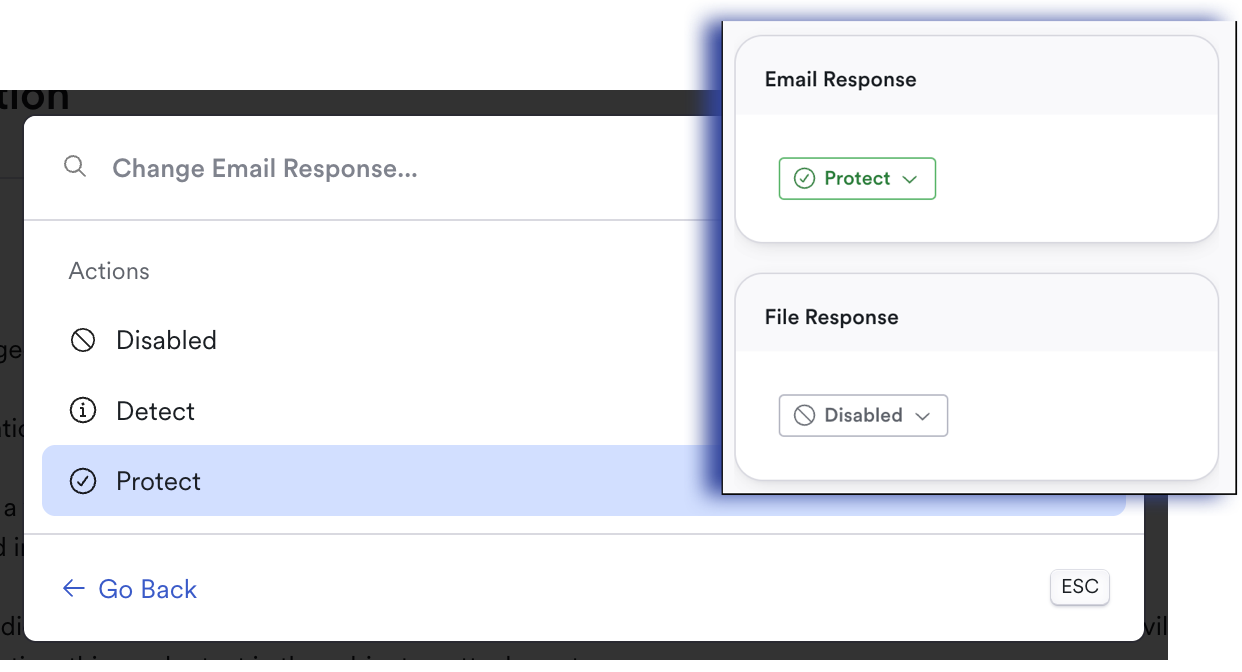
  • Email response settings for sensitive category matches include Protect, Detect only, or Disabled (described below) and can inherit from their global response.

  • File response settings include Detect or Disabled (described below)

To configure responses:

  1. Click on a Sensitive Category.

  2. From the Sensitive Category Detail View, click the Email Response or File Response drop down. (Depending on the sensitive category description, there may be only an Email or only a File Response available.)

  3. Select a response setting, then click Save:

Set a default response
  • Protect: Redact sensitive content in messages labeled with this sensitive category. This option is only available for email content. When you set a sensitive category to protect, it applies retroactively to all messages in that sensitive category.

  • Detect: Messages or Files matched will be categorized to that sensitive category. This option detects only to match the content to the sensitive category and does not include any redaction.

  • Disabled: Disables the sensitive category entirely. See below 🔽

Disable Sensitive Categories

The disabled action disables the sensitive category entirely. For files, this means the category.any operator in file search will update to exclude this sensitive category entirely.

  • If you know a sensitive category will never be relevant for your organization and will only introduce noise, we recommend you disable it at the beginning of your deployment — not later. Categorizing your sensitive content takes time, and to effectively leverage them for detections or reports you’ll want to categorize them along the way instead of trying to figure out the sensitive categorization suddenly.

  • For emails, if you want to avoid redacting messages then opt for the Detect response.

  • For files, we recommend leaving all the sensitive categories configured to Detect to use for analysis or in other detections in the future. If you disable a file sensitive category then later re-enable it, you'll have the option to re-sync to retroactively categorize any existing files.


Sensitive Category Descriptions

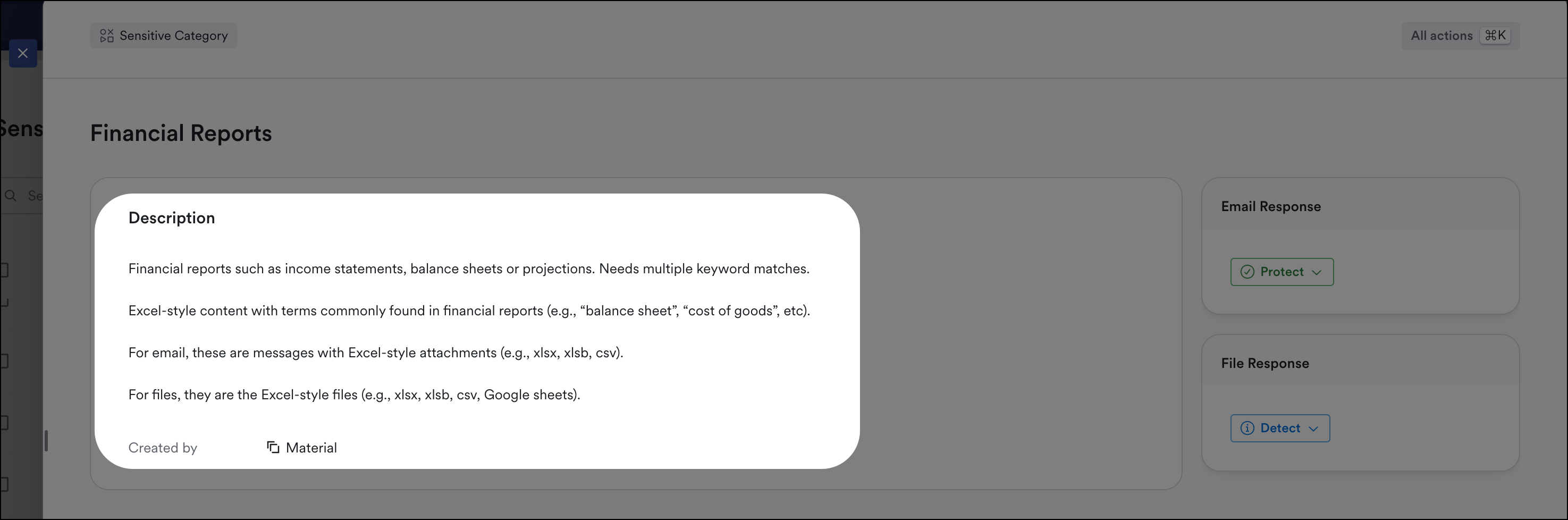
Sensitive category descriptions are located directly in the Sensitive Category detail view:

  1. From the left navigation, under Detections, click Sensitive Categories.

  2. Open a sensitive category to view the description.

Custom Email Sensitive Categories

Custom Email Sensitive Categories are available with Advanced packages. Learn more here.

Custom email sensitive categories use Material's search functionality to define matching criteria. Create custom email sensitive categories to detect sensitive content that is very unique to your organization. Note, Material Sensitive Categories are ready to use out of the box so there is likely a sensitive category that already meets your use case. Create custom email sensitive categories sparingly.

  1. Start with a Message Search. Searching helps validate your custom matching criteria by back testing against any synced messages.

  1. Once you're satisfied with your query, click Save As, then New Sensitive Category.

  2. Name your sensitive category. This name displays on the Sensitive Category page.

  3. Describe the query and intention for your sensitive category for future reference.

  4. The Matching Criteria field is pre-populated with your most recent query. You can continue to modify your query, and preview matching results:

Save a message search as a custom email sensitive category
  1. Optionally, set the response setting for this custom sensitive category. You can set this after you save also:

    Set the default protection response
  2. Click Save to create the sensitive category.


View Sensitive Categories in Issues

Issues created by Detections with contains sensitive content in their names can contain one or more sensitive category:

Detections involving Sensitive Content Categories

Default Locking Grace Period

The Default Locking Grace Period pertains to sensitive messages specifically. It sets the amount of time an unlocked sensitive message, for example an email with a credit card number, will remain in a user's inbox before it's locked again and requires authentication to unlock.

Set the Default Locking Grace Period at the Global level. Tenants inherit the Global setting unless you configure it otherwise.

To set grace periods, from the left navigation expand Email Redaction, expand Settings, then click Grace Periods.

There may be cases where a specific Sensitive Category requires a shorter or longer locking grace period. Set these in exceptions:

  • Message: set an exception if a message is in the inbox, unread, or sent.

  • Category: set exceptions based on specific Sensitive Categories, for example you might want to set Social Security Numbers to a shorter grace period than the default.

You can edit this Grace Period as needed. In general, we recommend you don't make exceptions at deployment time but rather update them as you get feedback after deployment.

Set Locking Grace Period Exceptions for Groups or Accounts

You can set Locking Retrieval Period Exceptions at the Group or Account level in the Explorer:

  1. From the left navigation, click Explorer.

  2. Click Groups or Accounts.

  3. Next to Protections, click the Edit icon.

  4. Click Sensitive Email Redaction.

  5. Inherit applies the default setting from above. Choose the option to set a custom or default, then make your changes and Save.

Note, configure Sensitive Category exceptions that apply to all users in the Default Locking Grace Period screen.

Learn more about Email Redaction grace periods here.


Email Redaction Reports

From the left navigation, expand Email Redaction, then expand Reports.

Use the Sensitive Content and Email Redaction reports to get a high level view of all the sensitive content detected over a period of time in your tenant, and any emails that were redacted and retrieved.

  • Use the tabs to view this data by email sensitive category or account to drill down further.

  • Use the drop downs to filter by email sensitive category

  • Hover over the bars to see counts for that time period or email sensitive category.

Sensitive Category Reports

Currently deploying?

Click here to return to the Configure Email Redaction guide.

Last updated

Was this helpful?