> For the complete documentation index, see [llms.txt](https://docs.material.security/llms.txt). Markdown versions of documentation pages are available by appending `.md` to page URLs; this page is available as [Markdown](https://docs.material.security/detections/detections-overview/custom-detections.md).
# Custom Detections
[Material Detections](/detections/detections-overview.md#overview) are designed and updated constantly to be effective in identifying threats. You can also define your own criteria using Custom Detections if there's a specific use case you want to detect that is not covered by the Material Detections.
You create and edit a custom detection in a single editor, where you set the matching criteria, choose the classification matches receive, and configure the response before you save.
## Create a Custom Detection
1. From the Detections page, click **Create Detection**.
2. Choose a detection type: **file** or **message**.
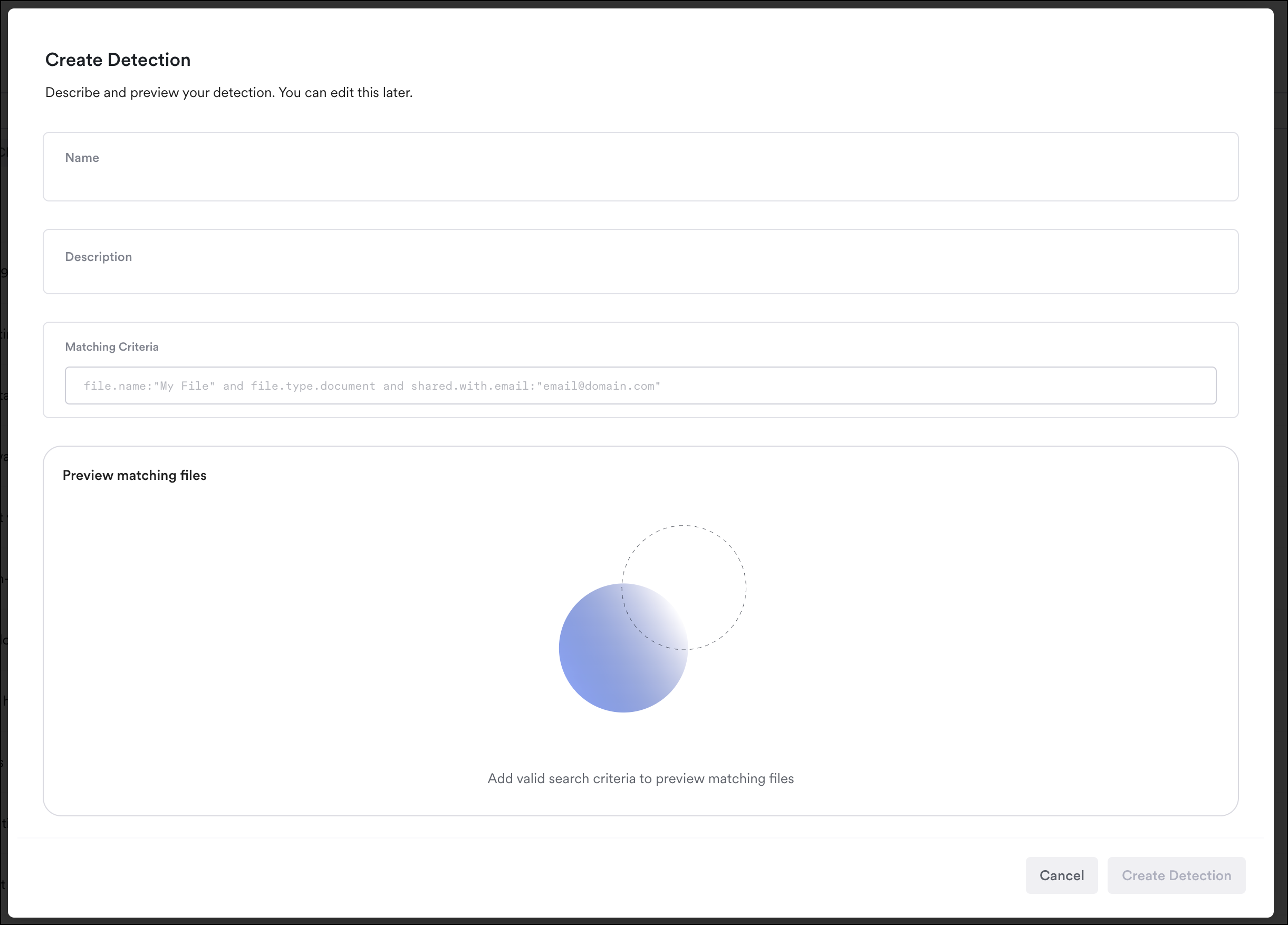
Custom Detection Screen
3. Complete the Matching Criteria with the logic you want this to detect.
4. Name and describe your detection. Consider aligning your naming structure with Material's (entity: issue, for example **Account** doesn't have MFA enabled).
5. For Message detections, choose the **classification** that matching messages or files receive: Safe, Malicious, Spam, or Unknown. Use Unknown to signify a message you want to review without asserting a particular verdict.
6. Configure the **response** for matches.
7. Preview matching files or messages.
8. Click **Create Detection** and the detection will appear in your detection list. Message detections are enabled by default; file detections must be explicitly enabled. The detection author appears in the [**Created By**](/detections/detections-overview.md#created-by) property.
9. Newly created message detections may take up to 5 minutes to take effect.
{% hint style="success" %}
You don't have to write the name and description by hand. Once your query is valid and has run, Material suggests both for you, and updates the suggestion if you change the query. This works for file and message detections alike. Material only fills in fields you've left empty, so anything you've already typed stays as you wrote it.
{% endhint %}
{% hint style="info" %}
**How do custom detections and Material detections overlap?**
It's possible to create a custom detection that uses the same criteria as a built-in Material Detection. We're constantly updating our Material Detections to account for new criteria so we don't publish a list of all of the detections you have out of the box.
Custom and Material detections operate independently from each other. However if your custom detection does overlap with a Material Detection, then the strictest set of remediations is applied to the suspicious messages.
{% endhint %}
### How overlapping detections are handled
If multiple detections match a message, only one issue is created, and the issue appears under only one Detection. In the issue you can see a list of all detections that matched.
The strictest set of remediations from all the detections that matched (regardless of whether they are Material Detections or Custom Detections) is applied to each messages.
An issue is created for each file detection that matches a file, even if there is more than one detection that matches.
### Edit a Custom Detection
Open the detection from the Detections page to edit it in the same editor used to create it. Make your changes, then save. Changes to message detections may take up to 5 minutes to take effect.
Detection detail view
### Archive a Custom Detection
From the Detections page, open the detection then click **Archive**. Archiving disables the detection, hides it from the list, and offers to update any open issues it created. To re-enable an archived detection, unarchive it first from the detection details view.
To view archived detections on the Detections page, deselect **Hide Archived** from the filter list.
{% hint style="warning" %}
Material monitors the number of matches in a Custom Detection. If there are too many matches over a short period of time, we'll automatically disable the detection.
A custom detection automatically disables if it meets all of these conditions:
* 100 issues or more that matched in the current hour
* A match ratio over 10%
* Both of the above are true for at least one of the two previous hours
For example, if the match rate is 15% with 200 issues matched in each hour for the current hour and previous hour, the detection disables.
{% endhint %}
{% hint style="success" %}
Did you navigate here from the deployment guide? [Click here to return.](/getting-started/deployment-guides/your-first-30-days/7-enable-file-security.md#create-custom-detections-if-necessary)
{% endhint %}
---
# Agent Instructions
This documentation is published with GitBook. GitBook is the documentation platform designed so that both humans and AI agents can read, navigate, and reason over technical content effectively. Learn more at gitbook.com.
## Querying This Documentation
If you need additional information that is not directly available in this page, you can query the documentation by asking a question.
Perform an HTTP GET request on the following URL with the `ask` and `goal` query parameters:
```
GET https://docs.material.security/detections/detections-overview/custom-detections.md?ask=&goal=
```
`ask` is the immediate question: it should be specific, self-contained, and written in natural language.
`goal` is what the user is ultimately trying to achieve, the reason they need the answer. Sharing it helps GitBook give you a better, more relevant answer. A goal is most helpful when it describes the outcome the user wants rather than restating the question. For example, with `ask=how do I create an API token`, a goal like `automate deployments from our CI pipeline` lets GitBook tailor the answer to that use case.
The response will contain a direct answer to the question and relevant excerpts and sources from the documentation.
Use this mechanism when the answer is not explicitly present in the current page, you need clarification or additional context, or you want to retrieve related documentation sections.