For the complete documentation index, see llms.txt. This page is also available as Markdown.

Detections Overview

Overview

A Detection is a single rule designed to identify important events or conditions within your Google Workspace or Microsoft 365 environment, which are then surfaced as Issues.

An Issue lets you investigate, categorize, and tailor a response including automatic remediations and responses (more on default response settings here).

Each detection shares these details:

Detection Details
  • A unique name, separate from the issue name

  • A description of the detection's logic and the value it adds to your security strategy

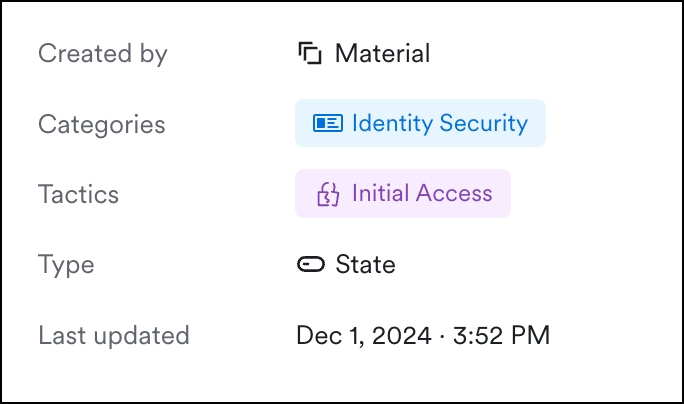
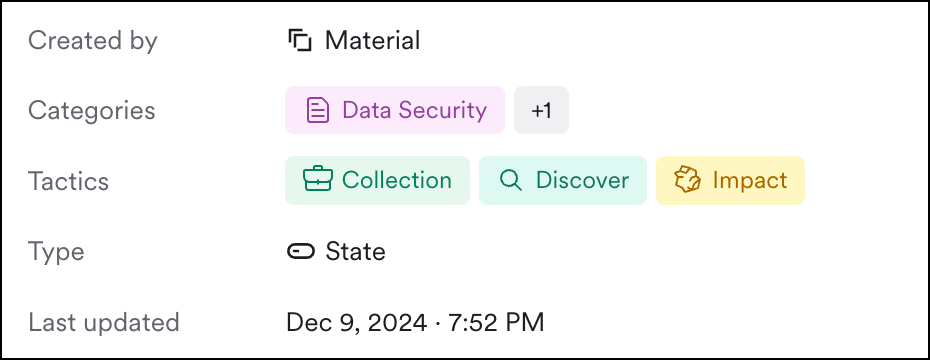
Detection Details
  • Created by: either Material or your own custom detection

  • One or more categories the detection belongs to

  • Tactics this detection looks for that lead to issue creation, based on the MITRE ATT&CK Matrix

  • Type: either state or event-based

  • Last updated: either the logic, severity, remediations, or status

  • Severity: carries down to any issues created by the detection. You can change the severity here at the detection level. When you modify severity, it only affects issues created going forward.

  • Status: Toggling stops issue creation from this detection. Archiving is an option for custom detections and removes the detection from the list.

  • Response: Your default, auto-response for any issue created by this detection. You can also apply a unique response to a specific issue.

  • Prevent: Links out to third party settings you can consider updating to prevent future issues of this type.

  • Active Issues: Any issues currently unresolved

When are new detections added or current detections updated?

We add new detections and updates continuously to adapt to evolving cyber threats and reduce false positives. Noteworthy detection enhancements are announced in What's New.

What can I customize?

The Detections Page and Detection Detail View

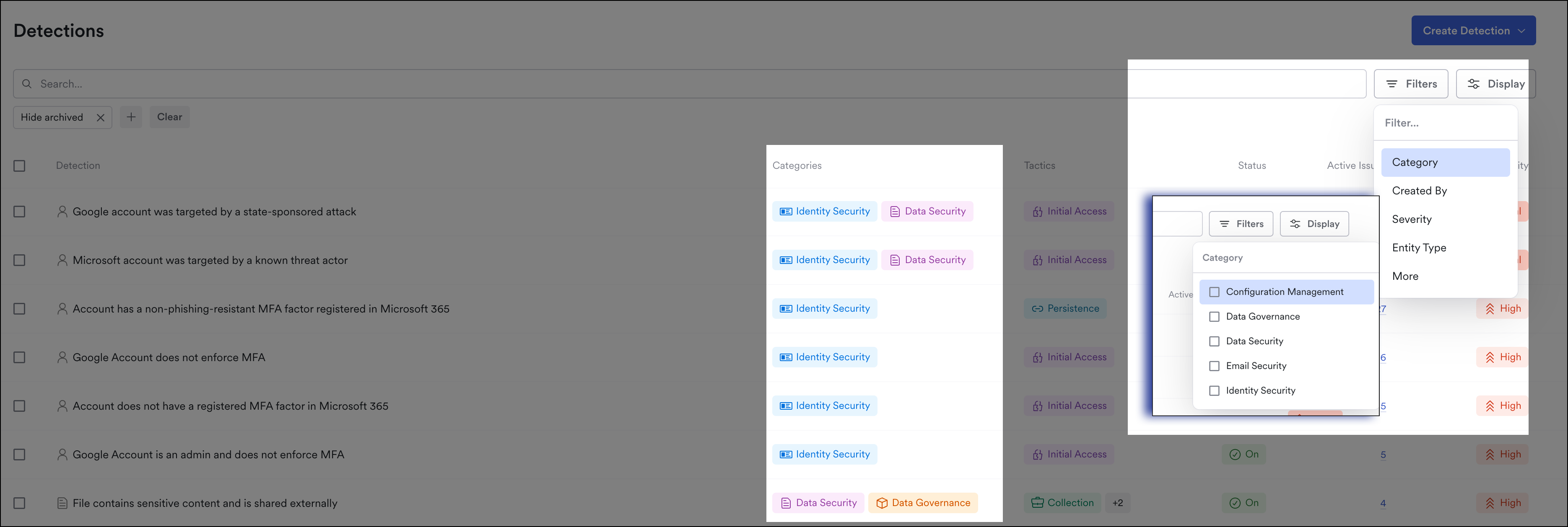
The Detections page provides a comprehensive view of all detections in Material, regardless of any active issues currently linked to them. Here, you'll find details like names, categories, statuses, active issues, and severity for each detection. It's an essential tool for monitoring potential threats and attacks across your workspaces.

From here you can also search for detections and apply filters based on various criteria.

Detections page and Detection detail view

The Detections list filters by the selected tenant's email provider:

  • Google Workspace hides Microsoft 365-only detections.

  • Microsoft 365 hides Google Workspace-only detections.

  • Global shows all detections.

Detection detail view

From the Detections page, click a Detection name to open the Detection detail view.

This page details the logic used for detection, provides a summary of issues identified and resolved, and includes a list of newly created issues as a result of this specific detection.

When a message matches more than one detection, the Detection detail view also surfaces the primary detection's issues as related issues, so you can see the issues another detection created for the same message.

Detection detail view showing related issues from another detection
Detection Detail View
Configure detection defaults

From this view, you can update the severity of issues generated by this detection, turn the detection on or off, and add response actions that are assigned and executed, if available, when an issue is created. At the top of the page, view the detection's properties including the author, relevant categories, type (state or event), and the last update details for logic, severity, remediations, and status.

Too many or missing columns? Click to choose your display preferences.

On the Detections page and the Detection detail view, there are several key fields that can help you prioritize your triage and investigation process:

Name and Description

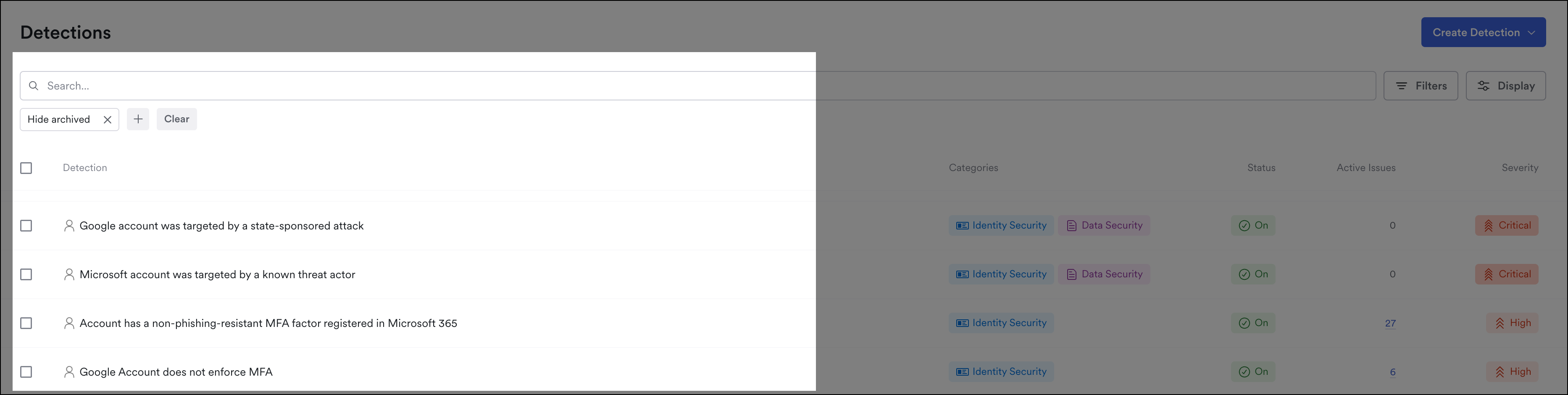
Search by any keyword in the detection title to narrow your results (for example, MFA lists all detections with MFA in their name). Each Material detection is uniquely named and also referenced in issues created by the detection.

Note, the search field uses and logic, not or. The result list will show detections matching all specified criteria. If no results appear, consider clearing filters and applying them one by one.
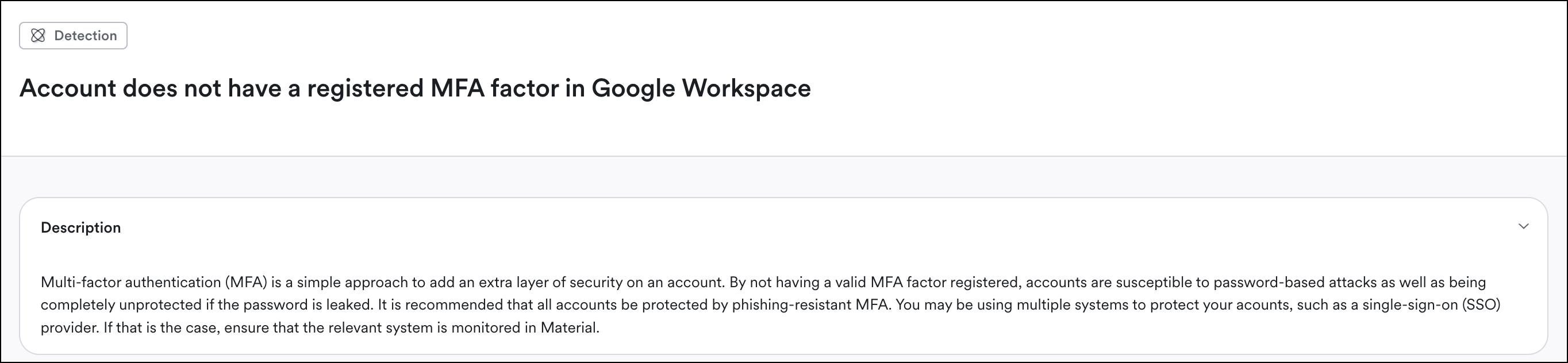
Material Detections are described in the Detection detail view:

Some of our detections originate in Google or Microsoft alerts, and this is noted in the description. Detailed descriptions for Google detections are located in their documentation.


Properties

Detection properties are defined on the Detection detail view, and are available as filters on the Detections page to help you focus your triage strategy.

Created By

Detections are either available out of the box (created by Material), or custom created by one of your admins.

Categories

Material's detections are classified into five categories:

  • Configuration Management

  • Data Governance

  • Data Security

  • Email Security

  • Identity Security

Each category covers activity within one or more applications in your cloud office.

On the Detections page, hover over the icons to see the names for the categor(ies) the detection belongs to, or filter the list to one or more categories.

Tactics

Each detection considers a number of tactics, to pinpoint attacks as precisely as possible. These tactics are derived from the MITRE ATT&CK Matrix. (If you don't see the tactic column Click to choose your display preferences.)

Type

Each detection is either state-based or event-based.

  • State-based: identifies potential issues that could lead to future threats. These are ongoing and will only be resolved automatically when a future Material scan shows the risk no longer exists. You can always update the status to 'Ignored'.

  • Event-based: identifies a suspicious event that requires further investigation. These detections occur at specific points in time and can only be resolved manually once the investigation is complete and the threat is resolved.

Last Updated

Refers to either the logic, severity, remediations, or status.

Entity Type

Each detection focuses on one entity type: account, file, group, message, or tenant, identified by the first word of the detection title. You can also filter the detection list by Entity Type.
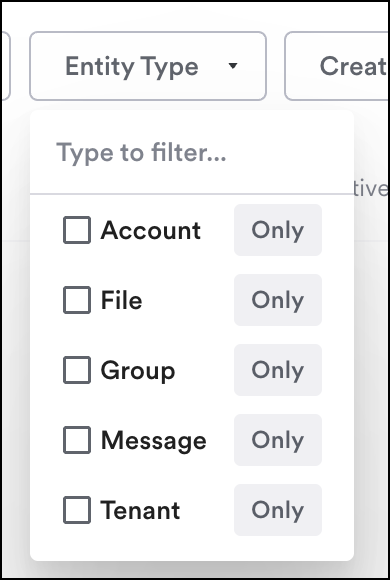
Detections page, filter by entity
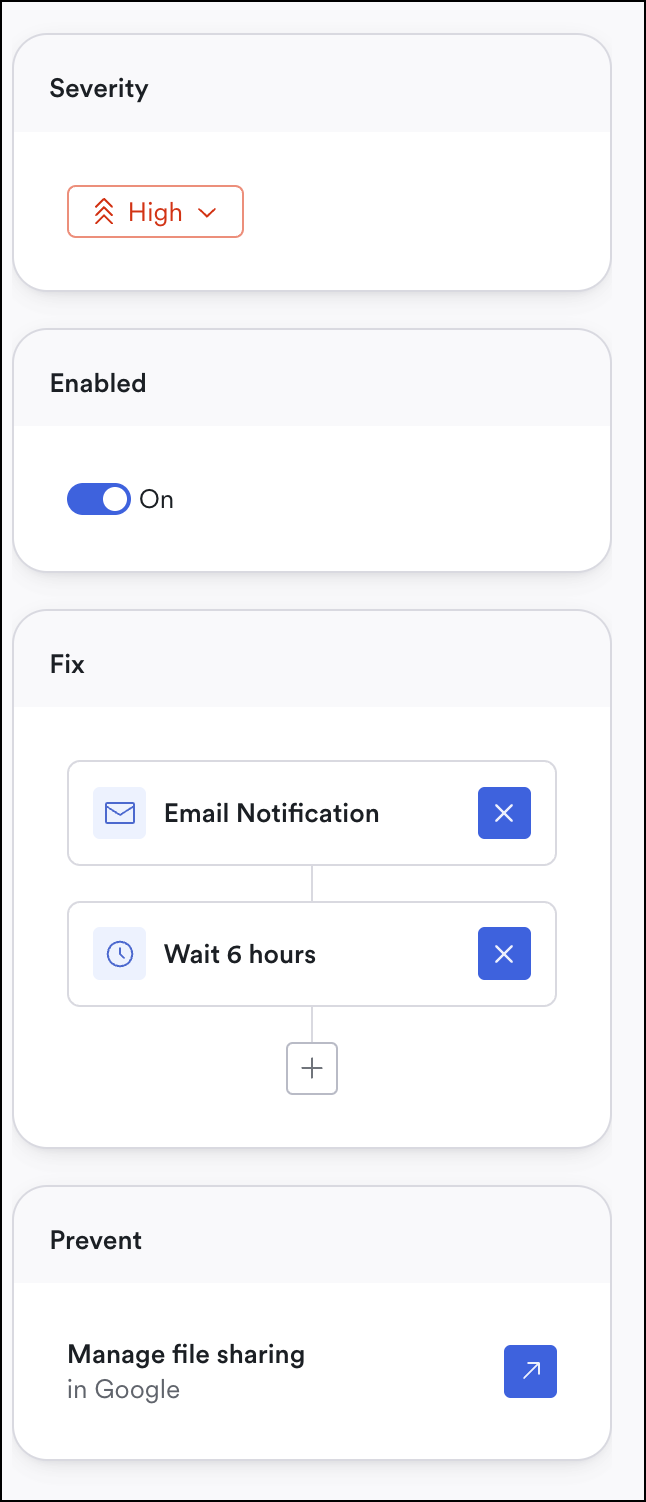
Configure Severity, Status, and Default Remediation

Detection details view

Severity

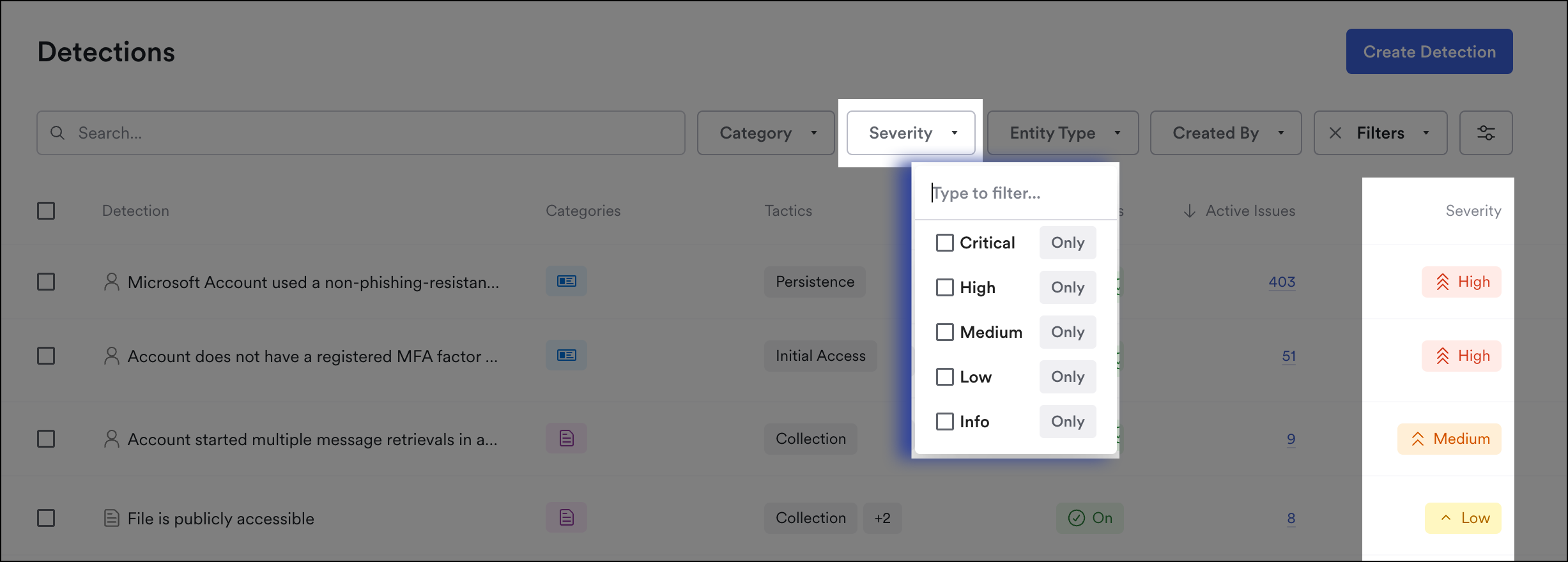
Detections page filters

We assign a default severity for each detection based on the potential operational, financial, or reputational impact the activity has on an organization. Five severities exist:

  1. Critical: Immediate action is required. The potential scope of the activity is broad.

  2. High: Immediate action is required.

  3. Medium: Action is required, but the situation isn’t serious at the time of alert creation.

  4. Low: It’s up to investigator discretion whether action is necessary.

  5. Informational: No action necessary for issues generated by this detection.

Use the Severity drop down to filter for the list by one or more severities.

To change the default severity level for the detection (and any issues created after your change), click the ellipsis at the end of the row or edit it in the Detection detail view.

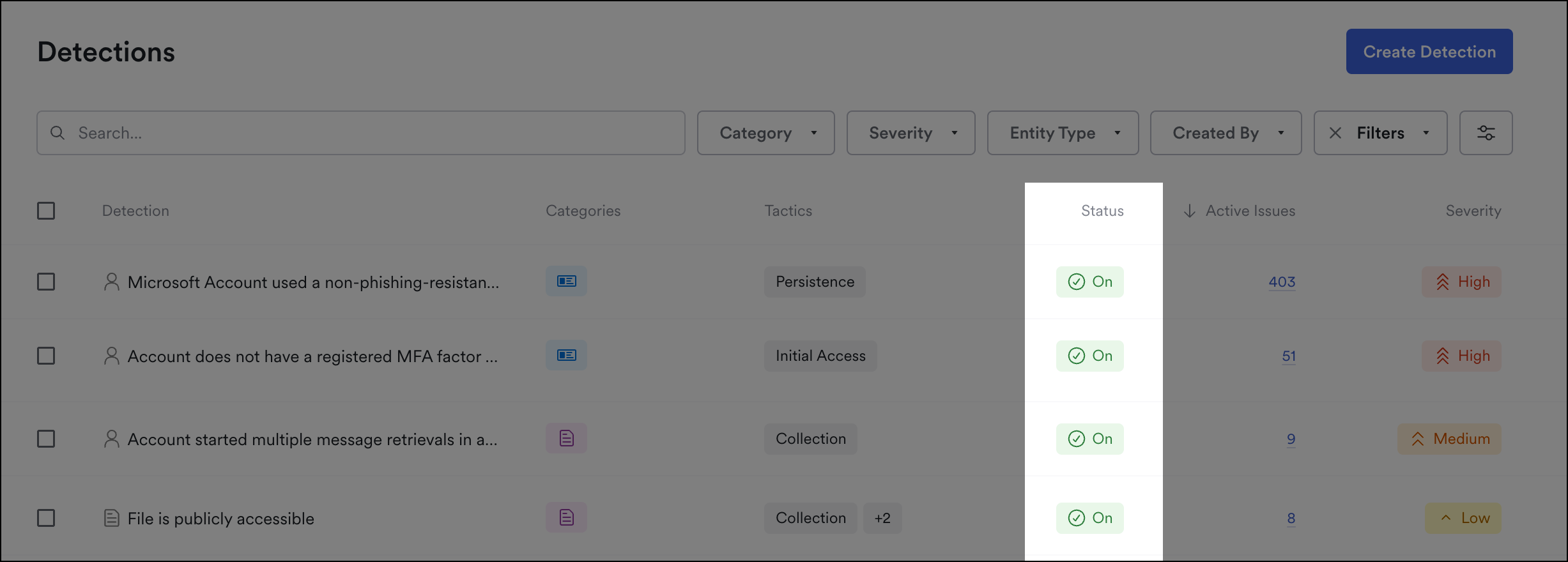
Status

A detection can have one of three statuses, meaning it is:

  • On: actively creating issues

  • Off: disabled and not actively creating issues

  • Archived: Archiving is for custom detections only and removes the detection from the list. Unarchive in the detection details if needed.

Disable a detection

To disable, click the ellipsis at the end of the row then choose disable detection. You can also toggle the detection on or off from the Detection detail view.

Material then asks what to do with the issues the detection already created:

  • Leave as-is: the existing issues keep their current status

  • Mark as ignored: the open issues are ignored

  • Mark as resolved: the open issues are resolved

Leave as-is is selected by default, and Material works through a large backlog in batches, so the change finishes even when the detection created a lot of issues. Archiving a custom detection asks the same question.

Respond

When you set a response at the detection level, any issue created by this detection will follow the same workflow unless you change the response at the issue level.

The response workflow begins when the event or state is triggered (and subsequently creates an issue). If you edit the default response in the detection, it applies to any issues going forward (but doesn't apply retroactively).

On the file detections list, the Response column shows whether each detection has a response configured, with a badge for each action it runs: Email notification, Update permissions, or Update labels. To narrow the list, use the Response filter and choose Has response or No response.

Prevent

In many cases it's valuable to get ahead of issue creation and stop potential issues at the source (outside of Material). If there are relevant actions you can take in Google or Microsoft we'll place the links here.

Other Detection Details

Active Issues

Active issues that aren't closed.

To view only the detections with active issues, click the Filters drop-down.

Detections page filters

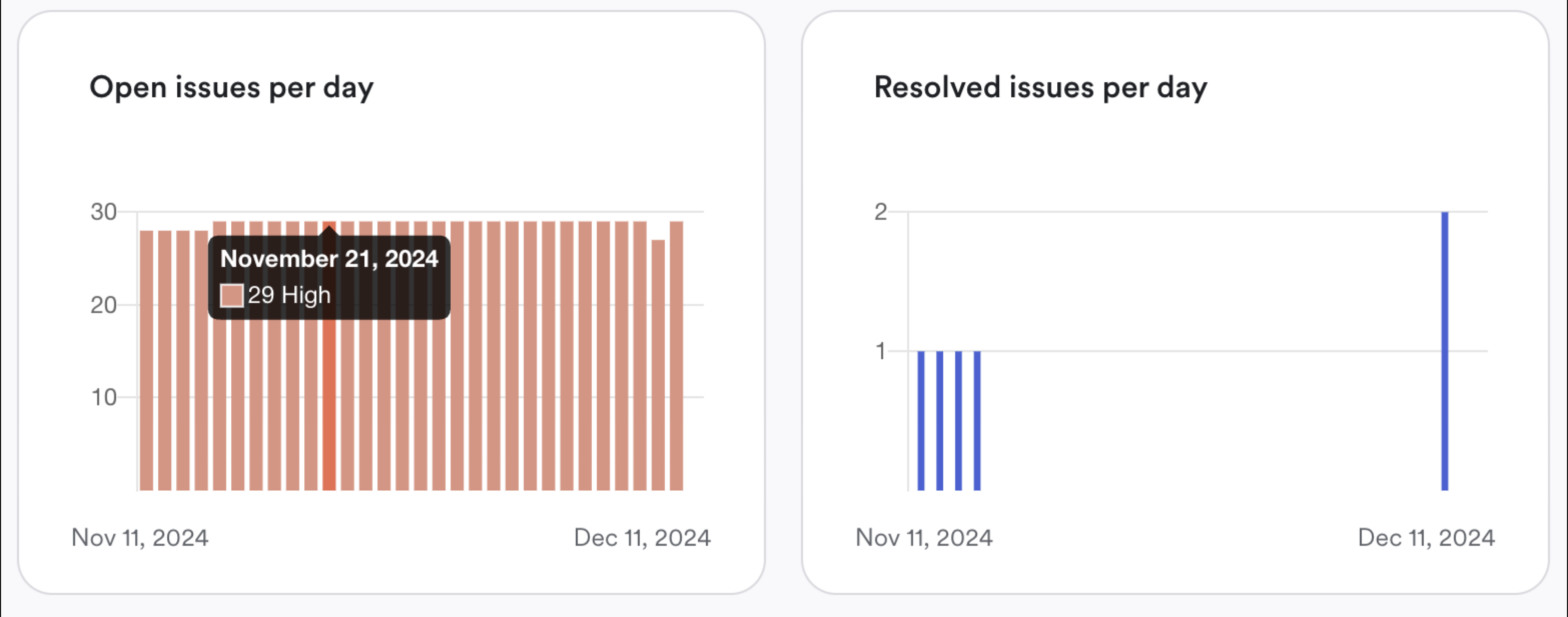
Open and Resolved Issue Counts

On the Detection detail view, Open and Resolved issues per day graphs display showing issues over time. Hover over the graph to see the count by day.

Detection Details View

Up Next

To investigate issues related to a specific detection, either click the active issue count from the Detections page or one of the issues in the Detection detail view.

Learn more about the All Issues page.

Last updated

Was this helpful?